
Mastering Power Automate: Fetching the First Row from a Dataverse Table — 2026 Edition
In 2026, Power Automate is no longer just a workflow tool for tech teams — it’s the automation backbone for over 30 million monthly active users across the Microsoft Power Platform (Microsoft FY2024 Earnings). With Dataverse powering more than 6,000 enterprise applications worldwide, knowing how to query it efficiently isn’t optional — it’s a professional skill. And one of the most common (and most mishandled) tasks? Fetching the first row from a Dataverse table. This guide cuts through the noise, walks you through every step, and adds the 2026 updates you need to know.
Table of Contents
Table of Contents
Table of Contents
Introduction to Dataverse and Power Automate (2026 Context)
Before diving into the how-to, let’s quickly ground ourselves in what these tools are and why their combination is so powerful in 2026.
Microsoft Dataverse is a cloud-based, secure data storage and management platform that sits at the heart of the Power Platform ecosystem. Think of it as the intelligent database layer that connects Power Apps, Power Automate, Power BI, and Copilot Studio. It handles everything from simple contact lists to complex relational data models across enterprise environments.
Power Automate is Microsoft’s cloud-based workflow automation service. It connects hundreds of apps and services — from Microsoft 365 and Teams to third-party tools like Salesforce and ServiceNow — and lets you automate repetitive tasks without writing traditional code. When you pair Power Automate’s automation capabilities with Dataverse’s structured data management, you get a combination that can handle real business logic at enterprise scale.
What Changed for 2026: Microsoft’s Copilot integration within Power Automate has matured significantly. As of the 2024 Release Wave 2 (Microsoft Power Platform Release Plan), Copilot can now suggest complete flow steps — including pre-configured List rows actions with OData parameters — based on a plain-English description of what you want to do. This means less manual expression writing and faster flow authoring for makers at all skill levels.
Why Fetching the First Row Matters More Than Ever
At first glance, “get the first row” sounds like a simple task. But in enterprise environments with large Dataverse tables, how you fetch that row has real consequences for performance, governance, and cost.
Here’s why this technique matters:
- Initialization logic: Many automation workflows need to start with the most recent or most relevant record — for example, the latest submitted form, the newest customer inquiry, or the most recently updated order.
- Conditional branching: You might need to evaluate a single record’s field values before deciding what the rest of your flow should do.
- Approval triggers: A common enterprise scenario involves triggering an approval workflow the moment a new record appears at the top of a sorted table.
- Preview and validation: Before processing an entire dataset, checking the first row lets you validate data structure and catch errors early.
- Performance at scale: Dataverse enforces a default page size of 5,000 rows per request (Microsoft Dataverse API Limits). If your flow fetches all rows when it only needs one, you’re consuming unnecessary API calls, increasing run time, and burning through your Power Platform request quota. Using
$top=1can reduce your payload size by up to 99.98% in large tables — a number that matters enormously at enterprise scale.
The bottom line: fetching the first row correctly is a small technique with outsized impact on flow performance and platform governance.
Understanding the ‘List Rows’ Action and OData Parameters
The core tool for fetching rows from Dataverse in Power Automate is the List rows action inside the Microsoft Dataverse connector. It’s straightforward on the surface, but its real power lies in the OData query parameters available in the Advanced options section.
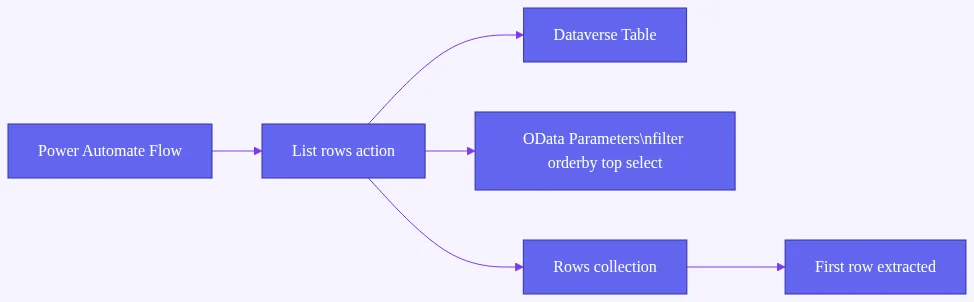
According to Microsoft Learn’s official documentation, the List rows action supports the following key OData parameters:
For our “fetch the first row” goal, the two most important parameters are $top and $orderby.
$top=1tells Dataverse: “Give me only one row.”$orderbytells Dataverse: “Sort the results this way before applying$top.”
Used together, these two parameters let you reliably retrieve the single most relevant record — whether that’s the newest, the oldest, the highest-value, or the most recently modified.
What Changed for 2026: In earlier versions of Power Automate, the Top Count field in the List rows action was a simple integer input. With recent Power Platform updates, Copilot assistance is now available inline — when you describe your intent in natural language (e.g., “get the most recently created contact”), Copilot can pre-populate both the Row Count and Sort By fields automatically, reducing manual OData expression authoring. This feature was introduced as part of the Copilot-assisted flow authoring capabilities in the 2024 Release Wave 2 plan.
Step-by-Step Guide: Fetching the First Row from a Dataverse Table in Power Automate
Let’s walk through the complete process from creating your flow to extracting and using the data from the first row.
Step 1: Create Your Flow
Start by navigating to Power Automate and creating a new flow.
- Click Create in the left navigation panel.
- Choose your flow type based on your use case: – Automated cloud flow — triggers automatically based on an event (e.g., a new record is created in Dataverse) – Instant cloud flow — triggered manually, useful for testing – Scheduled cloud flow — runs at defined intervals, useful for daily data checks
- Name your flow and configure your trigger.
For this walkthrough, an Instant cloud flow with a manual trigger works well for learning and testing purposes.
Step 2: Add the Dataverse ‘List Rows’ Action
Once your trigger is set:
- Click + New step.
- In the search box, type Dataverse and select the Microsoft Dataverse connector.
- From the list of actions, choose List rows.
This action connects directly to your Dataverse environment and retrieves records from the table you specify.
Step 3: Configure the ‘List Rows’ Action
With the List rows action added:
- Environment: Select the environment that contains your Dataverse table. If you’re working in the default environment, this may already be pre-selected.
- Table Name: Choose the Dataverse table you want to query. For example, Contacts, Accounts, Orders, or any custom table you’ve created.
At this point, without any additional configuration, the action would return up to 5,000 rows — the Dataverse default page size. That’s rarely what you want.
Step 4: Apply the Top Count (Row Limit)
This is the critical step for fetching only the first row.
- Click Show advanced options (or Show all depending on your interface version) at the bottom of the List rows action card.
- Locate the Row Count field (previously labeled “Top Count” in earlier versions).
- Enter 1 in this field.
This maps directly to the OData $top=1 parameter and instructs Dataverse to return only a single record. According to the Dataverse Web API documentation, $top is a standard OData system query option that limits the number of records returned in a response.
Why not just let it return all rows and take the first one later? Because that approach fetches potentially thousands of records across multiple API calls, consumes your Power Platform request quota, increases flow run time, and can trigger Dataverse throttling in high-usage environments. Using $top=1 is always the right approach.
Step 5: Sort Your Results with ‘Order By’
Setting $top=1 alone returns the first row in the table’s default storage order — which may not be what you need. To reliably get the most recently created record, the highest-value record, or any other meaningful “first,” you must combine $top=1 with an $orderby parameter.
In the Advanced options of the List rows action:
- Find the Order By field.
- Enter your sort expression using the Dataverse column’s logical name (not the display name).
Common examples:
- Most recently created record:
createdon desc - Most recently modified record:
modifiedon desc - Alphabetically first contact by last name:
lastname asc - Highest revenue account:
revenue desc
The logical names of columns can be found in the Power Apps maker portal under Tables > [Your Table] > Columns, where each column shows its logical name alongside its display name.
Pro Tip: You can sort by multiple columns by separating expressions with a comma:
createdon desc, lastname asc. Dataverse will apply the sort criteria in the order listed.
Step 6: Add Optional Filtering with ‘Filter Rows’
If you only want the first row that meets specific conditions — for example, the most recent active contact, or the latest pending order — combine $orderby with a $filter expression.
In the Filter Rows field of the List rows advanced options, enter an OData filter expression:
- First active contact created most recently:
statecode eq 0(withcreatedon descin the Order By field) - First order with status “Pending”:
statuscode eq 1
OData filter syntax for Dataverse uses logical names and standard comparison operators (eq, ne, gt, lt, ge, le). For a complete syntax reference, see the Microsoft Learn OData query documentation.
Step 7: Extract Data from the First Row Using the first() Function
After the List rows action runs with $top=1, the output is still technically an array — it’s a collection containing one item. To work with the data from that single record in subsequent steps, you need to extract it from the array.
Add a new step after List rows:
- Click + New step.
- Search for and select the Compose action (found under Data Operation).
- In the Inputs field, click into the expression editor (the fx button) and enter:
first(body('List_Rows')?['value'])
Note: Replace
List_Rowswith the actual internal name of your List rows action step. If you renamed the step, use that name with underscores replacing spaces.
This expression uses Power Automate’s built-in first() function to pull the first (and in this case, only) item from the array returned by the List rows action.
To access a specific column from the first row, extend the expression:
first(body('List_Rows')?['value'])?['columnlogicalname']
For example, to get the email address of the first contact returned:
first(body('List_Rows')?['value'])?['emailaddress1']
Or to get the account name:
first(body('List_Rows')?['value'])?['name']
This approach lets you feed specific field values into subsequent flow actions — sending an email, updating another record, posting to Teams, or triggering an approval.
Do You Still Need an ‘Apply to Each’ Loop?
This is one of the most common questions from makers who are new to this technique: If List rows returns an array, do I need an Apply to each loop to process the data?
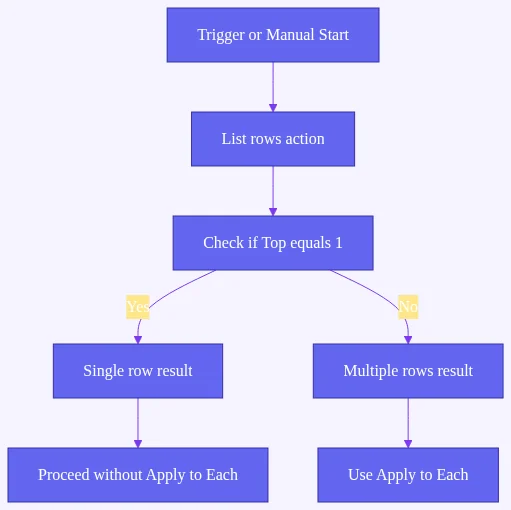
The short answer: No — and you should actively avoid it.
When you use $top=1 and extract the data with first(), you’re working with a single object, not a collection. Adding an Apply to each loop is unnecessary and adds processing overhead to your flow.
However, Power Automate sometimes automatically wraps actions in an Apply to each loop when it detects that the output of a previous step is an array. This is a known behavior in the designer. To avoid this:
- Use the
first()expression in a Compose action before referencing the data in subsequent steps. - Reference the Outputs of the Compose action in later steps — Power Automate will recognize this as a single object, not an array, and won’t force an Apply to each.
This technique is a significant flow optimization. Removing unnecessary loops reduces flow complexity, improves run time, and makes your flows easier to maintain.
‘Get a Row by ID’ vs. ‘List Rows’ with $top=1 — Which Should You Use?
Power Automate offers two primary ways to retrieve a single record from Dataverse: the Get a row by ID action and the List rows action with $top=1. Understanding when to use each is important.
Get a Row by ID
- Use when: You already know the unique identifier (GUID) of the record you want.
- How it works: Directly retrieves a single record using its primary key. No filtering or sorting required.
- Performance: Highly efficient — a direct lookup by primary key is the fastest possible query.
- Limitation: You must have the row ID available. This is common in update or notification scenarios where the ID was passed from a trigger.
List Rows with $top=1
- Use when: You don’t know the specific record ID, but you know the criteria for finding the right record (e.g., the most recent, the highest value, the first alphabetically).
- How it works: Queries the table with filter and sort parameters, returns the top matching record.
- Performance: Efficient when combined with
$top=1and proper$orderby— far better than fetching all rows. Still slightly less direct than a primary key lookup. - Flexibility: Much more flexible — you can combine filtering, sorting, and column selection to find exactly the record you need.
Rule of thumb: If you have the ID, use Get a row by ID. If you’re searching for a record based on conditions or sort order, use List rows with $top=1.
Real-World Scenario: Triggering an Approval for the Latest Submitted Record
Here’s a practical 2026 scenario that brings everything together.
Business Context: Your team uses a custom Dataverse table called Project Requests to submit new project proposals. Every time a new request is submitted, you want to automatically trigger an approval workflow using the most recently created record.
Flow Design:
- Trigger: Automated cloud flow — When a row is added (Dataverse) on the Project Requests table. This gives you the row ID of the new record directly.
- Action 1 — Get a row by ID: Use the row ID from the trigger to fetch the full record details.
- Action 2 — Condition: Check if the request’s Budget column exceeds a threshold (e.g., 50,000). If yes, route to senior approval. If no, route to standard approval.
- Action 3 — Start and wait for an approval: Use the retrieved row data (project name, requester, budget, description) to populate the approval request.
- Action 4 — Update row: Based on the approval outcome, update the Status column of the Project Request record in Dataverse.
Alternative approach using List rows: If your trigger is a scheduled flow that runs every morning to process overnight submissions, you would use List rows with $top=1, createdon desc in Order By, and a filter for records created in the last 24 hours — giving you the most recent overnight submission to process first.
This kind of pattern — combining Dataverse queries with approval workflows — is one of the most common enterprise Power Automate use cases, and getting the row-fetch logic right is what makes it reliable.
Performance and Governance: Why $top=1 Matters at Enterprise Scale
For individual makers building personal productivity flows, the difference between fetching 1 row and 5,000 rows might seem trivial. At enterprise scale, it’s anything but.
Microsoft’s Power Platform enforces API request limits based on your licensing tier (Microsoft Dataverse API Limits). Every action in a cloud flow that reads or writes data consumes API requests. When flows run thousands of times per day across an organization, inefficient query patterns — like fetching full table contents when only one row is needed — can:
- Exhaust daily API quotas, causing flows to fail or throttle
- Increase flow run duration, creating bottlenecks in time-sensitive processes
- Trigger Dataverse service protection limits, which are designed to maintain platform performance for all users in a tenant
- Inflate Power Platform licensing costs when organizations need to purchase additional API capacity
Using $top=1 alongside $orderby and $filter is a governance best practice, not just a performance optimization. Power Platform Center of Excellence (CoE) teams increasingly audit flows for inefficient query patterns as part of their platform governance programs.
What Changed for 2026: With the growth of Copilot-assisted flow authoring, Microsoft has built efficiency recommendations directly into the Power Automate designer. When Copilot detects that a List rows action is missing a Row Count limit, it now surfaces a suggestion to add
$topto avoid unbounded queries. This proactive guidance helps makers build efficient flows from the start, rather than discovering performance issues after deployment.
2026 Update: Copilot-Assisted Flow Authoring for Dataverse Queries
One of the most significant changes to the Power Automate experience in recent release waves is the deep integration of Copilot into the flow authoring canvas.
As documented in the Microsoft Power Platform 2024 Release Wave 2 plan, Copilot-assisted authoring now supports:
- Natural language flow creation: Describe what you want your flow to do in plain English, and Copilot generates a draft flow with suggested actions and configurations.
- OData expression assistance: When working with the List rows action, Copilot can suggest
$filter,$orderby, and$topexpressions based on your description of the data you need. - Error explanation and fix suggestions: When a flow run fails, Copilot can explain the error in plain language and suggest corrective actions — including fixes for malformed OData expressions.
- Flow optimization suggestions: Copilot can identify redundant loops, missing row limits, and other inefficiencies and suggest improvements.
What this means for makers in 2026: The barrier to writing correct OData queries has dropped considerably. Even makers with no prior experience with OData syntax can now produce well-formed List rows configurations by describing their intent. That said, understanding why the expressions work — as covered in this guide — remains essential for troubleshooting, customizing, and governing flows at scale.
Copilot is a powerful accelerator, but it works best when the maker understands the underlying concepts well enough to validate and refine its suggestions.
Frequently Asked Questions (FAQs)
How do I get the first row of a Dataverse table in Power Automate?
Use the List rows action from the Microsoft Dataverse connector. In the Advanced options, set the Row Count field to 1. To ensure you get the most relevant “first” record (rather than a random one), also set the Order By field to sort by a meaningful column — for example, createdon desc to get the most recently created record.
Do I still need an ‘Apply to each’ loop after using List rows with $top=1?
No. When you use $top=1 and extract the record with the first() expression in a Compose action, you’re working with a single object — not an array. An Apply to each loop is unnecessary and adds unwanted overhead. Use first(body('List_Rows')?['value']) to extract the single record and reference the Compose output in subsequent steps.
What is the correct expression to get the first row from a Dataverse List rows action?
Use the following expression in a Compose action or in the dynamic content expression editor:
first(body('List_Rows')?['value'])
To access a specific column from that row, append the column’s logical name:
first(body('List_Rows')?['value'])?['emailaddress1']
Replace List_Rows with the internal name of your List rows action step, and emailaddress1 with the logical name of the column you need.
What is the difference between ‘Get a row by ID’ and ‘List rows’ with $top=1?
Get a row by ID retrieves a specific record using its unique GUID identifier — use this when you already have the record ID. List rows with $top=1 searches for a record based on filter and sort criteria — use this when you need to find a record dynamically (e.g., the most recently created, the highest value, or the first matching a condition). Both are efficient; the right choice depends on whether you have the ID available.
How do I filter and sort Dataverse rows to always fetch the most recently created record?
In the List rows action’s Advanced options:
– Set Row Count to 1
– Set Order By to createdon desc
This combination sorts all records by creation date in descending order and returns only the top result — which is always the most recently created record in the table.
What happens if the List rows action returns zero records?
If no records match your filter criteria, the List rows action returns an empty array. Using first() on an empty array will cause your flow to fail with an expression error. To handle this gracefully, add a Condition step after List rows that checks whether the value array is empty using the expression empty(body('List_Rows')?['value']). If true, route the flow to an appropriate error-handling branch rather than proceeding with data extraction.
Conclusion
Fetching the first row from a Dataverse table in Power Automate is a foundational skill that pays dividends across countless automation scenarios — from approval workflows and data validation to enterprise governance and performance optimization. By combining the List rows action with $top=1, a well-chosen $orderby expression, and the first() function, you can retrieve exactly the record you need without unnecessary API overhead.
As Power Automate continues to evolve with Copilot-assisted authoring and smarter query tooling in 2026, the underlying principles covered in this guide remain your most reliable foundation. Master the concepts, and you’ll be able to validate, customize, and troubleshoot whatever the platform generates.
Ready to take the next step? Try building a scheduled flow that fetches the latest Dataverse record each morning and sends a summary notification to your team — it’s a practical project that puts everything in this guide to work.
#MSFTAdvocate #AbhishekDhoriya #LearnWithAbhishekDhoriya #DynamixAcademy
References & Read More
Related Wealth Stack guides:
External sources:
5 thoughts on “Mastering Power Automate: Fetching the First Row from a Dataverse Table in Power Automate Simplified”