If you’ve been building canvas apps for any length of time, you already know that displaying data cleanly is half the battle. The modern table control PowerApps introduced as part of the Power Platform’s push toward modern controls has completely rewritten the rules of data presentation — and in 2026, it’s more powerful than ever.
Table of Contents
Gone are the days of wrestling with clunky galleries and manually coding every sort interaction. Today’s modern table control delivers enterprise-grade filtering, dynamic sorting, and fully customizable column templates right out of the box. Whether you’re a seasoned Dynamics 365 consultant, a Power Platform maker building your first production app, or an IT pro tasked with modernizing internal tooling, this guide walks you through everything you need to know.
We’ll cover advanced filtering techniques, multi-column sorting strategies, custom column templates that make your data pop, performance best practices, and real-world implementation patterns you can apply immediately. By the end, you’ll have a definitive playbook for building table-driven apps that are fast, flexible, and genuinely impressive to end users. Let’s dive in.
What Is the Modern Table Control PowerApps and Why It Matters in 2026
Understanding where this control came from helps you appreciate how far it has traveled. The evolution from the legacy Data Table to today’s modern table control is one of the most significant quality-of-life improvements in Power Platform history.
From Classic Data Table to Modern Table Control: A Quick History
The original Data Table control was functional but limited. It was read-only, offered no template support, and required significant custom code for even basic sorting. Makers who needed interactivity typically abandoned it in favor of galleries — which meant building sort logic from scratch.
Microsoft began rolling out modern controls as part of a broader Fluent UI 2 alignment across Microsoft 365 experiences. The modern table control emerged from this initiative, moving from experimental to generally available status and becoming the recommended choice for tabular data in canvas apps. You can review the official control documentation on Microsoft Learn.
Key Differences Between the Modern Table Control and Gallery Control
The Power Apps gallery vs table control debate is one of the most common questions in the Power Platform community. Here’s the short answer:
- Modern table control: Built-in sort headers, native pagination, column resizing, multi-select, and custom column templates — all without custom code.
- Gallery control: Highly flexible card-style layouts, non-tabular presentations, dynamic per-row heights, and image-heavy designs.
The table control covers the vast majority of enterprise data display scenarios. The gallery still wins for Kanban-style cards or image-tile layouts. For everything else — especially when users need to sort, filter, or act on rows — the modern table control is the right choice.
Why Microsoft Is Betting Big on Modern Controls in Power Platform
Microsoft’s commitment to modern controls is clear in their release wave documentation. The “Enable modern controls and themes” toggle in app settings is now the recommended starting point for all new canvas app development. These controls bring:
- WCAG 2.1 AA accessibility compliance, including full keyboard navigation and screen reader support.
- App-level theme tokens that cascade automatically into every modern control, eliminating per-control styling work.
- Consistent Fluent UI 2 design language that matches Teams, Outlook, and other Microsoft 365 surfaces.
Power Apps modern controls 2026 represent the platform’s maturity milestone — from experimental features to the gold standard in under two years.
Setting Up the Modern Table Control PowerApps: Configuration Essentials
Before you can take advantage of advanced features, you need a solid foundation. Getting the initial setup right saves hours of debugging later.
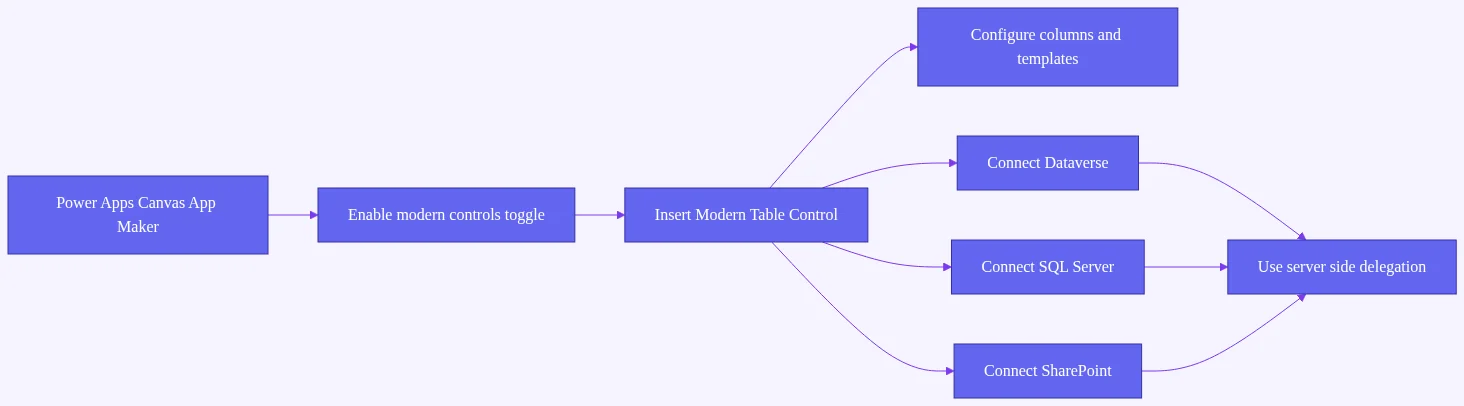
Connecting Your Data Source: Dataverse, SharePoint, and SQL Options
Dataverse is the most performant and recommended data source for the modern table control. It supports full server-side delegation for filtering and sorting, handles choice columns and lookup rendering natively, and integrates seamlessly with the Power Platform security model.
SharePoint and SQL connectors work well but come with delegation nuances. SharePoint has a default list view threshold that can cause non-delegable warnings. SQL Server supports broader delegation but requires careful query design. For any dataset over a few hundred rows, Dataverse is the clear winner.
Dataverse table control integration specifics to know:
- Virtual tables are supported, but performance depends on the underlying connector.
- Choice columns render as readable labels automatically — no manual lookup needed.
- Lookup columns display the related record’s primary name field by default.
Essential Table Properties Every Maker Must Configure
Here’s a quick-start checklist of the eight properties you should configure before going further:
- Items — your data source expression (use named formulas for cleaner code).
- ShowHeader — set to
trueto enable column headers and sort clicks. - SelectionMode — choose
None,Single, orMultiplebased on your UX needs. - Width / Height — set explicitly or use
Parent.Widthfor responsive layouts. - FlexibleHeight — introduced in a recent update; allows the table to grow with content.
- Columns — define visible columns and their order using the column editor panel.
- PageSize — controls how many rows appear per page (default is typically 10).
- NoDataText — set a helpful message for empty result sets.
Theming and Styling the Modern Table Control for Brand Consistency
One of the biggest wins in Power Apps modern controls 2026 is app-level theming. When you define a theme in your app settings, every modern control — including the table — inherits those color and typography tokens automatically. You no longer need to style each control individually.
For brand-specific overrides, use the FillColor, BorderColor, and Font properties at the control level. Keep overrides minimal to maintain theme consistency across future updates.
Advanced Filtering Techniques with the Modern Table Control PowerApps
Filtering is where the modern table control truly shines — especially when paired with Dataverse. Let’s build from simple to sophisticated.
Building Real-Time Search Filters with TextInput and Filter()
The most common pattern is wiring a TextInput control to the Items property using Filter() and Search(). Here’s a sample formula for a live search on an Accounts table:
Filter(
  Accounts,
  StartsWith(Name, SearchBox.Text) || StartsWith(Email, SearchBox.Text)
)
This gives users instant results as they type. For Power Apps table control advanced filtering, multi-field search is the norm in enterprise apps — users rarely search by a single field.
Performance tip: Debounce the TextInput with a Timer control set to fire after 300–500 milliseconds of inactivity. This prevents Filter() from executing on every single keystroke, which reduces unnecessary server calls.
Multi-Condition and Dynamic Filter Panels Using Collections
For more complex scenarios — like a service ticket dashboard with status, priority, and date filters — you need a dynamic filter panel approach.
The pattern works like this:
- Store filter criteria in a collection:
ClearCollect(colFilters, {Field: "Status", Value: StatusDropdown.Selected.Value}). - Build a compound
Filter()expression that reads fromcolFiltersat runtime. - Reset pagination when any filter changes by setting your page index variable back to 1.
Date range filtering uses DatePicker controls with the And() operator:
Filter(
  ServiceTickets,
  CreatedOn >= StartDatePicker.SelectedDate &&
  CreatedOn <= EndDatePicker.SelectedDate
)
This pattern is fully delegable in Dataverse, meaning the filtering happens server-side regardless of dataset size.
Delegation-Safe Filtering Strategies for Large Dataverse Datasets
Power Apps delegation and table performance is the number-one pain point for enterprise makers. Here’s what you need to know:
- The default delegation limit is 500 rows, configurable to 2,000 in app settings — neither is sufficient for large datasets.
- Dataverse supports server-side delegation for
Filter()withStartsWith(), equality checks,And(),Or(), and date comparisons. - Non-delegable functions like
Mid(),Len(), orSearch()on non-indexed fields pull all matching rows client-side up to the delegation limit.
The most powerful strategy available for Dataverse connectors is the OData filter passthrough pattern. By constructing your filter expression in a delegation-compatible way, you push all filtering to the server and bypass the row limit entirely. Combine this with ShowColumns() to retrieve only the fields your table displays:
ShowColumns(
  Filter(Accounts, Status = StatusFilter.Selected.Value),
  "Name", "Email", "Status", "CreatedOn"
)
This dramatically reduces payload size and speeds up render time.
Multi-Column Sorting and Dynamic Sort Behavior in Power Apps Table Control
Sorting is where the modern table control saves the most development time compared to the gallery. Let’s explore both the built-in behavior and advanced custom patterns.
Enabling and Customizing Built-In Column Sort Headers
When ShowHeader is true and your Columns property is explicitly defined, clicking any column header automatically applies SortByColumns() to the table’s data. You can enable or disable sorting per column in the column editor panel.
The built-in sort behavior handles the sort direction toggle (ascending → descending → ascending) automatically. For most apps, this is all you need.
Implementing Multi-Column Sort with SortByColumns() and Variables
For Power Apps modern table control sorting tutorial scenarios where users need to sort by multiple columns simultaneously, you’ll need a custom approach. Here’s the pattern:
Store sort preferences in a collection:
ClearCollect(
  colSortColumns,
  {Column: "Priority", Ascending: false},
  {Column: "CreatedOn", Ascending: true}
)
Then build a chained SortByColumns() expression in your Items property that iterates through colSortColumns. This gives users Excel-like multi-column sort behavior.
Delegation note: SortByColumns() is fully delegable in Dataverse for most column types, including text, number, date, and choice columns. Computed or formula columns force client-side sorting — keep that in mind when designing your data model.
User-Driven Sort Preferences: Saving Sort State Across Sessions
Want to remember a user’s sort preferences between app sessions? Use SaveData() and LoadData() with a local collection:
// On app close or sort change:
SaveData(colSortColumns, "UserSortPrefs")

// On app start:
LoadData(colSortColumns, "UserSortPrefs", true)
This creates a personalized experience that enterprise users genuinely appreciate — especially in high-frequency data review workflows.
Custom Column Templates: Making Your Data Visually Compelling
Custom column templates Power Apps is the feature that separates a good app from a great one. Plain text cells are functional. Rich visual templates are memorable.
Understanding the Column Template Editor and Template Types
The Column Template Editor is accessible from the column editor panel in Power Apps Studio. In the latest release, three template types are available:
- Text: Standard formatted text with font and color options.
- Image: Renders a URL field as an inline image.
- Custom: Supports any control composition — this is where the magic happens.
Within any template, ThisItem provides the context of the current row. Use ThisItem.ColumnName to reference any field from the row’s record.
Building Status Badge, Progress Bar, and Icon Column Templates
Status Badge template: Create a Rectangle control with a conditional Fill property:
Switch(
  ThisItem.Status,
  "Active", RGBA(0, 120, 212, 1),
  "Closed", RGBA(200, 200, 200, 1),
  "Pending", RGBA(255, 140, 0, 1),
  RGBA(0, 0, 0, 1)
)
Add a Label on top showing ThisItem.Status in white text. The result is a clean, color-coded badge that communicates status at a glance.
Progress Bar template: Use a Rectangle with its Width bound to a percentage field:
(ThisItem.CompletionPct / 100) * Parent.Width
This creates a visual SLA or task completion indicator directly in the table cell.
Icon column: Use the Icon control with Switch() to render different icons based on priority:
Switch(
  ThisItem.Priority,
  "High", Icon.ArrowUp,
  "Low", Icon.ArrowDown,
  Icon.Remove
)
Embedding Buttons and Action Controls Inside Column Templates
For master-detail apps, embedding a “View Details” button inside a template is a critical pattern:
// Button OnSelect:
Set(varSelectedRecord, ThisItem);
Navigate(DetailScreen, ScreenTransition.Fade)
Set the button’s Clickable property to true and ensure the template’s outer container doesn’t intercept the click for row selection. Test this interaction carefully — the Clickable and SelectionMode properties interact in ways that can surprise you.
Performance guideline: Keep templates lean. Each additional control in a template multiplies across every visible row. For a table showing 20 rows with a 5-control template, you’re rendering 100 controls simultaneously. Aim for 2–3 controls per template maximum for smooth scrolling performance.
Performance Optimization and Delegation Best Practices for Power Apps Data Table 2026
Performance is not an afterthought — it’s a design decision. Here’s how to build table-heavy apps that stay fast at scale.
Understanding the Delegation Warning and How to Eliminate It
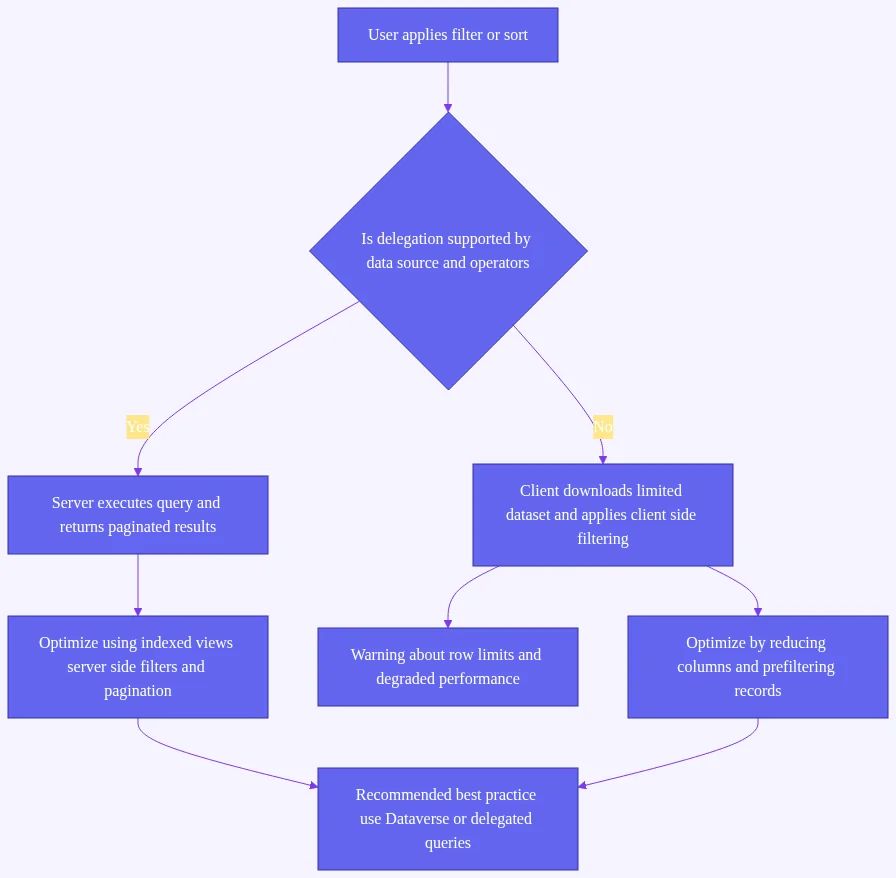
The blue delegation warning triangle is the most common issue makers encounter. It means Power Apps cannot push your filter or sort operation to the data source server, so it retrieves up to the delegation limit and processes the rest client-side.
To eliminate delegation warnings:
- Use Dataverse and stick to delegable functions (
Filter(),StartsWith(),SortByColumns(), equality checks). - Avoid
Search()on non-indexed fields — useStartsWith()orFilter()with equality instead. - Move complex business logic to server-side Dataverse views and expose them as filtered data sources.
Using Explicit Column Selection and Named Formulas for Speed
Two underused performance techniques deserve attention:
ShowColumns() wrapping reduces the data payload by retrieving only the columns your table displays. A table with 40 Dataverse columns but only 8 visible ones should always use ShowColumns().
Named formulas (available in Power Apps as of recent releases) let you define your Items expression once and reference it by name throughout the app. This prevents recalculation chains where multiple controls trigger the same data fetch independently.
Pagination Strategies: Built-In Pagination vs. Manual Page Controls
The modern table control’s built-in pagination is the simplest option. Set PageSize to your desired row count, and the control handles next/previous page navigation automatically via OnNextPage and OnPreviousPage events.
For SharePoint or SQL sources where you need manual control, use Skip() and FirstN() with a page index variable:
FirstN(
  Skip(SortedFilteredData, (varPageIndex - 1) * varPageSize),
  varPageSize
)
Power Apps data table 2026 features include improved virtual scrolling that reduces DOM node count for large datasets — meaning even without pagination, very long tables render more efficiently than in previous years.
7 performance optimizations to apply before production deployment:
- Use Dataverse as your primary data source.
- Wrap
ItemswithShowColumns(). - Use named formulas for the
Itemsexpression. - Enable built-in pagination with a reasonable
PageSize(10–25 rows). - Keep column templates to 2–3 controls maximum.
- Use server-side Dataverse views for pre-filtered datasets.
- Run the Power Apps Monitor tool to identify slow connector calls before go-live.
Real-World Implementation Patterns: Modern Table Control PowerApps in Enterprise Apps
Theory is valuable. Patterns you can copy and adapt immediately are more valuable. Here are three battle-tested implementation patterns.
Master-Detail Pattern: Table + Form Side Panel Architecture
The master-detail pattern is the most common enterprise use case for the modern table control. The user clicks a row, and a side panel opens with the full record details — no screen navigation required.
The key formula:
// Table OnSelect:
Set(varSelectedRecord, ModernTable1.Selected)
Bind a Display Form control’s Item property to varSelectedRecord. The form updates instantly when the user clicks any row. This creates a faster, more fluid UX than navigate-and-back patterns.
Bulk Action Pattern: Multi-Select with Collection-Based Operations
Enable SelectionMode = Multiple to unlock bulk operations. The SelectedItems property returns a table of all checked rows.
Use ForAll() to apply bulk updates:
ForAll(
  ModernTable1.SelectedItems,
  Patch(Accounts, {AccountId: AccountId, Status: "Closed"})
)
Display the count of selected items using the SelectedItemsCount property in a label: ModernTable1.SelectedItemsCount & " items selected". This gives users clear feedback before they commit a bulk action.
Responsive Table Design for Mobile and Tablet Layouts
The modern table control handles horizontal column overflow with built-in horizontal scrolling. For vertical responsive layouts, use a container with breakpoints:
- Desktop (width > 1024px): Show the modern table control.
- Mobile (width ≤ 768px): Switch to a gallery control with a card layout.
This Power Platform canvas app table control responsive pattern gives you the best of both worlds — the power of the table on desktop and the readability of cards on mobile. The Microsoft Power Apps documentation on responsive design covers the container breakpoint approach in detail.
For Dynamics 365 integration, embed your canvas app as an embedded control inside a model-driven form to display related Dataverse records in a richly formatted table — combining model-driven security with canvas app flexibility.
Troubleshooting Common Issues and Future Roadmap for Modern Controls Power Apps
Even well-built apps hit snags. Here are the most common issues and how to resolve them quickly.
Top 5 Modern Table Control Errors and How to Fix Them
1. Delegation warning on Filter() Switch to Dataverse and use OData-compatible filter functions. If you must use SharePoint, increase the delegation limit to 2,000 in app settings and accept the tradeoff for smaller datasets.
2. Template controls not rendering
This is almost always a missing ThisItem scope reference. Change ColumnName to ThisItem.ColumnName explicitly in every template formula.
3. Sort headers not appearing
Check that your Columns property is explicitly defined in the column editor panel and that SortOrder is not set to None for the columns you want sortable.
4. Selected property returning blank after data refresh
Capture the selection in OnSelect before any ClearCollect() fires: Set(varSelectedRecord, ModernTable1.Selected). The Selected property clears when the Items source refreshes.
5. Table not updating after Patch()
Add Refresh(DataSourceName) after your Patch() call, or toggle a trigger variable that forces the Items expression to re-evaluate.
Known Limitations and Workarounds in 2026
Current limitations to be aware of:
- Nested tables are not supported — a template cannot contain another modern table control.
- Maximum recommended columns is around 20 — beyond this, horizontal scrolling performance degrades noticeably.
- Template controls cannot include all control types — some complex controls are not available in the template editor.
Workaround for nested data: Use a flyout panel with a second modern table bound to a filtered collection triggered by row selection in the primary table.
What’s Coming Next: Microsoft’s Modern Controls Roadmap
Microsoft’s Power Platform release wave notes (published at learn.microsoft.com) outline upcoming improvements including AI-assisted column template generation using Copilot in Power Apps Studio, improved inline editing for Dataverse tables, and a native export-to-Excel button for the modern table control.
The Power Apps modern controls update cadence is monthly, meaning new capabilities land regularly. Follow the release wave notes and vote on features at ideas.powerapps.com to influence the roadmap directly.
The trajectory is clear: the modern table control went from experimental to the gold standard in a remarkably short time, and the pace of improvement shows no signs of slowing.
Frequently Asked Questions
What is the modern table control PowerApps and how is it different from the classic Data Table?
The modern table control PowerApps is a next-generation data display control built on Fluent UI 2. It offers built-in sort headers, custom column templates, multi-select, native pagination, and full theme support. The classic Data Table was read-only, had no template support, and required significant custom code for sorting and filtering. The modern table control is now the recommended option for all new canvas app development.
How do I fix delegation warnings when filtering large datasets in the Power Apps table control?
Switch to Dataverse as your data source and use OData-compatible filter functions like Filter() with StartsWith() or equality checks — both are fully delegable. Use ShowColumns() to limit payload size, increase the delegation limit to 2,000 in app settings for smaller datasets, or implement server-side Dataverse views that pre-filter data before it reaches the canvas app.
Can I embed buttons and interactive controls inside modern table control column templates?
Yes. Custom column templates support Button controls, Icon controls, and most standard Power Apps controls. Bind button OnSelect actions to navigate screens, set variables, or trigger Patch() operations using ThisItem context. Set the Clickable property on the template correctly to avoid conflicts with row selection behavior.
What are the performance best practices for Power Apps data table 2026 features with large datasets?
Key practices include: using Dataverse with server-side filtering, wrapping your Items expression in ShowColumns() to retrieve only displayed fields, using named formulas to avoid recalculation chains, enabling built-in pagination via the PageSize property, and keeping column templates lightweight. Use the Power Apps Monitor tool to identify delegation fallbacks and slow connector calls before deployment.
When should I choose the Power Apps gallery vs table control for displaying data?
Choose the modern table control when your data is tabular, users need to sort or filter columns, you want built-in pagination, or you need bulk selection. Choose the gallery control when you need highly custom card-style layouts, non-tabular data presentation, or dynamic per-row heights. In most enterprise data display scenarios, the modern table control is the right choice.
Is the modern table control supported in model-driven apps and Dynamics 365?
The modern table control is a canvas app control. It can be embedded inside Dynamics 365 model-driven app forms using the canvas app embedded control feature, allowing you to display related Dataverse records in a richly formatted table within a model-driven form. The control is not natively available in model-driven app views, which use their own grid control system.
Conclusion: Build Smarter Apps with the Modern Table Control PowerApps
The modern table control PowerApps ecosystem in 2026 is no longer a “nice to have” — it’s the foundation of every serious canvas app built on the Power Platform. From delegation-safe filtering and multi-column sorting to visually rich custom column templates and enterprise-grade bulk action patterns, this control has matured into a genuinely powerful data presentation engine.
The makers and consultants who invest time mastering these techniques today will build apps that are faster, more usable, and more maintainable than anything built on the old gallery-and-data-table paradigm.
Here’s your action plan:
- Enable modern controls in your next canvas app via the app settings toggle.
- Connect the modern table control to a Dataverse table.
- Build one custom column template — even a simple status badge.
- Layer in server-side filtering using
ShowColumns()and delegation-safe functions. - Implement the master-detail pattern with
ModernTable1.Selected.
Each step compounds. Start small, iterate fast, and you’ll have a production-ready table-driven app before you know it.
If you found this guide valuable, explore our related resources below:
Subscribe to our newsletter for weekly Power Platform deep-dives, and drop your biggest table control challenge in the comments — we read every one and often turn them into future posts. Now go build something impressive.