If you work with Microsoft Copilot Studio or Power Platform in 2026, one question appears again and again: should this automation be an Agent Flow, a Workflow, or a Power Automate cloud flow?
Table of Contents
That question matters because these options are not just different buttons in the Microsoft UI. They represent different architecture patterns. Some are better for conversational task completion. Some are better for structured business processes. Some are better for reliable backend automation that must run the same way every time.
The short version is this: use the agent to understand the request, use a workflow when the business process needs structure, and use Power Automate when the system action must execute reliably.
But the real answer is more nuanced. In this guide, we will compare Copilot Studio Agent Flows vs Workflows vs Power Automate from a practical 2026 implementation perspective, with examples, decision tables, diagrams, media references, and governance guidance.
Quick Answer: Which One Should You Use?
If you need a fast answer, start with this table.
| Scenario | Best Choice |
|---|---|
| User asks in natural language and needs guided help | Copilot Studio agent with an Agent Flow |
| Agent needs to call deterministic steps from a conversation | Agent Flow |
| You want the newer Copilot Studio flow canvas with AI actions and agent handoffs | Workflow, currently preview depending on tenant availability |
| Business process has clear stages and rules | Workflow or a structured Power Platform process design |
| Automation runs on a trigger, schedule, Dataverse event, email, or form submission | Power Automate |
| Process needs approvals, connectors, retries, and run history | Power Automate |
| Agent collects information, then backend systems must update data | Copilot Studio plus Power Automate |
| Process updates sensitive records | Use deterministic flow execution with confirmations and audit logging |
My practical recommendation is simple:
- Use Agent Flows for deterministic automations that live close to a Copilot Studio agent.
- Use Workflows when you want the newer Copilot Studio workflow experience, especially for experiments, preview scenarios, AI actions, and agent handoffs.
- Use Power Automate for mature, trigger-based, connector-heavy, enterprise automation.
Do not force one tool to do everything. The cleanest architecture usually separates conversation, process state, and execution.
Important Terminology: Agent Flows and Workflows Are Not the Same Thing
Microsoft terminology has changed quickly. Copilot Studio is no longer just a chatbot designer. Microsoft now describes it as a low-code environment for creating agents and agent flows. An agent can use instructions, knowledge, tools, topics, triggers, and actions to help users complete work.
That creates naming confusion because the word “flow” appears in several places.
In Copilot Studio, Microsoft currently describes two flow approaches:
- Agent flows: The existing Copilot Studio flow format. These are deterministic automations that can be used by agents and are similar in concept to Power Automate workflows, but they are built and managed in the Copilot Studio experience.
- Workflows: A newer flow format with a redesigned canvas, native AI actions, node-level testing, and agent handoff capabilities. Microsoft documentation describes workflows as preview functionality, so you should be careful before making them the default for production-critical work.
Power Automate is different again. It is the broader automation product across Power Platform, used for cloud flows, scheduled flows, approvals, connectors, desktop flows, process mining, and cross-application business automation.
Think of the three as architecture patterns:
| Pattern | Plain-English Meaning |
|---|---|
| Agent Flow | Deterministic automation near an agent |
| Workflow | Newer Copilot Studio flow canvas for structured/AI-assisted process logic |
| Power Automate | Enterprise automation engine for triggers, connectors, approvals, and systems |
This distinction is important. If you call everything a “flow,” you can easily design the wrong solution.
What Are Copilot Studio Agent Flows?
A Copilot Studio Agent Flow is a deterministic automation that can be used by or connected to a Copilot Studio agent. The agent may interact with the user, understand the user’s intent, collect inputs, and then call the flow as a tool or action to perform a defined task.
In simple terms, an Agent Flow is useful when your agent needs a reliable mini-process behind the conversation.
For example:
- A support agent asks for an order number, then checks order status.
- An HR agent collects employee details, then creates a request.
- A Dynamics 365 assistant asks for a customer name, then retrieves account information.
- A service desk agent classifies an issue, then creates a ticket.
- A sales assistant gathers lead context, then updates Dataverse.
Agent Flows work well when the user experience begins in Copilot Studio, but the actual task needs structured execution.
Where Agent Flows Shine
Use Agent Flows when the task is agent-adjacent. That means the task belongs inside the user conversation, but the execution should still be predictable.
Good examples include:
- Checking the status of a request
- Creating a Dataverse row from collected inputs
- Looking up records
- Sending a confirmation email
- Routing a support question
- Returning a structured response to the agent
- Calling an internal API from an agent experience
Agent Flows are especially useful when combined with generative orchestration. In that model, Copilot Studio can choose the right tool based on the user’s request, tool descriptions, topics, and context. Instead of forcing every user through a rigid topic path, the agent can decide which tool should handle the task.
Watch: Agent Flow Automation in Copilot Studio
The following Microsoft video is useful in this section because it shows the practical idea of adding an agent flow to a Copilot Studio topic.
Agent Flow Limitations
Agent Flows are not the best choice for every process. Be careful when:
- The process is not really conversational.
- The flow must run independently on a schedule.
- The automation needs advanced approval patterns.
- The flow is owned by an operations team outside the agent project.
- The process already exists in Power Automate and is stable.
- You need mature run monitoring, retry patterns, and centralized operational ownership.
Also remember the execution constraints. When adding a flow to an agent as a tool, Microsoft documentation describes requirements such as the correct trigger, response action, publishing, real-time execution, and action time limits. That means you should design these flows to be focused and fast.
What Are Copilot Studio Workflows?
Copilot Studio Workflows are the newer flow format in Copilot Studio. Microsoft documentation describes them as a redesigned visual canvas with features such as native AI actions, agent handoffs, and node-level testing.
This sounds attractive, and it is. But there is one important production warning: workflows are preview depending on availability and tenant state. Preview features can change, have limitations, and may not be ideal for production-critical business processes.
So, in 2026, a safe position is this:
Use Copilot Studio Workflows when you want to evaluate or build newer agentic process logic inside Copilot Studio. Use Agent Flows or Power Automate when you need a more established production path.
Where Workflows Fit
Workflows fit scenarios such as:
- AI-assisted process steps inside Copilot Studio
- Agent handoff experiments
- Multi-step task automation inside the agent environment
- Node-level testing during design
- Internal prototypes for future agentic automation
- Structured paths where the Copilot Studio canvas provides better visibility
Workflows may become more important over time, but the current best practice is to treat them carefully if your process affects production data, compliance, finance, security, or customer commitments.
Workflow Strengths
Workflows are strong when you want:
- A more modern visual authoring experience
- AI actions inside the automation design
- Better step-by-step testing
- More native Copilot Studio design patterns
- Handoffs between agent experiences
- A clear design canvas for makers
Workflow Risks
The risks are mostly about maturity and governance:
- Preview behavior can change.
- Admins may not have the same operational playbooks yet.
- Licensing and capacity patterns need review.
- Production support teams may be more comfortable with Power Automate run history.
- You must test security, data access, and failure paths carefully.
The key is not to avoid workflows. The key is to adopt them intentionally.
What Is Power Automate?
Power Automate is the mature automation engine in Power Platform. It is used to create cloud flows, scheduled flows, instant flows, business process automations, approvals, notifications, integrations, and desktop automations.
If Copilot Studio is the conversation and agent layer, Power Automate is often the execution layer.
Power Automate is the best choice when the automation has a clear trigger and predictable steps.
Examples:
- When a Dataverse row is created, notify a team.
- When a Microsoft Form is submitted, create a record.
- Every Monday morning, send a report.
- When an email arrives, save attachments to SharePoint.
- When a case is escalated, create an approval.
- When approval is granted, update Dynamics 365.
- When a record changes, call an HTTP API.
Power Automate is also strong when you need operational visibility. Flow run history, error handling, approvals, connectors, environment policies, and admin governance are major reasons to keep using it.
Where Power Automate Shines
Use Power Automate when:
- The automation must run without a conversation.
- The trigger is a system event, schedule, or manual button.
- The process uses multiple Microsoft 365 or Power Platform connectors.
- You need approval actions.
- You need retries, scopes, and failure handling.
- You need a clear run history.
- Operations teams need to support the automation.
- The flow belongs to an enterprise process, not only an agent.
Power Automate is not being replaced by Copilot Studio Agent Flows. It remains essential because many business processes should not depend on a conversation.
The Core Difference: Conversation, Process, or Automation?
The simplest way to compare Copilot Studio Agent Flows vs Workflows vs Power Automate is to ask one question:
What is the center of gravity?
- If the center is conversation, start with Copilot Studio and Agent Flows.
- If the center is agentic process design inside Copilot Studio, evaluate Workflows.
- If the center is system automation, use Power Automate.
| Dimension | Agent Flows | Workflows | Power Automate |
|---|---|---|---|
| Primary purpose | Agent-adjacent deterministic automation | Newer Copilot Studio process/AI flow design | Enterprise automation engine |
| User interaction | Usually conversational | Agent/process oriented | Usually non-conversational |
| Best for | Agent tools and guided tasks | Preview/new agentic process patterns | Triggered and scheduled automation |
| Typical trigger | Agent context or manual flow trigger | Agent, event, schedule, or workflow trigger depending on design | Event, schedule, manual trigger, app trigger |
| Flexibility | Medium to high | High, but preview considerations apply | Medium to high |
| Predictability | High if designed tightly | Depends on design and preview behavior | High |
| Operational maturity | Growing | Emerging | Mature |
| Governance need | High | High | High |
| Best example | Agent checks order status | Agent workflow routes a process | Dataverse event sends approval and updates record |
Watch: Dynamic Agents, Tools, and Instructions
This Microsoft video fits well here because it explains how tools and instructions influence dynamic agent behavior in Copilot Studio.
Real-World Example: Customer Support Case Handling
Let us use a practical scenario.
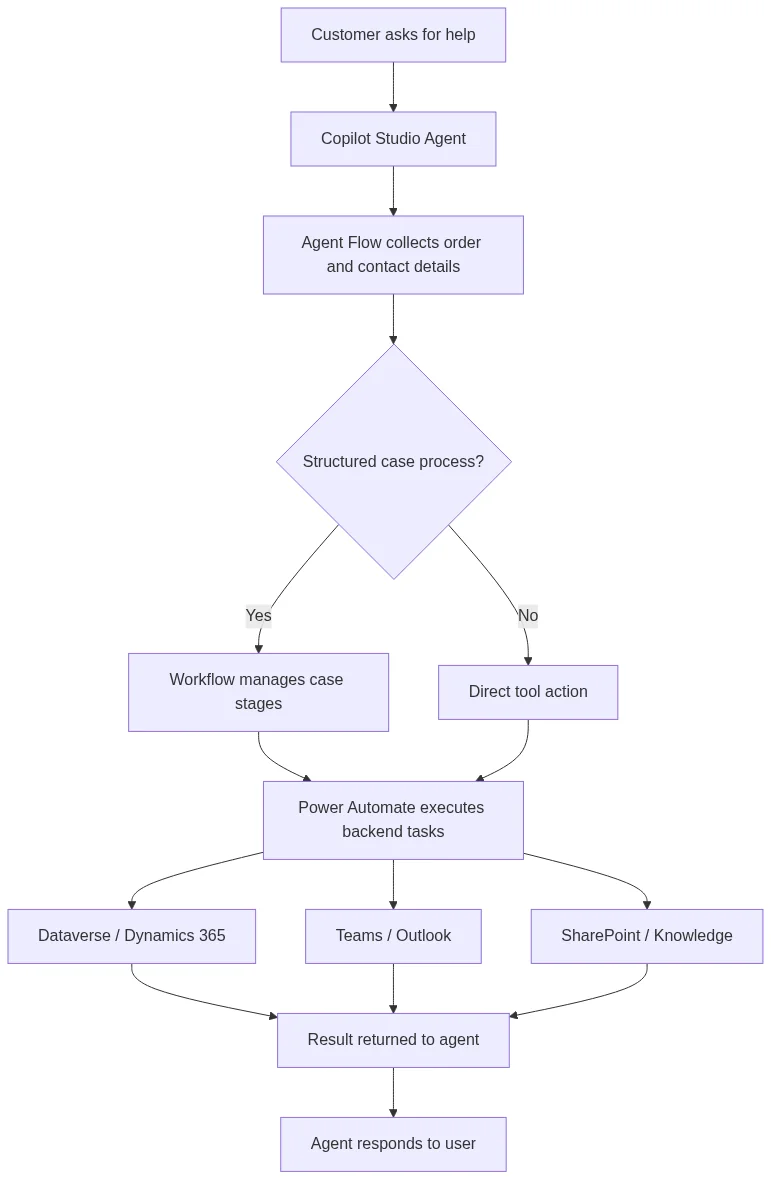
A customer submits a support request: “My order failed, but my card was charged. Can you help?”
This sounds simple, but it can involve multiple systems:
- Copilot Studio for conversation
- Dataverse or Dynamics 365 Customer Service for case data
- Power Automate for notifications and approvals
- SharePoint or knowledge articles for troubleshooting
- Outlook or Teams for escalation
- Payment or order API for status checks
Option 1: Use an Agent Flow
An Agent Flow works well when the user is actively chatting with the support agent.
The agent can:
- Ask for the order number
- Validate the email address
- Check the order status
- Search knowledge articles
- Ask clarifying questions
- Return next steps
- Trigger a structured backend task
This is the best option when the problem varies by user and the agent needs to guide the interaction.
Option 2: Use a Workflow
A Workflow fits when the support process has a structured path.
For example:
- New case
- Validate payment status
- Check fulfillment status
- Escalate if payment succeeded but fulfillment failed
- Wait for finance review
- Notify customer
- Close case
This is useful when the business wants a visible process with steps, conditions, and possible handoffs.
If the workflow feature is still preview in your tenant, use it carefully for production. It may be better for a prototype or controlled internal process first.
Option 3: Use Power Automate
Power Automate fits when the trigger and actions are clear.
For example:
- When a case is created in Dataverse, notify the support queue in Teams.
- If priority is high, create an approval.
- If approval is granted, update the case.
- Send an email to the customer.
- Log the result in Dataverse.
This is reliable, auditable backend automation. The user does not need to be in a chat session for it to work.
Best Architecture for This Scenario
In a real implementation, I would usually combine all three patterns carefully:
- Use Copilot Studio for the conversational front door.
- Use an Agent Flow to collect and validate user inputs.
- Use a Workflow only if the process benefits from the new Copilot Studio workflow canvas and the risk is acceptable.
- Use Power Automate for backend execution, approvals, notifications, and Dataverse updates.
- Use Dataverse as the system of record.
Here is the architecture pattern:
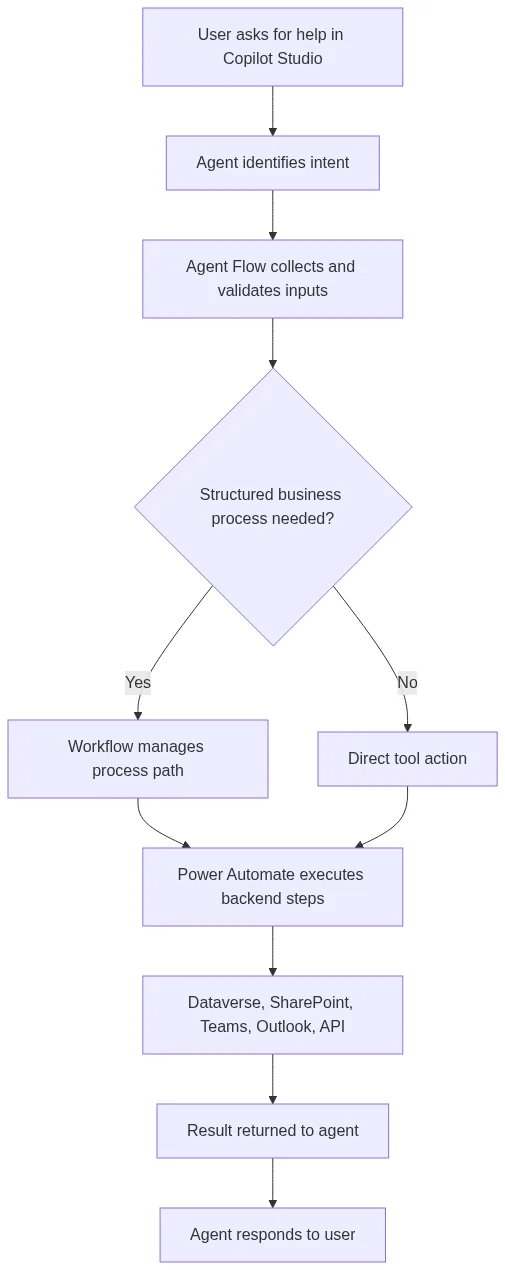
This pattern keeps each layer responsible for what it does best.
Decision Framework: How to Choose
When you are designing a real solution, do not start by asking, “Which product is newest?” Start with the work.
Choose Agent Flows When
Choose Agent Flows when:
- The user starts in a Copilot Studio conversation.
- The task needs inputs from the user.
- The agent needs to decide which tool to call.
- The automation is short and focused.
- The result should return to the agent.
- The flow supports an agent experience rather than a standalone process.
Example:
A sales agent asks a user for company name and region, checks Dataverse for existing accounts, and returns a matching record list.
Choose Workflows When
Choose Workflows when:
- You want to test the newer Copilot Studio workflow canvas.
- You need native AI actions inside the flow design.
- The agent experience includes structured task steps.
- You need agent handoff patterns.
- The scenario is internal, controlled, or not yet production-critical.
- You can accept preview limitations and retesting requirements.
Example:
An internal onboarding agent uses a workflow to guide a manager through multiple onboarding steps, collect missing details, and hand off to another agent when required.
Choose Power Automate When
Choose Power Automate when:
- The automation is triggered by a record, email, file, schedule, or form.
- The process must run whether or not a user is chatting.
- You need approvals.
- You need connector-heavy integration.
- You need operational run history.
- You need mature error handling.
- The process is owned by IT or operations.
Example:
When a Dataverse opportunity moves to “Won,” create a project folder in SharePoint, notify Teams, send a customer welcome email, and assign onboarding tasks.
Common Architecture Patterns
Pattern 1: Agent as Front Door, Power Automate as Execution Layer
This is one of the safest production patterns.

Use this when the user experience should be conversational, but backend updates must be deterministic.
Pattern 2: Power Automate First, Agent Later
If the process already exists, do not rebuild it just because Copilot Studio exists.
A mature cloud flow can remain in Power Automate. The agent can call it, collect inputs for it, or explain the process to users.
Use this pattern for:
- Existing approval flows
- Existing Dataverse automations
- Existing SharePoint document processes
- Existing notification flows
- Existing API integrations
Pattern 3: Workflow for Agentic Process Experiments
Use Copilot Studio Workflows for newer scenarios where the agentic process itself is being designed and tested.
Use this pattern for:
- Internal prototypes
- Controlled pilot programs
- New AI-assisted business processes
- Agent handoff testing
- Process experiments that benefit from node-level testing
Just make sure stakeholders understand preview limitations if applicable.
Common Mistakes to Avoid
Mistake 1: Using an Agent for a Simple Scheduled Job
If the job runs every morning at 8 AM and sends a report, use Power Automate. You do not need an agent for that.
Mistake 2: Building a Giant Flow That Should Be a Process
If your cloud flow has dozens of branches, multiple teams, several statuses, and long-running business state, you may need a clearer process model. Consider whether Dataverse state, a workflow pattern, or a business process design would be easier to maintain.
Mistake 3: Letting an Agent Update Data Without Confirmation
Agents should not silently update sensitive business data based only on uncertain user intent. Add confirmation steps before actions such as:
- Creating invoices
- Updating customer records
- Closing cases
- Sending external emails
- Deleting records
- Submitting approvals
Mistake 4: Ignoring DLP and Connector Governance
If your agent or flow can connect to Outlook, SharePoint, Dataverse, SQL, HTTP, and third-party systems, governance is not optional. Review DLP policies and connector classification before production.
Mistake 5: Duplicating Logic in Multiple Places
Avoid building the same business rule in Copilot Studio, Power Automate, and Dataverse plugins. Put each rule in the layer where it belongs and document the ownership.
Governance and Security Considerations
Agentic automation makes governance more important, not less important.

Before publishing a Copilot Studio or Power Automate solution, review these areas.
| Risk | Mitigation |
|---|---|
| Agent chooses the wrong tool | Use clear tool descriptions, test prompts, and confirmation steps |
| Sensitive data is exposed | Use Dataverse security roles, DLP policies, and scoped connectors |
| Flow fails silently | Add error handling, run history review, and admin alerts |
| Preview workflow changes behavior | Use controlled pilots and retest before production |
| User prompt manipulates the agent | Use prompt injection controls, grounding, and tool restrictions |
| Duplicate automation creates conflicts | Maintain an automation inventory |
| AI capacity cost grows unexpectedly | Monitor Copilot Studio capacity and Power Platform usage |
Security Checklist
Before production, ask:
- Which identity runs the action?
- Can the agent access only the data it needs?
- Are connectors classified correctly in DLP?
- Are there human approvals for high-risk actions?
- Is every external email or record update logged?
- What happens if the flow fails?
- Who owns support after go-live?
- How will the team monitor usage and cost?
For Dynamics 365 and Dataverse solutions, pay special attention to security roles and table permissions. A beautiful agent experience is not useful if it accidentally exposes the wrong records.
Practical Recommendations by Role
For Power Platform Makers
Start with Power Automate when the task is repeatable. Add Copilot Studio when the user needs a guided conversation.
Keep flows small and focused. If a flow is doing ten unrelated things, split it into reusable components or clarify the process design.
For Solution Architects
Separate the layers:
- Copilot Studio for user interaction
- Agent Flow for focused agent-side automation
- Workflow for structured agentic process design where appropriate
- Power Automate for backend execution
- Dataverse for state, security, and audit
This separation makes the solution easier to govern, test, and support.
For Business Stakeholders
Do not ask, “Can AI automate this?” Ask, “Which parts need judgment, which parts need structure, and which parts need reliable execution?”
That question leads to better design.
For Admins
Your job is to make innovation safe.
Focus on:
- Environment strategy
- DLP policies
- Connector review
- Capacity monitoring
- Solution lifecycle management
- Audit logs
- Maker enablement
- Production support rules
Admins should be involved early, not after the agent is already connected to business-critical data.
Recommended Implementation Pattern for 2026
For most real business scenarios in 2026, I recommend this stack:
| Layer | Recommended Tool | Responsibility |
|---|---|---|
| User experience | Copilot Studio agent | Understand user request and guide the conversation |
| Agent-side task | Agent Flow | Collect inputs, call a focused tool, return structured response |
| Process design | Workflow where appropriate | Manage structured agentic process steps, especially in controlled scenarios |
| Backend execution | Power Automate | Run connectors, approvals, notifications, and system updates |
| System of record | Dataverse | Store state, permissions, audit, and business data |
| Collaboration | Teams, Outlook, SharePoint | Notify, approve, and manage documents |
The best architecture does not treat Copilot Studio and Power Automate as competitors. It treats them as layers.
Watch: Agent Flow vs Power Automate Discussion
This third-party video is useful after the implementation section because it focuses on practical differences, licensing, and when to use each option.
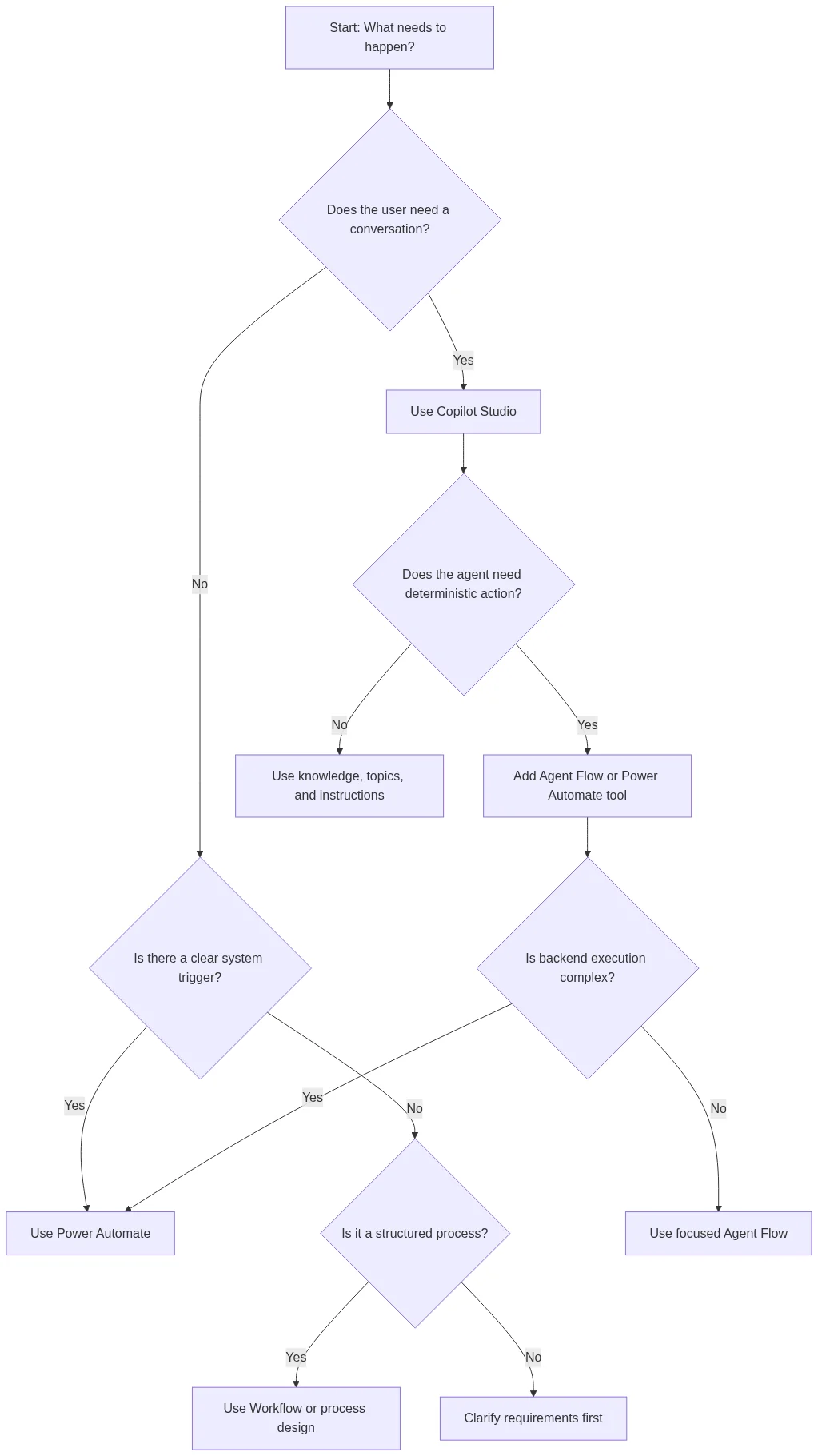
Example Decision Flowchart
Use this flowchart when deciding what to build.
FAQ: Copilot Studio Agent Flows vs Workflows vs Power Automate
Is Power Automate being replaced by Copilot Studio Agent Flows?
No. Power Automate remains the main enterprise automation engine for triggers, connectors, approvals, schedules, desktop automation, and operational run history. Agent Flows are useful inside or near Copilot Studio agent experiences, but they do not replace every Power Automate scenario.
When should I use Power Automate instead of an Agent Flow?
Use Power Automate when the automation is not primarily conversational. If the trigger is a Dataverse event, SharePoint file, Outlook email, Microsoft Form submission, schedule, or approval, Power Automate is usually the better default.
When should I use an Agent Flow?
Use an Agent Flow when the task starts inside a Copilot Studio agent and the agent needs to perform a focused deterministic action. For example, collecting user inputs, checking record status, creating a request, or returning a structured result to the conversation.
When should I use Copilot Studio Workflows?
Use Workflows when you want the newer Copilot Studio workflow design experience, AI actions, node-level testing, or agent handoff patterns. Because Microsoft describes workflows as preview, evaluate them carefully before using them for production-critical processes.
Can Copilot Studio call Power Automate flows?
Yes. A common architecture is to let Copilot Studio handle conversation and let Power Automate execute backend work. This is often cleaner than putting every business action directly in the agent layer.
Which option is best for approvals?
Power Automate is usually the best choice for approvals because it has mature approval actions, run history, notifications, and integration patterns. An agent can collect approval context, but the approval process itself should usually be deterministic and auditable.
Which option is best for Dynamics 365 automation?
For Dynamics 365 and Dataverse scenarios, the best answer is often a combination. Use Copilot Studio for guided interaction, Dataverse for data and security, Power Automate for backend execution, and workflows or process design for structured business paths.
Which one should beginners learn first?
Most beginners should learn Power Automate first because it teaches triggers, actions, connectors, conditions, variables, approvals, and error handling. After that, Copilot Studio makes more sense because you can connect conversational experiences to automations you already understand.
Conclusion: Use the Right Layer for the Right Job
Copilot Studio Agent Flows vs Workflows vs Power Automate is not a winner-takes-all comparison.
Agent Flows are best when an agent needs to perform a focused deterministic task inside a conversational experience. Workflows are useful for newer Copilot Studio process patterns, especially when you want AI actions, handoffs, and a modern workflow canvas, but you should treat preview status carefully. Power Automate remains the best option for mature, trigger-based, connector-heavy backend automation.
In 2026, the strongest Power Platform solutions will combine these tools instead of forcing one tool to do every job.
Use the agent to understand the request. Use the workflow to manage the process where appropriate. Use Power Automate to execute the work reliably.
References
- What is Microsoft Copilot Studio?
- Copilot Studio flows overview
- Add an agent flow to an agent
- Generative actions in Copilot Studio
- Use connectors in Copilot Studio
- Get started with Power Automate
- Copilot in cloud flows FAQ
Read More
- Learn about “Power Automate date formatting” using
utcNow()andformatDateTime()functions. - Learn about “Power Fx examples” using the Power Fx Split function article.
- Learn about “Dynamics 365 JavaScript” using the
Xrm.Navigation.openAlertDialogarticle. - Learn about “Dataverse automation” using the Dataverse delete records article.
- Learn about “SharePoint automation” using the Connect-PnPOnline troubleshooting article.
- Learn about “Copilot Studio knowledge management” using the Customer Knowledge Management Agent article.
3 thoughts on “Agent Flows vs Workflows vs Power Automate: What to Use in 2026”
Comments are closed.