Xrm.Navigation.openAlertDialog: The Complete 2026 Comparison Guide for Dynamics 365 Developers
If you’ve ever shipped a Dynamics 365 customization only to watch users dismiss a critical warning without reading it — or trigger a destructive action because your confirmation dialog fired incorrectly — you already know how much is riding on choosing the right dialog API. Xrm.Navigation.openAlertDialog is the entry point most developers reach for first, but it’s only one of three powerful dialog methods available in the Power Platform client API. Understanding the precise differences between openAlertDialog, openConfirmDialog, and openErrorDialog isn’t optional in 2026 — it’s the difference between polished, production-ready solutions and brittle customizations that generate support tickets.
Table of Contents
This complete comparison guide breaks down every dimension: syntax, parameters, promise handling, UX behavior, accessibility compliance, and real-world use cases. Whether you’re a seasoned Dynamics 365 consultant or a developer stepping into JavaScript for the first time, this is your definitive playbook.
Understanding Xrm.Navigation.openAlertDialog: Core Concepts and Architecture
What Is Xrm.Navigation.openAlertDialog and When Was It Introduced?
Xrm.Navigation.openAlertDialog is a client API method available across Dynamics 365 CE and all Power Platform model-driven apps. It was introduced as part of the Unified Interface rollout, replacing the deprecated Xrm.Utility.alertDialog method. You can find the official reference on Microsoft Learn.
The method returns a Promise object, enabling modern async/await patterns and clean error boundary handling. This is a critical architectural shift from the old callback-based approach that made code hard to read and even harder to debug.
How the Client API Dialog Framework Works Under the Hood
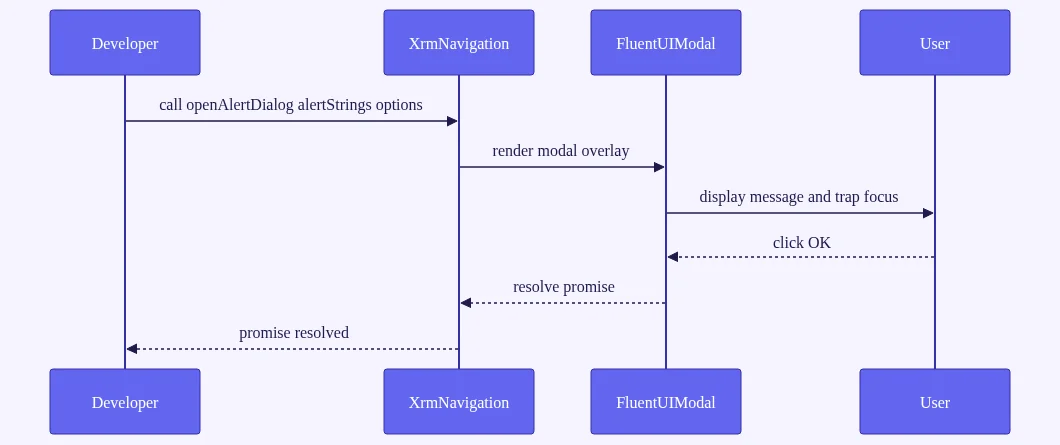
The dialog renders inside the Unified Interface shell using a Fluent UI modal overlay. This ensures consistent accessibility — including ARIA roles, focus trapping, and keyboard navigation — across desktop and mobile clients.
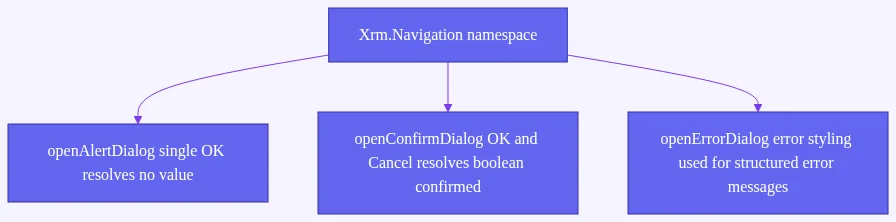
The architecture sits within the Xrm.Navigation namespace alongside openUrl, openForm, openWebResource, and the other dialog methods. This gives you a unified navigation and interaction surface for all user-facing interactions in model-driven apps.
Why Alert Dialogs Are the Foundation of User Feedback in Model-Driven Apps
Alert dialogs are strictly informational. They present a single OK button and resolve the promise only when the user dismisses the dialog. This makes them ideal for non-branching notifications — things like save confirmations, read-only warnings, or process completion messages.
The returned promise resolves with no value on OK click and rejects if the dialog is closed programmatically or if a rendering error occurs. Understanding this resolution model is essential before you write a single line of async dialog code.
Xrm.Navigation.openAlertDialog Syntax, Parameters, and Code Examples
Full Parameter Reference: AlertStrings and AlertDialogOptions Objects
The openAlertDialog method accepts two objects:
- AlertStrings (required):
text— required string; the main message bodytitle— optional string; renders as the dialog headerAlertDialogOptions (optional):
height— optional number in pixelswidth— optional number in pixels
If you omit AlertDialogOptions, the dialog defaults to browser-responsive sizing. Always test on 125% and 150% display scaling to avoid clipped content on high-DPI screens.
Async/Await Implementation Patterns with Real-World Code Samples
Here’s a clean, production-ready example using async/await:
async function notifyUser() {
  try {
    await Xrm.Navigation.openAlertDialog(
      { text: "Record saved successfully.", title: "Success" },
      { height: 200, width: 400 }
    );
    console.log("User acknowledged alert.");
  } catch (error) {
    console.error("Dialog failed to open:", error);
  }
}
You can also use the .then().catch() chain pattern if you prefer:
Xrm.Navigation.openAlertDialog(
  { text: "Please review the attached document before proceeding.", title: "Action Required" }
)
.then(() => console.log("Acknowledged."))
.catch((err) => console.error("Dialog error:", err));
Both patterns are valid. Async/await wins on readability for complex workflows.
Common Syntax Mistakes and How to Avoid Them in 2026
Watch out for these frequent errors in Dynamics 365 JavaScript dialog code:
- Forgetting to await the promise — causes subsequent logic to execute before user acknowledgment, creating race conditions that corrupt workflow order
- Passing HTML markup in the
textproperty — the API renders plain text only; HTML tags appear as literal strings, so always sanitize your content source - Setting excessively small height/width values — clips dialog content on high-DPI displays; test on multiple zoom levels
- Skipping the
.catch()handler — edge cases like session timeouts can prevent dialog rendering entirely; always handle rejection
TypeScript tip: Install the @types/xrm package via npm to get full IntelliSense for AlertStrings and AlertDialogOptions. Type-safe development catches these mistakes at compile time, not at runtime.
openConfirmDialog Dynamics 365: Complete Syntax and Behavioral Analysis
Now let’s move to the method you’ll reach for when a user needs to make a decision. openConfirmDialog is the workhorse of Dynamics 365 JavaScript dialog development, and understanding it deeply separates good customizations from great ones.
ConfirmStrings and ConfirmDialogOptions: Every Parameter Explained
The ConfirmStrings object supports four properties:
text— required; the main message bodytitle— optional; the dialog headerconfirmButtonLabel— optional; customize the OK button (e.g., “Delete Record”)cancelButtonLabel— optional; customize the Cancel button (e.g., “Keep Record”)
ConfirmDialogOptions mirrors AlertDialogOptions exactly — the same height and width properties. This consistency is intentional and reduces cognitive load across all three dialog types.
Handling the ConfirmResult Object: okButtonPressed and Decision Branching
The resolved ConfirmResult object contains one property: confirmed — a boolean that is true if the user clicked the confirm button, and false for everything else (Cancel, ESC key, or clicking outside the dialog).
Here’s a real-world deletion confirmation pattern:
async function confirmDeleteRecord(recordId) {
  const result = await Xrm.Navigation.openConfirmDialog(
    {
      text: "Permanently delete this record? This action cannot be undone.",
      title: "Confirm Deletion",
      confirmButtonLabel: "Delete",
      cancelButtonLabel: "Cancel"
    },
    { height: 220, width: 450 }
  );

  if (result.confirmed) {
    await Xrm.WebApi.deleteRecord("account", recordId);
  } else {
    console.log("User cancelled deletion.");
  }
}
Design your branching logic to treat both Cancel clicks and dialog dismissal as a “no” decision — because confirmed: false covers both cases.
openConfirmDialog Use Cases: Delete Confirmations, Workflow Triggers, and More
The best use cases for openConfirmDialog in Power Platform client API development include:
- Record deletion confirmation — the most common use case by far
- Bulk operation warnings — “You’re about to update 47 records. Continue?”
- Status transition gates — “Are you sure you want to close this opportunity?”
- Unsaved changes warnings — alerting users before navigating away from a dirty form
- Irreversible workflow triggers — sending emails, submitting to external systems
Accessibility note: The Confirm button receives initial focus by default. This is intentional — it prevents accidental destructive actions for keyboard-first users who might press Enter reflexively.
openErrorDialog Power Platform: When and How to Display Structured Error Messages
ErrorDialogOptions Deep Dive: errorCode, message, and details Parameters
openErrorDialog is purpose-built for surfacing structured error information. It renders a styled error dialog with an optional Download Log File button when the details parameter is populated.
The ErrorDialogOptions object accepts:
errorCode— optional number; maps to a platform error code for localizationmessage— optional string; the human-readable error summarydetails— optional string; verbose technical details that populate the downloadable log file
Critical rule: At least one of errorCode or message must be provided. Passing an empty ErrorDialogOptions object throws a runtime error. Always validate your inputs before calling this method.
Integrating openErrorDialog with Try/Catch and Web API Error Handling
Here’s the standard pattern for Web API error handling using openErrorDialog:
async function saveAccountRecord(data) {
  try {
    await Xrm.WebApi.createRecord("account", data);
  } catch (error) {
    await Xrm.Navigation.openErrorDialog({
      message: "Failed to save the account record. Please contact your system administrator.",
      details: JSON.stringify(error, null, 2)
    });
  }
}
When details is populated, users see a Download Log File button that exports the details string as a .txt file. This is invaluable for field support scenarios where users need to send diagnostic information to IT.
Unlike openAlertDialog and openConfirmDialog, openErrorDialog does not return a meaningful resolved value. The promise resolves with undefined on dismissal — don’t branch logic on its resolution.
Designing User-Friendly Error Messages That Drive Action, Not Confusion
Follow this design principle for every openErrorDialog call:
messagefield — write for end users; plain language, actionable guidance (“Please contact support at ext. 4400”)detailsfield — write for developers and support staff; raw technical data, stack traces, JSON payloads
The most common anti-pattern is displaying raw JavaScript error stack traces in the message field. This erodes user trust and violates UX best practices. Always humanize the primary message. Keep the technical noise in details where only those who need it will see it.
Xrm.Navigation.openAlertDialog vs openConfirmDialog vs openErrorDialog: The Head-to-Head Comparison
This is the section you’ll bookmark. Let’s put all three methods side by side so you can make the right choice every time.
Feature Comparison Matrix: Buttons, Return Values, and Use Case Fit
| Feature | openAlertDialog | openConfirmDialog | openErrorDialog |
|---|---|---|---|
| Buttons | 1 (OK) | 2 (Confirm + Cancel) | 1 (OK) + optional Download Log |
| Return value | Resolves void | Resolves {confirmed: boolean} | Resolves undefined |
| Primary use | Informational notifications | Decision gates | Structured error surfacing |
| Custom button labels | No | Yes (both buttons) | No |
| Download log button | No | No | Yes (when details provided) |
| Namespace | Xrm.Navigation | Xrm.Navigation | Xrm.Navigation |
Promise Resolution Behavior: How Each Dialog Handles User Interaction
Understanding promise resolution prevents logical errors in async chains. Here’s the precise behavior:
- openAlertDialog — resolves with no value after OK; rejects on rendering failure
- openConfirmDialog — resolves with
{confirmed: true/false}regardless of which button is pressed (including ESC and X) - openErrorDialog — resolves with undefined after OK; use it for fire-and-forget error surfacing
All three methods share the same namespace, the same Promise-based execution model, and the same height/width sizing options. This consistency is one of the best design decisions in the Xrm.Navigation dialog API.
Performance, Accessibility, and Mobile Client Considerations Across All Three
Performance: Effectively identical across all three. The rendering pipeline is the same Fluent UI modal system. Choose based on UX need, not performance concern.
Accessibility: All three dialogs implement role="dialog", aria-modal="true", and focus trapping. However, openErrorDialog additionally announces error semantics via aria-live regions, making it more appropriate for screen reader users encountering failures.
Mobile behavior: All three dialogs render as full-screen overlays on mobile form factors regardless of height/width settings. Never rely on pixel dimensions for mobile UX — those settings are desktop-only.
Decision flowchart for choosing the right dialog:
- Is it informational only? → openAlertDialog
- Does the user need to make a yes/no decision? → openConfirmDialog
- Is something broken and you need to communicate failure? → openErrorDialog
Localization note: All three methods respect the user’s Dynamics 365 language setting for default button labels. However, custom button labels (confirmButtonLabel, cancelButtonLabel) are not auto-translated. Handle localization manually in multi-language deployments using the user’s LCID from Xrm.Utility.getGlobalContext().
Real-World Implementation Patterns and Dynamics 365 Form Scripting Best Practices
Good dialog code isn’t just about choosing the right method — it’s about building patterns that scale across an entire solution portfolio. Here’s how senior Power Platform developers approach this.
Building a Reusable Dialog Utility Library for Power Platform Projects
Create a DialogHelper module that wraps all three methods with standardized error handling, logging, and default options. This enforces consistency across large solution portfolios and reduces copy-paste errors.
const DialogHelper = {
  alert: (text, title) =>
    Xrm.Navigation.openAlertDialog({ text, title }),

  confirm: (text, title, confirmLabel = "OK", cancelLabel = "Cancel") =>
    Xrm.Navigation.openConfirmDialog({
      text,
      title,
      confirmButtonLabel: confirmLabel,
      cancelButtonLabel: cancelLabel
    }),

  error: (message, details) =>
    Xrm.Navigation.openErrorDialog({ message, details })
};
Export this as a shared web resource and reference it across all your JavaScript files. One change point, consistent behavior everywhere.
Integrating Dialogs with Ribbon Commands, Business Rules, and PCF Controls
Key integration patterns for Dynamics 365 JavaScript dialog development:
- Ribbon command integration — use
openConfirmDialogin CommandBar buttononClickhandlers to gate bulk operations; always disable the button during the async operation to prevent double-clicks - PCF control integration — within PCF controls, access the Navigation service via
context.navigation; the same three methods are available with identical signatures - Business rule limitation —
Xrm.Navigationdialog methods are NOT available in business rule formula expressions; use them in formOnLoad,OnSave,OnChange, or custom command handlers only
For more on PCF development patterns, see our guide on building custom PCF controls for model-driven apps.
Testing Dialog Implementations: Mocking Xrm.Navigation in Jest
Unit testing dialog code requires proper mocking. Here’s the Jest pattern:
// Mock openAlertDialog
jest.spyOn(Xrm.Navigation, "openAlertDialog").mockResolvedValue(undefined);

// Mock openConfirmDialog — test the "confirmed" branch
jest.spyOn(Xrm.Navigation, "openConfirmDialog")
  .mockResolvedValue({ confirmed: true });

// Mock openConfirmDialog — test the "cancelled" branch
jest.spyOn(Xrm.Navigation, "openConfirmDialog")
  .mockResolvedValue({ confirmed: false });
Always test both the resolved and rejected promise paths. A dialog that handles the happy path but crashes on rejection is only half-tested. For integration testing, the FakeXrmEasy community library provides full Xrm context fakes including navigation method stubs.
2026 Updates, Deprecation Warnings, and Future-Proofing Your Xrm.Navigation.openAlertDialog Implementations
What Changed in the Power Platform Client API for Dialogs in 2025–2026
The most important change you need to know: Microsoft has confirmed the full removal of Xrm.Utility.alertDialog, Xrm.Utility.confirmDialog, and Xrm.Utility.showErrorDialog from the Unified Interface runtime. Any solution still using these will break silently or throw console errors. Check the Power Platform release planner for the latest deprecation timeline.
The Solution Checker (Power Apps Checker) now flags deprecated dialog API usage as high-severity issues. Run checker scans on all JavaScript web resources before every solution deployment — this is non-negotiable in 2026.
Deprecated Dialog Methods You Must Migrate Away From Before Wave 2 2026
Here’s your migration checklist:
- Replace
Xrm.Utility.alertDialog→Xrm.Navigation.openAlertDialog - Replace
Xrm.Utility.confirmDialog→Xrm.Navigation.openConfirmDialog - Replace
Xrm.Utility.showErrorDialog→Xrm.Navigation.openErrorDialog - Search all JavaScript web resources for
Xrm.Utility.alert,Xrm.Utility.confirm, andXrm.Utility.showError - Run Solution Checker after migration and resolve all high-severity dialog findings
For complex interactions requiring form fields, dropdowns, or multi-step flows, consider opening a Custom Page as a dialog using Xrm.Navigation.navigateTo. This is the recommended pattern for rich dialog experiences that go beyond simple alerts and confirmations. See our walkthrough on Custom Pages as dialogs in Power Apps.
Preparing for Copilot and AI-Augmented Dialog Experiences in Model-Driven Apps
Microsoft is piloting AI-generated dialog content suggestions within Power Apps Studio. Future versions may allow natural language prompts to generate dialog strings, but the underlying API calls will remain the same Xrm.Navigation methods. Your investment in learning these APIs is future-proof.
WCAG 2.2 conformance is now a stated goal for Power Platform Unified Interface. All three dialog methods have been updated to meet accessibility standards in recent platform updates — another reason to migrate away from deprecated utilities that don’t carry these accessibility improvements.
Future-proofing checklist:
- Use TypeScript with
@types/xrmfor compile-time type safety - Always
awaitpromises — never fire and forget - Never use deprecated
Xrm.Utilitydialog methods - Test exclusively on Unified Interface — legacy web client is gone
- Subscribe to the Power Platform release planner for breaking change notifications
Model-Driven App Dialog Methods: Advanced Scenarios and Edge Case Handling
Handling Dialog Failures: Network Errors, Session Timeouts, and Rendering Failures
Edge cases are where dialog implementations fall apart in production. Here’s what to prepare for:
Network interruption: If the Unified Interface shell loses connectivity during a dialog call, the promise may reject. Implement try/catch at every dialog call site — never assume the dialog will open successfully.
Session timeout: When a user’s Dynamics 365 session expires while a dialog is open, the dialog closes and the promise rejects. Always handle the rejection path to avoid uncaught promise errors flooding the browser console.
Rendering failures: If dialogs fail to render entirely, check for Content Security Policy (CSP) violations in browser dev tools. Custom portal or embedded app configurations sometimes block the Fluent UI modal scripts.
Internationalizing Dialog Content for Multi-Language Dynamics 365 Deployments
Store dialog strings in a JavaScript object keyed by LCID (locale code). Retrieve the current user’s LCID via Xrm.Utility.getGlobalContext().userSettings.languageId and select the appropriate string set.
const dialogStrings = {
  1033: { deleteText: "Permanently delete this record?", deleteTitle: "Confirm Deletion" },
  1031: { deleteText: "Diesen Datensatz dauerhaft löschen?", deleteTitle: "Löschen bestätigen" },
  1036: { deleteText: "Supprimer définitivement cet enregistrement?", deleteTitle: "Confirmer la suppression" }
};

const userLcid = Xrm.Utility.getGlobalContext().userSettings.languageId;
const strings = dialogStrings[userLcid] || dialogStrings[1033]; // English fallback
Always provide English (1033) as the fallback to prevent undefined string errors in unsupported locales.
Combining Multiple Dialog Types in Complex Business Process Flows
In a multi-step approval process, chain dialog calls sequentially:
openConfirmDialog— confirm the actionopenAlertDialog— confirm completion if successfulopenErrorDialog— surface failure details if any step fails
This creates a coherent narrative dialog experience that guides users through complex workflows without confusion. The key rule: always await the current dialog before opening the next one. Opening a second dialog while one is active is unsupported and produces unpredictable results.
Preventing dialog fatigue: UX research consistently shows that users habituate to confirmation dialogs and begin clicking through them without reading. Reserve openConfirmDialog for genuinely destructive or irreversible actions. Use inline validation or notification bars for lower-stakes feedback. According to Nielsen Norman Group research on dialog design, overusing modal dialogs is one of the top causes of user frustration in enterprise applications.
Canvas app note: The three dialog methods are NOT available in Canvas apps. Canvas apps use the Notify() function and custom dialog screens instead. This guide applies exclusively to model-driven apps and PCF controls.
Frequently Asked Questions
What is Xrm.Navigation.openAlertDialog and how is it different from the deprecated Xrm.Utility.alertDialog?
Xrm.Navigation.openAlertDialog is the modern, Promise-based replacement for the deprecated Xrm.Utility.alertDialog method. It works exclusively in the Unified Interface, supports async/await patterns, accepts an AlertStrings object and optional sizing options, and is fully accessible via Fluent UI modals. Xrm.Utility.alertDialog used synchronous callbacks and is no longer supported in current Dynamics 365 environments — migration is mandatory for 2026 compliance. You can review the official deprecation notice on Microsoft Learn.
Can I use openConfirmDialog Dynamics 365 to customize the button labels beyond “OK” and “Cancel”?
Yes. The ConfirmStrings object supports confirmButtonLabel and cancelButtonLabel properties that allow full customization of both button texts. For example, you can set confirmButtonLabel to “Delete Record” and cancelButtonLabel to “Keep Record” for a deletion confirmation. Note that custom labels are not auto-translated in multi-language deployments — you must handle localization manually using the user’s LCID from Xrm.Utility.getGlobalContext().
When should I use openErrorDialog instead of openAlertDialog for error messages?
Use openErrorDialog when you need to surface structured error information with optional technical details that users or support staff can download as a log file. It’s ideal for Web API failures, plugin errors, or integration faults. Use openAlertDialog for general informational messages — including non-critical warnings — where no downloadable log or error code context is needed. The details parameter in openErrorDialog is the key differentiator that enables the Download Log File button.
Do Xrm.Navigation dialog methods work in Canvas apps or only in model-driven apps?
These methods are exclusive to model-driven apps and PCF controls. Canvas apps do not have access to the Xrm.Navigation namespace. In Canvas apps, use the built-in Notify() function for toast notifications or build custom dialog screens using overlays and popups. For PCF controls embedded in Canvas apps, the navigation service may be limited — always check the PCF context capabilities at runtime before calling navigation methods.
How do I test Xrm.Navigation.openAlertDialog and the other dialog methods in unit tests?
Use Jest’s spyOn to mock the methods: jest.spyOn(Xrm.Navigation, 'openAlertDialog').mockResolvedValue(undefined). For openConfirmDialog, mock the resolved value with the ConfirmResult shape: mockResolvedValue({ confirmed: true }) or { confirmed: false } to test both branches. Always test both the resolved and rejected promise paths to ensure robust error handling across all edge cases.
What happens if I open a dialog while another Xrm.Navigation dialog is already active?
Opening a second dialog while one is already active is an unsupported pattern and produces unpredictable results — the second dialog may fail to render, overwrite the first, or cause JavaScript errors. Always await the resolution of the current dialog before triggering another. For sequential dialog flows, chain your awaits: first await the confirm result, then conditionally await the alert. Never attempt to open dialogs in parallel.
Conclusion: Choose the Right Dialog, Build Better Dynamics 365 Solutions
Choosing between Xrm.Navigation.openAlertDialog, openConfirmDialog, and openErrorDialog isn’t just a technical decision — it’s a UX decision that directly impacts how confidently your users interact with Dynamics 365 and Power Platform solutions.
Here’s the bottom line:
- Use
openAlertDialogfor clean, informational acknowledgments that require no decision - Reach for
openConfirmDialogwhen a decision point demands explicit user intent - Deploy
openErrorDialogwhen something breaks and your users need clarity and actionable next steps
In 2026, with Microsoft accelerating the deprecation of legacy dialog utilities and raising the bar on accessibility and mobile experience, there has never been a better time to audit your existing JavaScript web resources. Migrate away from Xrm.Utility dialog methods, build a reusable DialogHelper utility library, and enforce consistency across your entire solution portfolio.
The investment is small. The payoff — fewer support tickets, more confident users, and solutions that pass Solution Checker without warnings — is substantial.
Ready to level up your Dynamics 365 development practice? Start by auditing your current web resources for deprecated Xrm.Utility dialog calls today. Then build your DialogHelper module using the patterns in this guide. Share this article with your Power Platform community, and drop your questions, edge cases, and implementation war stories in the comments below. Let’s build better, more user-centered model-driven apps together.