Embrace Comprehensive Security with Microsoft Defender Antivirus Updates
Your antivirus definitions are already out of date. Not because something went wrong — but because Microsoft Defender Antivirus releases new security intelligence updates multiple times every single day. In 2026, with AI-powered threats evolving faster than ever and Windows 11 24H2 reshaping how updates are delivered, understanding how Microsoft Defender Antivirus updates work is no longer optional knowledge. It is the baseline for anyone who uses a Windows PC — at home or in the office. This guide breaks it all down in plain language, so you can stay protected without needing a cybersecurity degree.
Table of Contents
Table of Contents
Table of Contents
What Are Microsoft Defender Antivirus Updates?
Microsoft Defender Antivirus updates are like regular check-ups for your computer. Just as you would not skip an annual health physical, you should not ignore these updates. They ensure that the software protecting your device is equipped with the latest information to defend against new and emerging threats.
But here is what most beginner guides miss: “Microsoft Defender Antivirus updates” is not a single thing. It is actually three distinct types of updates working together — and each one does a different job. Understanding the difference between them is the first real step toward taking your security seriously.
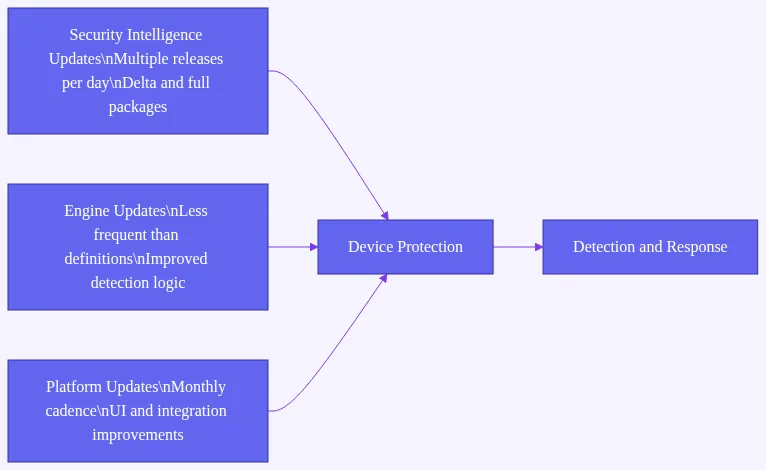
According to Microsoft’s official documentation, the three core update types are:
- Security Intelligence Updates — the threat definition files that tell Defender what malware looks like
- Platform Updates — updates to the Defender application itself (the software you interact with)
- Engine Updates — updates to the core detection engine that processes and analyzes files
Each of these updates on its own schedule, for its own reasons. Let’s unpack each one.
The Three Types of Microsoft Defender Antivirus Updates Explained
1. Security Intelligence Updates (Definition Updates)
Security intelligence updates are the most frequent type. These are the files that contain descriptions of known threats — viruses, trojans, ransomware, spyware, and thousands of other malicious software variants. When Defender scans a file or program, it checks it against this database of known threats.
Because new malware variants emerge constantly, Microsoft releases these updates multiple times per day. According to Microsoft’s own documentation, the update cadence can reach several releases within a single 24-hour period. This is not an exaggeration — it reflects the sheer pace at which the threat landscape moves.
Full security intelligence update packages typically range between 60 MB and 200 MB in size. To reduce bandwidth consumption, Microsoft also delivers delta updates — smaller packages that contain only the changes since the last update, rather than the full database. This is especially important for users on metered connections or in environments with limited bandwidth.
What changed for 2026: With the rollout of Windows 11 24H2 across enterprise environments, Microsoft restructured how security intelligence updates are delivered. The new architecture separates AI-model updates from traditional signature database updates, meaning your device may now receive more frequent, smaller update packages rather than one large daily bundle. This change improves responsiveness to zero-day threats without increasing bandwidth strain.
2. Platform Updates
Platform updates improve the Microsoft Defender Antivirus application itself — the user interface, the settings engine, the integration with Windows Security Center, and the underlying infrastructure that manages how Defender operates.
Think of platform updates as system upgrades for Defender as a product. They do not change what threats Defender knows about; they change how well Defender functions as a piece of software. Platform updates are delivered less frequently than security intelligence updates — typically on a monthly cadence, often aligned with Microsoft’s Patch Tuesday schedule.
For Windows 11 users, platform updates in 2026 also include improvements to how Defender integrates with Windows Autopatch — Microsoft’s automated patching service that is increasingly relevant for both small businesses and enterprise IT teams. More on that in a dedicated section below.
3. Engine Updates
Engine updates go one level deeper. The Defender engine is the core component responsible for scanning files, analyzing behavior, and making decisions about whether something is malicious. Engine updates improve the logic, speed, and accuracy of that detection process.
Engine updates are the least frequent of the three types, but they often carry the most significant capability improvements. A major engine update might introduce new heuristic detection methods, improve performance during background scans, or extend Defender’s ability to detect fileless malware — attacks that operate entirely in memory without writing files to disk.
What changed for 2026: Microsoft has begun shipping AI model updates as a semi-independent component alongside engine updates. Machine learning models trained on threat telemetry from Microsoft’s global network are now updated on a cadence separate from traditional signature databases. This means Defender can adapt to novel attack patterns faster than signature-only approaches ever allowed.
Quick Reference: Update Types at a Glance
Why Microsoft Defender Antivirus Updates Matter More Than Ever in 2026
Here is the reality check: Microsoft Defender Antivirus is built into every copy of Windows 10 and Windows 11, which means its update reliability directly affects hundreds of millions of devices worldwide. With a market share exceeding 50% among Windows endpoint security solutions on managed devices (Microsoft’s security data), Defender’s update mechanism is arguably the most consequential antivirus update pipeline on the planet.
And the stakes are not abstract. According to the Microsoft Digital Defense Report 2024, unpatched or out-of-date antivirus definitions remain a top contributing factor in successful malware infections on managed endpoints. In other words: the single most effective thing most users can do to reduce their malware risk is simply ensure their Defender definitions are current.
Think of it this way. Imagine a security guard at a shopping mall who has not received a briefing in two weeks. They do not know what the latest threats look like. They cannot recognize new tactics. That is exactly what an outdated Defender installation looks like to a modern piece of malware — an opportunity.
Keeping Microsoft Defender Antivirus updates current is not a technical nicety. It is your first and most practical line of defense.
How Microsoft Defender Antivirus Updates Work: Automatic vs. Manual
Automatic Updates: The Recommended Approach for Most Users
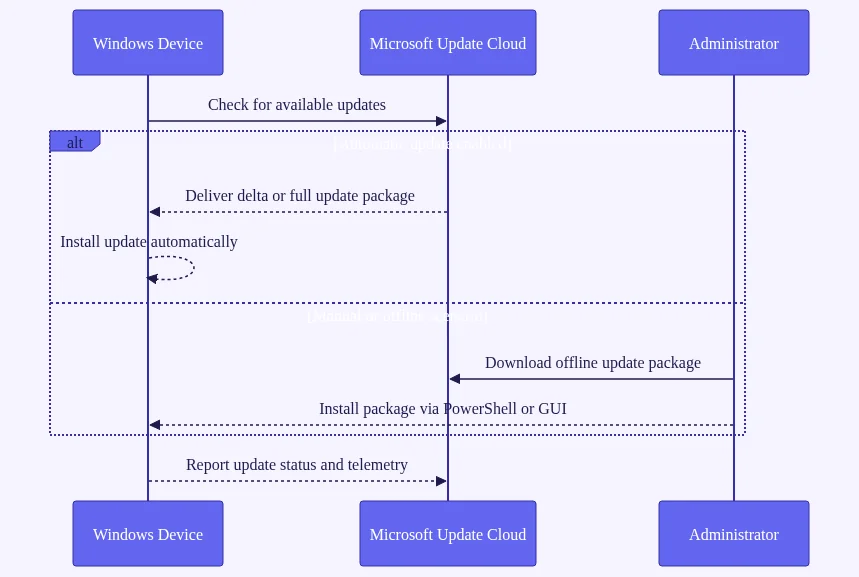
For the vast majority of home users and small business professionals, enabling automatic updates is the right choice — and the default setting on any healthy Windows installation. When automatic updates are active, Defender connects to Microsoft’s update servers in the background, checks for new security intelligence, and downloads and applies updates without requiring any action from you.
This matters because the threat landscape does not pause while you are busy. A new ransomware variant identified at 9 AM can have a definition update available by 10 AM. Automatic updates ensure you receive that protection as soon as it is released.
To verify that automatic updates are enabled on your device:
- Open the Windows Security application (search for it in the Start menu)
- Click Virus & Threat Protection
- Under Virus & Threat Protection Updates, click Protection Updates
- Confirm that your definitions are current and that automatic updates are enabled via Windows Update settings
If your definitions show a date from several days ago, that is a signal something may be preventing automatic updates from running correctly. See the troubleshooting section below.
Manual Updates: Taking Control When You Need To
Manual updates are useful in specific situations: you are on a slow connection and want to control when the bandwidth is used, you have just reconnected a device after a period offline, or you are troubleshooting an update issue and want to force a fresh check.
To manually trigger a security intelligence update:
- Open Windows Security
- Navigate to Virus & Threat Protection
- Select Check for Updates under the Virus & Threat Protection Updates section
This process shows you the current definition version and lets you download the latest update on demand. It takes only a few seconds on a standard broadband connection.
Related reading: How to check your Windows 11 security settings and run a full Defender scan
Offline and Manual Update Packages: A 2026 Priority
One of the most significant shifts heading into 2026 is Microsoft’s increased investment in offline update packages — pre-downloaded definition files that can be applied to devices without an active internet connection.
This matters for several types of users:
- Air-gapped environments — organizations where sensitive systems are intentionally disconnected from the internet for security reasons (common in government, defense, and critical infrastructure)
- Low-bandwidth environments — remote offices, field workers, or regions where reliable broadband is not available
- IT administrators managing WSUS — Windows Server Update Services deployments where updates are staged and distributed internally rather than pulled directly from Microsoft
According to Microsoft’s update management documentation, IT administrators can download standalone security intelligence update packages directly from Microsoft’s Security Intelligence portal and deploy them using Group Policy, Microsoft Endpoint Configuration Manager, or manual installation scripts.
For home users who find themselves temporarily without internet access, the key thing to know is this: Defender will continue to protect your device using its most recently downloaded definitions. It will not stop functioning. But it will become progressively less effective against the newest threats the longer it goes without an update. Reconnecting to the internet and running a manual check for updates as soon as possible is the recommended course of action.
What changed for 2026: Microsoft significantly expanded its offline update tooling in late 2026, making it easier for IT administrators to maintain current definitions in air-gapped environments. The new packaging format reduces the size of offline update bundles while improving version tracking — a meaningful improvement for organizations managing dozens or hundreds of disconnected endpoints.
Defender for Individuals vs. Defender for Business: Different Update Pipelines in 2026
Not all Microsoft Defender installations are the same — and in 2026, the gap between the consumer and enterprise update pipelines has become more pronounced.
Microsoft Defender Antivirus (Consumer / Home Users)
For home users running Windows 10 or Windows 11, Defender updates arrive primarily through Windows Update. This is the same channel that delivers operating system patches and feature updates. The integration is seamless — in most cases, you do not need to do anything beyond keeping Windows Update enabled.
The consumer pipeline prioritizes simplicity. Updates are tested, staged, and rolled out automatically. The tradeoff is that home users may receive updates slightly later than enterprise environments, where Microsoft often deploys to a validation ring first.
Microsoft Defender for Business and Defender for Endpoint (Enterprise)
Organizations using Microsoft Defender for Business or the full Microsoft Defender for Endpoint suite have access to a more granular update management experience. IT administrators can:
- Configure update rings to stage rollouts across groups of devices
- Set update baselines to ensure devices do not fall below a minimum definition version
- Use WSUS, Microsoft Endpoint Configuration Manager, or Intune to control update delivery
- Access detailed telemetry on definition currency across the entire device fleet
The enterprise update pipeline also receives AI model updates and platform changes on a slightly different schedule, giving IT teams time to validate updates before broad deployment.
What changed for 2026: Microsoft Defender for Business — the mid-market offering designed for organizations with up to 300 users — received significant update management improvements in the Windows 11 24H2 era. Administrators now have more visibility into per-device definition age and can trigger remediation workflows automatically when a device falls behind on updates.
Windows Autopatch and the Future of Defender Updates
If you manage devices for a small or mid-sized business, Windows Autopatch is one of the most important developments to understand heading into 2026.
Windows Autopatch is Microsoft’s automated patching service, available to organizations with eligible Microsoft 365 or Windows Enterprise licenses. It takes the complexity of managing Windows Update, Microsoft 365 app updates, and — critically — Microsoft Defender Antivirus updates off the hands of IT administrators by automating the entire process.
Here is what Autopatch does for Defender specifically:
- Automatically manages security intelligence update delivery across enrolled devices
- Enforces update compliance — flagging and remediating devices that fall behind
- Stages updates through deployment rings — test, first, fast, and broad — to catch issues before they affect your entire organization
- Provides reporting dashboards so administrators can see the definition currency status of every managed device
For small businesses that previously struggled to maintain consistent Defender update hygiene across a mixed fleet of laptops and desktops, Autopatch represents a significant improvement in practical security posture.
What changed for 2026: Microsoft expanded Autopatch eligibility and added more granular controls for Defender-specific update policies in late 2026. Organizations can now configure separate update rings for security intelligence updates versus platform and engine updates — giving IT teams more flexibility without sacrificing automation. Related reading: Beginner’s guide to Windows Autopatch and automated security updates
Navigating Microsoft Defender Update Settings
Beyond the automatic-versus-manual choice, Microsoft offers meaningful flexibility in how updates are configured. Here are the key settings worth knowing about.
Update Frequency
You can influence how aggressively Defender checks for new security intelligence. In most consumer configurations, this is managed automatically. In enterprise environments, Group Policy and Intune policies allow administrators to set specific check intervals — for example, checking every hour rather than waiting for the default schedule.
More frequent checks mean faster protection against newly discovered threats. The tradeoff is a small increase in network traffic, though delta updates minimize this significantly.
Bandwidth Management
If you are on a metered internet connection — a mobile hotspot, for example, or a capped broadband plan — you can configure Windows to treat your connection as metered. This signals to Windows Update and Defender to defer non-critical updates and prioritize smaller delta packages over full update bundles.
To set a connection as metered in Windows 11: 1. Open Settings > Network & Internet 2. Select your active connection (Wi-Fi or Ethernet) 3. Toggle Metered connection to On
Defender will still receive critical security intelligence updates on metered connections, but it will be more conservative about bandwidth usage.
Scheduling
For users who want updates to happen at specific times — overnight, for example, when the device is not in active use — Windows Update scheduling settings apply to Defender updates as well. Set your active hours in Settings > Windows Update > Advanced Options > Active Hours to prevent updates from interrupting your workday.
Related reading: How to configure Microsoft Defender Antivirus in Windows 11 for maximum protection
How to Check If Your Defender Definitions Are Current
One of the most common questions from beginners is simply: how do I know if my Defender is up to date?
Here is the quickest way to check:
- Open Windows Security (search for it in the Start menu)
- Click Virus & Threat Protection
- Under Virus & Threat Protection Updates, you will see: – The current Security intelligence version (a version number) – The Last updated date and time
If the “Last updated” timestamp is more than 24 hours ago, it is worth running a manual update check. If it is more than 72 hours ago, something may be actively preventing updates — see the troubleshooting steps below.
You can also check definition version details through the command line for more precise information:
Open PowerShell and run:
Get-MpComputerStatus | Select-Object AntivirusSignatureVersion, AntivirusSignatureLastUpdated
This returns the exact version number and timestamp of your current definitions — useful for IT administrators verifying definition currency across multiple devices.
Related reading: How to use Windows Security Center to monitor your PC’s protection status
Why Is Microsoft Defender Antivirus Not Updating? Common Causes and Fixes
Even with automatic updates enabled, Defender can sometimes fall behind. Here are the most common reasons — and what to do about them.
Windows Update Is Paused or Disabled
Because Defender security intelligence updates flow through Windows Update for most consumer devices, pausing Windows Update also pauses Defender definition updates. Check Settings > Windows Update and ensure updates are not paused.
Third-Party Antivirus Software Is Interfering
If you have installed a third-party antivirus product alongside Defender, Windows may automatically place Defender in passive mode — where it runs but does not actively update or scan. This is by design to prevent conflicts. If you want Defender to be your primary protection, uninstall the third-party product and restart your device.
Network or Firewall Issues
Corporate firewalls, VPN configurations, or aggressive network filtering can sometimes block Defender’s connection to Microsoft’s update servers. If you are on a corporate network and notice definitions falling behind, contact your IT administrator — this is a known issue in some network configurations.
The Device Has Been Offline for an Extended Period
Devices that have been powered off or disconnected for a long time will need to download a full update package when they reconnect, rather than a delta update. This can take longer than usual. Simply connect to the internet, open Windows Security, and run a manual update check to initiate the process.
Corrupted Update Cache
In rare cases, the local update cache can become corrupted. Microsoft Support provides a dedicated troubleshooting guide for resolving update failures, including steps to reset the Windows Update components.
Related reading: Understanding Windows Update vs. Microsoft Defender updates: What’s the difference?
Microsoft Defender Antivirus Updates on Windows 11 vs. Windows 10 in 2026
Both Windows 10 and Windows 11 receive Microsoft Defender Antivirus updates, but the experience is not identical in 2026.
Windows 11 (particularly 24H2 and later) benefits from: – Tighter integration between Defender updates and the Windows Security app – Support for the new AI model update component, which delivers machine learning improvements independently from signature databases – Improved update performance on devices with modern hardware, including faster delta update application – Full Windows Autopatch compatibility for enterprise deployments
Windows 10 continues to receive security intelligence, platform, and engine updates, but: – It does not receive the new AI model update architecture introduced with the Windows 11 24H2 update cycle – Some newer platform features are Windows 11-exclusive – Windows 10 mainstream support ends in October 2026, meaning the update experience for Windows 10 users in 2026 is on a legacy support track — security updates continue, but feature improvements are largely reserved for Windows 11
If you are still running Windows 10 in 2026, your core Defender protection remains functional and updated. But for the full benefit of Microsoft’s evolving AI-powered threat detection capabilities, Windows 11 is the recommended platform.
Related reading: Microsoft Defender vs. third-party antivirus software: Which is better in 2026?
Frequently Asked Questions (FAQs)
Q1: How often does Microsoft Defender Antivirus update its definitions, and how can I check if my definitions are current?
Microsoft releases security intelligence updates multiple times per day — potentially several times within a single 24-hour period, according to Microsoft’s documentation. To check if your definitions are current, open Windows Security, go to Virus & Threat Protection, and look at the “Last updated” timestamp under Virus & Threat Protection Updates. If it is more than 24 hours old, run a manual update check.
Q2: What is the difference between a security intelligence update, a platform update, and an engine update?
A security intelligence update refreshes the threat definition database — it tells Defender what new malware looks like. A platform update improves the Defender application itself (features, UI, integration). An engine update enhances the core scanning and detection logic. All three are necessary for comprehensive protection, but they update on different schedules. Security intelligence updates are the most frequent; engine updates are the least frequent.
Q3: Why is Microsoft Defender Antivirus not updating automatically, and how do I fix it?
The most common causes are: Windows Update is paused, a third-party antivirus has put Defender in passive mode, a network or firewall issue is blocking Microsoft’s update servers, or the device has been offline for an extended period. Check your Windows Update settings first, then verify no conflicting antivirus software is installed. Microsoft’s support page provides step-by-step troubleshooting for persistent update failures.
Q4: Can I manually download and install Microsoft Defender Antivirus updates without an internet connection?
Yes. Microsoft publishes standalone security intelligence update packages that can be downloaded on one device and transferred to an offline machine via USB or network share. This is particularly useful for air-gapped environments. IT administrators can find these packages through Microsoft’s Security Intelligence portal and deploy them using Group Policy or Configuration Manager, as described in Microsoft’s update management documentation.
Q5: How do Microsoft Defender Antivirus updates work differently on Windows 11 compared to Windows 10 in 2026?
Both platforms receive core security intelligence, platform, and engine updates. However, Windows 11 (especially on the 24H2 update track) supports the new AI model update architecture, which delivers machine learning improvements independently from traditional signature databases. Windows 10 does not receive this new component. Additionally, Windows 11 offers tighter Autopatch integration and improved update performance on modern hardware.
Q6: What happens if I miss several days of updates — is my device at serious risk?
Missing a few days of updates increases your exposure to newer threats that emerged during that period, but it does not leave you completely unprotected — Defender will still detect threats it already knows about. The Microsoft Digital Defense Report 2024 notes that outdated definitions are a top factor in successful malware infections, which underscores the importance of staying current. If your device has been offline for several days, reconnect and run a manual update check as soon as possible.
Conclusion: Stay Secure with Microsoft Defender in 2026
Microsoft Defender Antivirus updates are not a background technicality — they are the active, ongoing mechanism that keeps your device protected in a threat landscape that changes by the hour. Whether you are a home user relying on automatic updates, a professional managing a small business fleet, or an IT administrator deploying offline packages to air-gapped systems, understanding how these updates work puts you in a stronger security position.
The good news is that for most people, keeping Defender current requires almost no effort: enable automatic updates, keep Windows Update running, and check your definition timestamp occasionally to confirm everything is working as expected. Start there, and you have already done more than most users to protect your digital environment.
References & Read More
Related Wealth Stack guides:
External sources:
- Microsoft Learn – Microsoft Defender Antivirus security intelligence and product updates
- Microsoft Learn – Manage Microsoft Defender Antivirus updates and apply baselines
- Microsoft Digital Defense Report 2024
- Microsoft Support – Update Microsoft Defender Antivirus
- Microsoft Learn – Windows Autopatch Overview
2 thoughts on “Understanding Microsoft Defender Antivirus Updates: A Comprehensive Beginner’s Guide”