Nothing derails a Monday morning faster than opening Power Automate and discovering a red badge screaming that your mission-critical flow has failed overnight. If you have ever stared at a power automate flow checker error and felt your stomach drop, you are not alone — and you are in exactly the right place. In 2026, Power Automate powers tens of millions of automated workflows across Dynamics 365, Microsoft 365, and Azure ecosystems. Yet even seasoned Power Platform makers and Dynamics 365 consultants routinely hit cryptic validation warnings, broken trigger configurations, and action failures that refuse to explain themselves.
Table of Contents
This guide cuts through the noise. We will walk you through every major category of flow checker error, show you precisely how to read the diagnostic signals Power Automate gives you, and hand you battle-tested fixes you can apply right now — whether you are a first-time maker or a veteran IT pro managing hundreds of flows in a production environment.
What Is the Power Automate Flow Checker and Why Does It Matter in 2026?
How the Flow Checker Validates Your Flows Before You Run Them
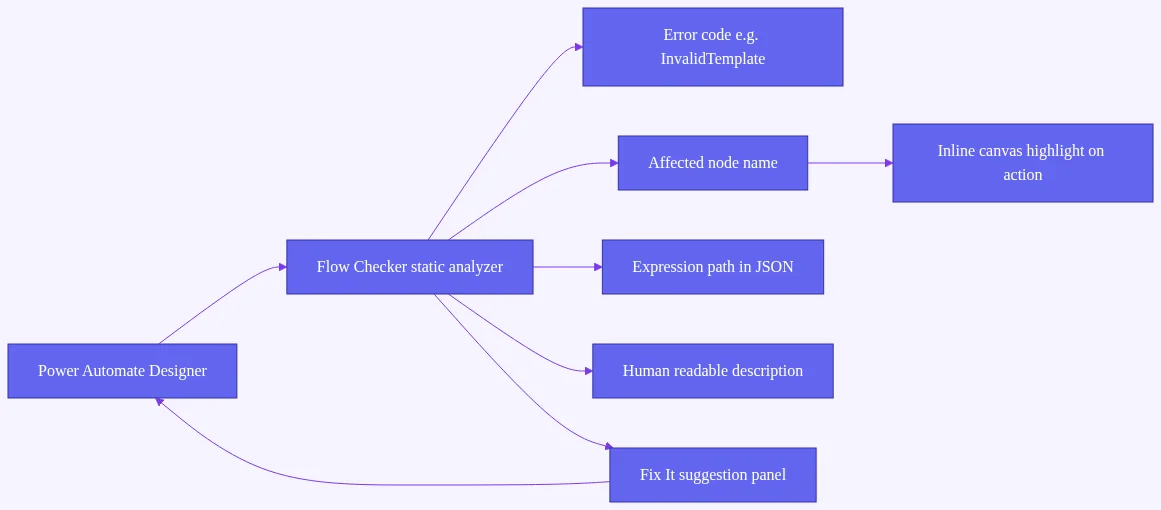
The Flow Checker is the built-in static analysis tool inside the Power Automate designer. It scans your triggers, actions, expressions, and connections before a flow is saved or published. Think of it as a compiler warning system — it catches problems at design time so you do not discover them in production at 2 a.m.
You access it via the shield/checkmark icon in the designer toolbar. Errors also surface inline on the canvas, highlighted directly on the affected action card. This dual-surface approach makes it hard to miss a problem — as long as you know what you are looking at.
The Difference Between Errors, Warnings, and Informational Notices
The Flow Checker uses three severity levels, and understanding each one changes how you triage issues:
- Error (Red): Blocks saving or running the flow entirely. You must fix these before the flow can execute.
- Warning (Yellow): The flow may save and run, but behavior is unpredictable. These are the sneaky ones — they often cause intermittent failures that are hard to reproduce.
- Info (Blue): Best-practice suggestions. Ignoring them will not break your flow today, but they accumulate into technical debt.
The 2025 Wave 1 release introduced a refreshed unified canvas with improved inline error highlighting and a “Fix It” suggestion panel. These improvements carried forward into 2026, making it faster to act on checker output without leaving the designer.
Why Ignoring Flow Checker Alerts Costs You More Than You Think
A single failed flow in a Dynamics 365 CRM automation or a SharePoint approval chain can cascade into SLA breaches, data inconsistencies, and hours of manual rework. Power Platform environments with DLP policies or managed environments may also surface additional checker alerts tied to governance rules — alerts that a non-admin maker cannot resolve alone.
The business case for treating every checker alert seriously is straightforward: fix it now in the designer, or fix it later under pressure during an incident.
Anatomy of a Power Automate Flow Checker Error: Reading the Diagnostic Output
Decoding Error Codes, Node References, and Expression Paths
Every power automate flow checker error message follows a consistent structure:
- Error code — e.g.,
InvalidTemplate,WorkflowTriggerNotFound,ExpressionEvaluationFailed - Affected node name — the specific trigger or action where the problem lives
- Expression path — the exact property path inside the action’s JSON definition
- Human-readable description — a plain-English explanation of what went wrong
When you see InvalidTemplate on an action called Get_item, the checker is telling you that the JSON definition of that specific action contains a structural problem — often a broken dynamic content reference.
Using Run History Alongside the Flow Checker for Full-Spectrum Diagnosis
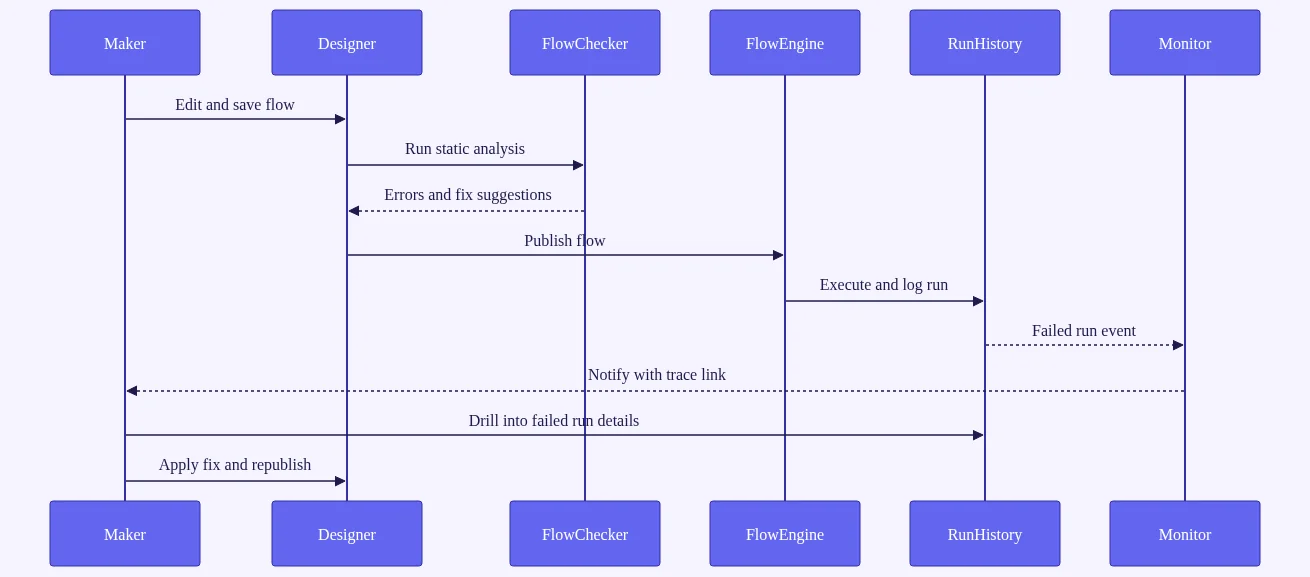
The Flow Checker catches design-time issues. Run History exposes runtime failures. You need both for a complete picture. Here is how to use them together:
- Open the Flow Checker panel to identify structural problems in the flow definition.
- Open the 28-day Run History pane and filter by “Failed” status.
- Drill into a specific failed run and expand each action card.
- Toggle “Show raw inputs/outputs” to see the exact JSON payload that caused the failure, including HTTP status codes from connector APIs.
This two-panel approach — checker for design issues, run history for data issues — resolves the vast majority of power automate flow errors you will encounter. You can also copy the error JSON and paste it into a Power Platform Admin Center support ticket for escalation.
How to Export and Share Flow Checker Results with Your Team
For power automate troubleshooting 2026, pro-dev teams have additional options. The Power Automate VS Code extension and the pac flow CLI command surface diagnostic information outside the browser designer. This is especially useful for teams running ALM pipelines where a human may not be watching the designer in real time.
One important note: “ghost errors” — checker alerts that persist after you believe you have fixed them — are a known issue. A hard browser refresh (Ctrl+Shift+R) or reopening the flow in a new tab usually clears the stale validation state.
Top Power Automate Flow Checker Errors Caused by Trigger Failures
Trigger Configuration Errors: Missing Required Fields and Unsupported Trigger Types
Power automate trigger not firing 2026 is one of the most searched complaints on the Power Platform community forums — and most cases trace back to a misconfigured trigger. The most common trigger-level errors include:
TriggerNotFound— the trigger type no longer exists or was renamed in the connectorInvalidTriggerType— the connector does not support the selected trigger in the current environmentTriggerInputsNotValid— required fields like Site Address or List Name are emptyConnectionAuthorizationFailed— the connection account lacks permission or the token expiredSubscriptionQuotaExceeded— the tenant has hit the webhook subscription limit for a connector
The single most reported power automate flow checker error among new makers is the “When an item is created or modified” SharePoint trigger with a missing Site Address or List Name. Both fields are required, and the checker will block saving until they are populated.
Connection and Permission Errors That Break Triggers at Runtime
The Dataverse trigger presents a subtler problem. If you select a table that the connection account lacks read permissions on, the checker may show only a warning — but the flow will throw a hard error at runtime. Always verify that the service account or user account behind the connection has the correct Dataverse security role assigned.
HTTP triggers have their own pitfalls. Missing Azure Active Directory audience values or incorrect OAuth scopes produce checker warnings that become 401 Unauthorized errors in production. Double-check the AAD audience field against the resource you are calling.
Recurrence and Scheduled Trigger Pitfalls to Avoid
Recurrence trigger timezone mismatches are a persistent pain point. A flow configured for UTC in a tenant set to a different timezone will execute off-schedule. The Flow Checker now surfaces a warning about this mismatch, making it easier to catch before deployment.
Watch out for trigger condition expressions too. A malformed @triggerOutputs() expression can pass checker validation but evaluate to false permanently — silently preventing the flow from ever firing. Always test trigger conditions using the Expression Editor’s test function and validate with a manual trigger test run.
Fix checklist for trigger failures:
- Confirm all required trigger fields are populated
- Verify the connection account has the correct permissions on the data source
- Validate trigger conditions with the Expression Editor
- Use the “Test” panel with a manual trigger to confirm the trigger fires
- Check the tenant’s webhook subscription quota in the Power Platform Admin Center
Diagnosing and Fixing Power Automate Action Errors
Missing or Broken Dynamic Content References in Actions
Dynamic content errors in Power Automate are the most common action-level issue. They occur when an action references output from a step that has been renamed, deleted, or moved. The checker surfaces these as InvalidTemplate or ExpressionEvaluationFailed errors.
The fix is to stop relying on the dynamic content picker and hard-code the reference path in the Expression Editor instead:
outputs('Get_item')?['body/Title']
This approach is more resilient because it does not depend on the picker’s internal binding, which can silently break when you reorganize actions.
Power automate expression error debugging tip: if you are unsure of the exact path, run the flow once with a test payload, open Run History, and inspect the raw outputs of the source action. The JSON structure is your map.
Connector Throttling, Quota Limits, and Retry Policy Errors
When the checker flags a ThrottlingException or a 429 Too Many Requests pattern, it means your flow’s concurrency settings or retry policy conflicts with the connector’s API rate limits. Here is how to address it:
- Reduce concurrency on “Apply to Each” loops — set the degree of parallelism to 1 or a low number for connectors with strict rate limits.
- Configure a custom retry policy on the affected action (set to “Exponential Interval” with a reasonable count and interval).
- Stagger scheduled flows so multiple flows do not hammer the same connector simultaneously.
Scope and Parallel Branch Errors That Confuse Even Experienced Makers
Power automate action failed how to fix questions often involve Scope actions. Two common patterns trip up even experienced makers:
- Referencing a variable defined outside a Scope from inside a parallel branch — Power Automate does not guarantee variable state across parallel branches.
- Using “Configure run after” settings that create circular dependencies — Action B runs after Action A fails, but Action A also runs after Action B fails.
Use the “Peek code” option on any action to inspect its raw JSON definition. This is often faster than navigating the designer UI when you are hunting a structural error. The 2026 “Action Insights” sidebar also shows historical success and failure rates per action, helping you prioritize which actions need the most attention.
Power Platform Flow Validation Errors: Connection, DLP, and Environment Issues
How DLP Policies Generate Flow Checker Warnings You Cannot Fix in the Designer
Power platform flow validation errors caused by Data Loss Prevention policies appear as ConnectorBlocked or ConnectorGroupViolation in the checker. These are not bugs in your flow — they are governance guardrails enforced by your Power Platform administrator.
As a maker, you cannot resolve DLP errors yourself. Your options are:
- Document the business justification for the connector
- Submit a request to your admin team to adjust the DLP policy
- Use an alternative connector already permitted by the policy
For more background on DLP policy architecture, the Microsoft Power Platform DLP documentation is the authoritative reference.
Shared vs. Per-User Connections and Why They Break Flows
The power automate connection invalid error fix most often involves a shared connection that belonged to a departed employee or a service account with an expired license. The checker flags this at save time as ConnectionAuthorizationFailed.
The fix process:
- Navigate to Data > Connections in Power Automate
- Find the affected connection and click “Fix connection” to re-authenticate
- For production flows, replace personal connections with a dedicated service account or a managed identity connection
Managed identity connections — broadly available since the 2025-2026 timeframe — eliminate the token expiry problem entirely and are now the recommended approach for enterprise flows.
Cross-Environment and Solution-Aware Flow Errors
When a solution-aware flow is exported and imported across environments, unresolved connection references generate ConnectionReferenceNotBound errors. Fix these by binding the connection reference in the Power Platform Admin Center after import.
Environment variable misconfiguration is another silent killer. A missing or null environment variable value causes checker errors that are invisible until deployment. Set default values for all environment variables and validate them in the target environment before going live.
The “there’s a problem that needs to be fixed to trigger this flow” message in the designer is often the surface-level signal for one of these deeper connection or environment variable issues — do not stop at the message; dig into the checker panel for the specific error code.
Advanced Troubleshooting: Using Power Automate Run History and Monitor
Navigating Run History to Pinpoint Exactly Where a Flow Fails
Power automate run history error details are your most powerful diagnostic tool for runtime failures. Here is a step-by-step approach:
- Open your flow’s detail page
- Open the 28-day Run History panel
- Filter by “Failed” status
- Click into a specific failed run
- Expand each action card in sequence — failed actions are highlighted in red
- Click “Show raw inputs” and “Show raw outputs” on the failed action
- Look for HTTP status codes, error messages from Dataverse or SharePoint, and null values in expected fields
Power automate run history troubleshooting best practice: always check raw outputs before assuming you know the cause. A 400 Bad Request from SharePoint and a 403 Forbidden from Dataverse require completely different fixes.
Power Automate Monitor View for Cloud and Desktop Flows
The Power Automate Monitor (formerly Flow Analytics) shows error frequency and failure trends over 28 days across all flows in a solution. For power automate flow not triggering scenarios, the monitor helps you distinguish between a flow that never fired and a flow that fired but failed immediately.
For RPA desktop flow scenarios, the monitor surfaces UI element not found errors, application timeout errors, and credential vault errors. Correlate these with the cloud flow checker warnings on the parent flow that calls the desktop flow.
Using Azure Application Insights Integration for Deep-Dive Diagnostics
Connecting your Power Automate environment to Azure Application Insights gives you telemetry, custom dimensions, and alerting on flow failures. This is the right investment for enterprise IT teams managing large flow estates. You get structured logs, failure trend dashboards, and the ability to set up proactive alerts before users notice a problem.
The “Test” flow feature with saved trigger payloads is essential for debugging intermittent errors. Save a real trigger payload from a previous successful run, then replay it against your fixed flow to confirm the fix holds before re-enabling the flow in production.
Power Automate Flow Error Handling Best Practices to Prevent Errors Before They Happen
Naming Conventions, Comments, and Documentation That Reduce Errors
Power automate flow error handling best practices start before you write a single action. Consistent naming conventions for actions, variables, and connections prevent the “which Get_item did I reference?” confusion that causes dynamic content errors. Use descriptive names like Get_Opportunity_Record instead of the default Get_item.
Add notes to complex actions using the action description field. Future-you — and your teammates — will thank you.
Using Solution Checker and the ALM Toolkit for Pre-Deployment Validation
The Power Platform Solution Checker catches flow checker issues, DLP violations, and performance anti-patterns before you deploy to production. Run it as part of your deployment checklist.
For teams using CI/CD pipelines, the ALM Toolkit and GitHub Actions or Azure DevOps pipelines can run automated solution checker scans on every pull request. This catches errors before they reach production — not after.
Building Error-Handling Patterns That Catch Failures Gracefully
The Try-Catch-Finally Scope pattern is the gold standard for resilient Power Automate flows:
- Try Scope: Wrap your risky actions here
- Catch Scope: Set “Configure run after” to run after the Try Scope has failed, skipped, or timed out
- Finally Scope: Cleanup actions that run regardless of success or failure
Inside the Catch Scope, use a Compose action with the expression @result('Try_Scope') to capture the full error detail — action name, error code, error message, and timestamp. Send this to a Teams channel or log it to a Dataverse table for monitoring.
Additional best practices:
- Use environment variables and connection references from day one, even in development
- Schedule monthly flow health reviews using the Environment Health dashboard
- Use the 2026 Copilot-assisted flow repair feature for quick suggestions on common errors, but always review the suggested fix before applying it in production
Quick-Reference: Most Common Power Automate Flow Checker Error Codes and Their Fixes
Use this section as a copy-paste resource for your internal runbooks or Confluence/SharePoint documentation. Bookmark the Microsoft Learn Troubleshoot common issues with triggers article as a living reference updated by the product team.
Trigger Error Codes and One-Line Fixes
| Error Code | Root Cause | Fastest Fix |
|---|---|---|
InvalidTriggerType | Connector no longer supports this trigger | Replace with the current supported trigger from the connector |
TriggerNotFound | Trigger definition references a deleted connector version | Recreate the trigger using the latest connector |
TriggerInputsNotValid | Required trigger fields are empty | Populate all required fields (Site Address, List Name, Table Name) |
ConnectionAuthorizationFailed | Expired token or revoked credentials | Re-authenticate via Data > Connections > Fix Connection |
SubscriptionQuotaExceeded | Tenant hit webhook subscription limit | Delete unused flows or request a quota increase from your admin |
RecurrenceIntervalInvalid | Recurrence interval value is zero or negative | Set interval to a positive integer |
Action and Expression Error Codes and One-Line Fixes
InvalidTemplate— Broken dynamic content reference; hard-code the expression path in the Expression EditorExpressionEvaluationFailed— Expression evaluates to an error at runtime; test the expression with the Expression Editor’s test functionActionFailed(generic) — Check raw outputs in Run History for the specific connector error messageActionSkipped— “Configure run after” is set incorrectly; review the run-after dependencies of the actionTypeMismatch— Passing a string where an integer is expected; useint()orstring()conversion functionsNullValue— Dynamic content is null; add a condition to check for null before using the value, or usecoalesce()WorkflowActionNotFound— An action was renamed or deleted but is still referenced; update all downstream referencesThrottlingException— Connector API rate limit hit; configure exponential retry policy and reduce concurrency
Connection and Environment Error Codes and One-Line Fixes
ConnectorBlocked— DLP policy restricts this connector; contact your Power Platform admin to adjust the policyConnectionReferenceNotBound— Connection reference unresolved after environment import; bind it in PPAC post-importInsufficientPrivilege— Connection account lacks the required Dataverse security role; assign the correct roleEnvironmentVariableNotSet— Environment variable has no value in the target environment; set a value in PPACManagedEnvironmentRestriction— Flow violates a managed environment policy; review the policy with your admin
For power automate connection invalid error fix scenarios not covered here, search the Power Platform Community forums — the community is active and most error codes have documented solutions.
Frequently Asked Questions
What is a power automate flow checker error and how is it different from a runtime error?
A power automate flow checker error is a design-time validation issue surfaced before the flow runs. It catches misconfigured triggers, broken expressions, missing required fields, and DLP violations. A runtime error only appears in Run History after the flow has attempted to execute and failed due to live data, API responses, or permission issues. Use the Flow Checker panel for design-time issues and Run History for runtime failures — both are necessary for a fully healthy flow.
Why does my Power Automate flow show a checker error after I already fixed it?
This is a known stale validation state issue. After applying a fix, save the flow and perform a hard browser refresh (Ctrl+Shift+R). If the error persists, close the tab entirely, clear your browser cache, and reopen the flow from the My Flows list. Opening the flow in a private/incognito window forces a clean session and resolves the issue in most cases.
How do I fix a “ConnectionAuthorizationFailed” flow checker error in Power Automate?
Navigate to Data > Connections in Power Automate, find the affected connection, and click “Fix connection” to re-authenticate. This error typically means the account’s password changed, the OAuth token expired, an MFA policy was enforced, or the user account was disabled. For production flows, replace personal connections with a dedicated service account or a managed identity connection to prevent future expiry issues.
Can DLP policies cause flow checker errors, and can I fix them myself as a maker?
Yes — DLP policies enforced by your Power Platform administrator cause ConnectorBlocked or ConnectorGroupViolation checker errors when your flow uses a restricted connector. As a maker, you cannot fix these yourself. Document the business justification for the connector and submit a request to your admin team, or use an alternative connector already permitted by the existing policy.
What are the most common trigger failures in Power Automate in 2026?
The most common power automate trigger failures include missing required fields in SharePoint or Dataverse triggers, expired connection credentials, HTTP trigger authentication misconfigurations, recurrence trigger timezone mismatches, and SubscriptionQuotaExceeded errors. Each has a specific fix covered in the trigger failures section above.
How can I use Power Automate run history troubleshooting to find the root cause of a flow failure?
Open the 28-day Run History panel, filter by “Failed,” and drill into a specific run. Expand each action card and click “Show raw inputs” and “Show raw outputs” on the failed action. Look for HTTP status codes, error messages from connector APIs, and null values in expected fields. Cross-reference with the Flow Checker panel for any design-time warnings on the same action. This combined approach resolves the vast majority of flow failures quickly.
Conclusion
Every power automate flow checker error is a signal, not a sentence. Once you learn to read the diagnostic output — cross-referencing the checker panel with run history, understanding the difference between design-time validation failures and runtime exceptions, and applying the right fix for each error category — you transform from someone who fears the red badge to someone who resolves issues in minutes rather than hours.
The frameworks in this guide — from the Try-Catch-Finally Scope pattern to ALM Toolkit CI/CD pipelines — are not just troubleshooting tactics. They are the foundation of production-grade Power Automate development that scales across Dynamics 365, Microsoft 365, and Azure environments in 2026 and beyond.
Your next step: Open your Power Automate environment right now, run the Flow Checker on your five most business-critical flows, and triage any errors or warnings using the quick-reference section above. Then explore our Power Platform troubleshooting guides and deep-dive into Dataverse automation patterns for more advanced techniques.
Have a specific flow checker error that is not covered here? Drop it in the comments below — our team of Dynamics 365 consultants and Power Platform specialists will respond with a targeted fix.