Copilot Studio Actions: 7 Ultimate Ways to Build Custom Agents in 2026
If you’ve been waiting for the right moment to unlock the full power of Microsoft’s AI ecosystem, that moment is now. Copilot studio actions have fundamentally transformed how developers, Dynamics 365 consultants, and Power Platform makers design intelligent, task-driven agents — and in 2026, the toolset is more capable than ever before.
Table of Contents
Gone are the days of rigid, script-heavy chatbots that frustrate users with dead-end responses. Today, you can wire up a fully functional custom Copilot agent that renders rich Adaptive Cards, triggers complex Power Automate flows, queries live data sources, and responds contextually — all within a low-code, enterprise-grade environment.
Whether you’re building a self-service HR assistant, a Dynamics 365 case-management bot, or a customer-facing support agent, the combination of Adaptive Cards and Power Automate integration inside Copilot Studio creates an experience that feels genuinely intelligent. This guide walks you through every layer of that build — from environment setup and topic architecture to testing, governance, and production deployment.
What Are Copilot Studio Actions and Why They Matter in 2026
The Evolution from Power Virtual Agents to Microsoft Copilot Studio 2026
Microsoft’s conversational AI platform has come a long way. Power Virtual Agents gave makers a no-code way to build topic-based bots. Then came the Copilot Studio preview, which introduced generative AI features and a richer action framework. The latest GA release brings what Microsoft calls a multi-modal agent framework — supporting voice, text, and card-based interactions across Teams, Dynamics 365, and web surfaces.
You can read the full product history on Microsoft’s official Copilot Studio documentation.
How Copilot Studio Actions Differ from Classic Bot Topics
Topics define what your agent talks about. Copilot studio actions define what your agent can actually do.
Think of topics as the conversation script and actions as the hands that reach into your business systems. An action is a discrete, callable unit of logic — a Power Automate cloud flow, an AI Builder model, or an HTTP request — that extends your agent’s capability beyond scripted responses.
Classic topic-only bots plateau fast. They can answer FAQs, but they can’t:
- Update a Dynamics 365 record in real time
- Query a live inventory database
- Process a form submission and route it for approval
- Render a dynamic, data-driven Adaptive Card
Copilot studio actions solve all of these limitations.
The Business Case: ROI of Action-Driven Copilot Agents
Organizations deploying action-driven Copilot agents consistently report measurable outcomes. According to Forrester’s research on conversational AI ROI, automated self-service interactions reduce cost-per-contact significantly compared to live agent handling. The key driver is task completion — agents that can do things, not just answer questions, deflect more tickets and resolve more issues without human escalation.
The three action categories available in the current platform are:
- Power Automate cloud flow actions — the workhorse for enterprise integrations
- AI Builder prompt actions — for intelligent text classification and entity extraction
- Custom connector / HTTP actions — for any REST API not covered by standard connectors
Setting Up Your Copilot Studio Environment for Action Development
Licensing, Environments, and Dataverse Prerequisites
Before you write a single action, your environment needs to be correctly configured. Microsoft Copilot Studio pricing 2026 follows a per-session and per-tenant licensing model — check current Microsoft pricing for the latest SKU details, as these change with platform updates.
Key licensing checkpoints:
- Copilot Studio license — required to create and publish agents
- Power Automate Premium — required for Dataverse, HTTP, and most enterprise connectors
- Dataverse capacity — each environment needs adequate storage allocation for conversation logs and custom tables
Create a dedicated sandbox environment for Copilot development. Never build and test actions directly in production. Enable Managed Environments for your production environment to gain access to governance controls like usage insights and maker welcome content.
Configuring Maker Permissions and DLP Policies for Actions
Data Loss Prevention (DLP) policies are the most common reason actions fail after deployment. Your DLP policy must place all connectors used by your actions in the same group — either Business or Non-Business — or the flow will be blocked at runtime.
Here’s a practical DLP checklist for action development:
- Move the Dataverse connector to the Business group
- Move the HTTP with Azure AD connector to the Business group
- Move Microsoft Teams and Office 365 connectors to the Business group
- Block consumer connectors (Twitter, personal Dropbox) in a separate Non-Business group
Connecting Your Copilot Agent to Power Automate and Dynamics 365
Use connection references — not hardcoded personal connections — for every flow action. Connection references allow a service principal or shared service account to own the connection, so actions don’t break when a maker leaves the organization.
For Dynamics 365 integration prerequisites:
- Enable the Copilot Studio app within your D365 environment
- Configure the Dataverse connector using a service account with scoped security roles
- Assign only the minimum required table permissions — principle of least privilege applies here
Use this environment setup as your foundation before touching any of the seven action patterns below.
Designing Adaptive Cards in Copilot Studio for Rich User Interactions
Anatomy of an Adaptive Card: Schema, Elements, and Actions
Adaptive Cards are JSON-defined UI components that render natively inside supported channels. The Adaptive Cards open specification is maintained by Microsoft and defines a cross-platform schema that works in Teams, Outlook, Web Chat, and Dynamics 365 surfaces.
The elements you’ll use most in enterprise bot UX:
- TextBlock — labels, headings, and status messages
- Input.Text — free-text entry fields
- Input.ChoiceSet — dropdowns and radio buttons bound to Dataverse choice columns
- FactSet — key-value pairs for displaying record details
- Action.Submit — submits card data back to the Copilot topic as variables
- Action.OpenUrl — opens an external link without submitting the conversation
Building Dynamic Adaptive Cards with Power Automate Variables
Static cards are useful, but dynamic cards are powerful. You inject live data into card JSON using template expressions with ${variableName} syntax.
Here’s a minimal example of a dynamic card that pre-populates user context:
{
  "type": "AdaptiveCard",
  "version": "1.6",
  "body": [
    {
      "type": "TextBlock",
      "text": "Submit a Support Ticket",
      "weight": "Bolder",
      "size": "Medium"
    },
    {
      "type": "FactSet",
      "facts": [
        { "title": "Submitted by:", "value": "${UserDisplayName}" },
        { "title": "Department:", "value": "${UserDepartment}" }
      ]
    },
    {
      "type": "Input.ChoiceSet",
      "id": "Priority",
      "label": "Priority",
      "choices": [
        { "title": "High", "value": "high" },
        { "title": "Medium", "value": "medium" },
        { "title": "Low", "value": "low" }
      ]
    }
  ],
  "actions": [
    { "type": "Action.Submit", "title": "Submit Ticket" }
  ]
}
Your Power Automate flow populates UserDisplayName and UserDepartment from Azure Active Directory, then passes them as outputs back to the Copilot topic. The topic binds those outputs into the card template before rendering.
Copilot Studio Adaptive Cards Tutorial 2026: Rendering Across Surfaces
Each channel renders Adaptive Cards slightly differently. Keep these constraints in mind:
- Microsoft Teams — supports up to Adaptive Card schema v1.6, but some input types behave differently on mobile
- Web Chat — full schema support, but custom CSS styling is limited without channel customization
- Dynamics 365 Customer Service workspace — cards render in the conversation panel; keep card width narrow (max 400px effective width) to avoid overflow
Always test your cards in each target channel before going to production. The Copilot Studio in-canvas card preview gives you a quick sanity check, but it doesn’t replicate every channel’s rendering quirks.
Building Copilot Studio Actions with Power Automate Cloud Flows
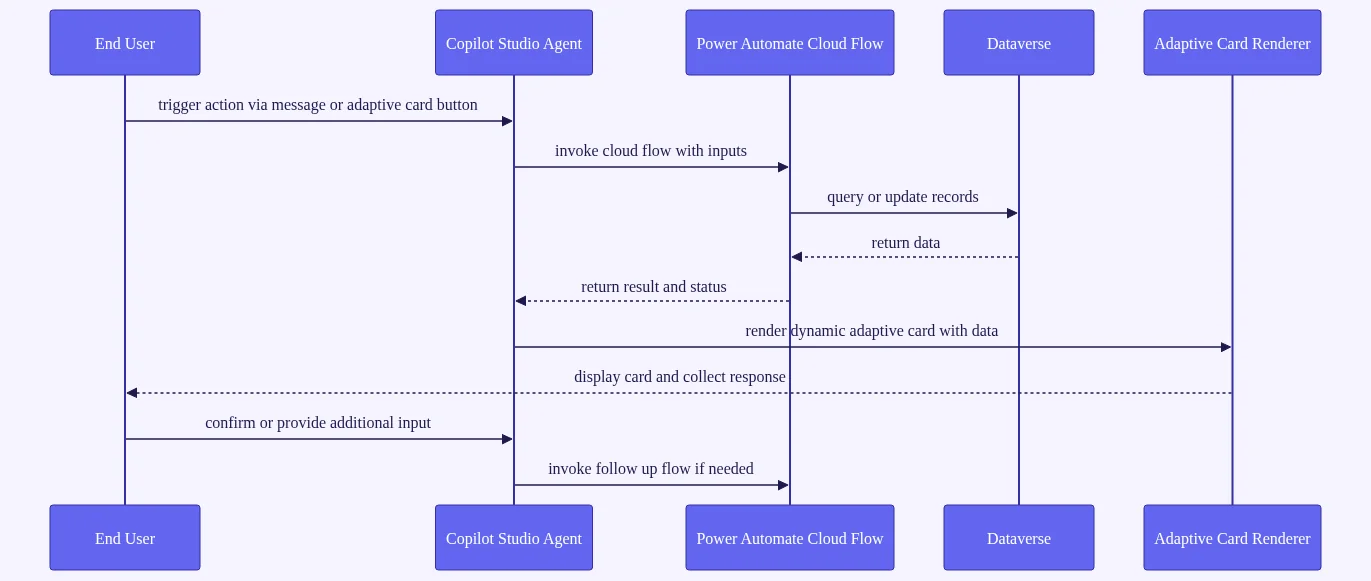
Creating a Cloud Flow Triggered by a Copilot Studio Action
This is where the magic happens. In Copilot Studio, navigate to Actions → Add an action → Create a new flow. This opens Power Automate with the “Run a flow from Copilot” trigger pre-configured.
Your flow structure for a basic action looks like this:
- Trigger: Run a flow from Copilot (with input parameters defined)
- Logic steps: Query Dataverse, call an API, transform data
- Terminal step: Respond to Copilot (with output parameters defined)
Define your input parameters with strong types — string, number, boolean, or array. This lets Copilot Studio validate data before calling the flow, preventing type mismatch errors at runtime.
Passing Input Parameters and Returning Structured Outputs for Power Automate Actions in Copilot Studio
The “Respond to Copilot” action is the most critical step in your flow. Place it at the end of every execution path — including error paths. The default timeout is 120 seconds. Flows that exceed this window return a timeout error to the user.
To avoid timeout errors on data-heavy operations:
- Use pagination when querying large Dataverse tables (set page size to 100 or fewer rows)
- Apply OData filters at the query level rather than filtering in Power Automate
- Use the Select action to return only the columns you need, not entire records
Return a structured JSON object from your “Respond to Copilot” step. For example:
{
  "OrderStatus": "Shipped",
  "EstimatedDelivery": "2026-06-15",
  "TrackingNumber": "1Z999AA10123456784",
  "ErrorCode": ""
}
Copilot Studio parses each property into a separate variable, which you can then reference in downstream topic nodes.
Advanced Flow Patterns: Error Handling, Retry Logic, and Parallel Branches
Never let a flow return a blank response to your Copilot agent. Blank responses cause the agent to display a generic error message, which destroys user trust.
Use the Scope + Configure run after pattern for error handling:
- Wrap your main logic in a Scope action named “Try”
- Add a second Scope action named “Catch” configured to run after the Try scope fails
- In the Catch scope, return a structured error object:
{ "ErrorCode": "QUERY_FAILED", "ErrorMessage": "Unable to retrieve order data. Please try again." }
For performance, use parallel branches to query multiple data sources simultaneously. Instead of querying Dataverse, then SharePoint, then Exchange sequentially (potentially 9+ seconds), run all three queries in parallel branches and merge results before the “Respond to Copilot” step. This pattern routinely cuts response latency by a significant margin on multi-source lookups.
Implementing Copilot Studio Actions for Dynamics 365 and Dataverse Scenarios
Reading and Writing Dataverse Records via Copilot Actions
Dataverse is the preferred data layer for enterprise Copilot agents. It offers a native security model, built-in audit logging, and direct connector support without additional licensing overhead beyond what you’re already using for Power Platform.
A “Create Case” action follows this pattern:
- Copilot collects the issue description via conversation
- An Adaptive Card confirms the details with the user
- A Power Automate flow creates a Dynamics 365 Customer Service case record
- The flow returns the case number and estimated response time to the Copilot topic
- The agent confirms the submission with a friendly message
Always use connection references with a service account that holds scoped D365 security roles. This prevents agents from inadvertently exposing records that the end user doesn’t have permission to see.
Integrating Dynamics 365 Customer Service Case Management
The Dynamics 365 Copilot integration point is the Copilot Studio channel configuration inside D365 Customer Service workspace. Once configured, your custom agent appears as a side panel that agents and customers can interact with directly within the case interface.
For a “Search Knowledge Base” action:
- Use Dataverse relevance search within your Power Automate flow
- Return the top 3 matching KB article titles, URLs, and relevance scores
- Render results as an Adaptive Card list with Action.OpenUrl buttons so users can navigate directly to the article
Using AI Builder Prompt Actions for Intelligent Data Extraction
AI Builder prompt actions are a game-changer for unstructured input. Instead of forcing users to fill out forms, you let them describe their problem in plain language and use an AI Builder prompt to extract structured entities.
Example prompt action for IT helpdesk classification:
Extract the following from the user's message:
- Issue category (Hardware / Software / Network / Access)
- Urgency (High / Medium / Low)
- Affected application name (if mentioned)

User message: "${UserInput}"

Return as JSON.
The extracted JSON maps directly to Dataverse fields, reducing AI hallucination risk and enforcing data integrity at the platform level. The classification result then routes the conversation to the appropriate Power Automate flow — hardware issues go to one queue, access issues go to another.
Orchestrating Multi-Step Copilot Studio Actions with Topic Chaining

Designing Multi-Turn Conversation Flows with Action Outputs
Topic chaining lets a single user intent trigger a coordinated sequence of copilot studio actions. A well-designed multi-turn flow looks like this:
Employee Onboarding Agent sequence: 1. Verify new hire identity via Azure AD lookup action 2. Present a role-selection Adaptive Card 3. Trigger a provisioning flow that creates accounts and assigns licenses 4. Send a Teams welcome message via Microsoft Graph API action 5. Log the onboarding event in a Dataverse audit table 6. Confirm completion with a summary card
Each step depends on the output of the previous one. Copilot Studio’s variable system carries data through the entire chain without re-prompting the user.
Using Variables and Conditions to Branch After Action Results
Copilot Studio 2026 supports both global variables (persist across topics for the session) and topic-level variables (scoped to the current topic). Use topic-level variables by default and promote to global only when you genuinely need cross-topic data sharing.
Condition branching based on action output:
- If
FlowOutput.Statusequals"Approved"→ route to the Approval Confirmation topic - If
FlowOutput.Statusequals"Rejected"→ route to the Escalation topic - If
FlowOutput.ErrorCodeis not empty → route to the Error Handling topic
This three-path pattern covers the vast majority of enterprise action scenarios.
Chaining Multiple Actions in a Single Copilot Topic
The “Go to another topic” node is your best friend for modular design. Build one topic per business process and create shared utility topics for common operations like authentication checks and error messaging.
Anti-patterns to avoid:
- Over-chaining more than five topics in a single conversation path — creates debugging nightmares
- Storing sensitive data (SSNs, passwords, tokens) in global variables
- Calling the same action multiple times when you could cache the result in a variable after the first call
- Skipping error paths — every action call needs a failure branch
Testing, Governance, and Deploying Copilot Studio Actions to Production
Testing Strategies: Unit Testing Actions and End-to-End Conversation Testing
The Copilot Studio test pane lets you simulate action calls with mock inputs, inspect variable state at each node, and replay edge-case conversation paths. Use it obsessively during development.
For Power Automate flows, use the “Test” feature with manual trigger inputs to validate flow logic independently before connecting it to Copilot Studio. This isolates the flow as a unit and makes debugging much faster.
A solid testing checklist:
- [ ] Happy path: all inputs valid, action returns expected output
- [ ] Empty response: action returns null or empty string
- [ ] Timeout simulation: flow deliberately delayed past 120 seconds
- [ ] DLP block: test in an environment with restrictive DLP to catch connector issues early
- [ ] Multi-channel: test in Teams, Web Chat, and D365 workspace separately
ALM and Solution Management for Copilot Agents with Actions
Package everything — your Copilot agent, associated cloud flows, custom connectors, and environment variables — into a single Power Platform solution. This is non-negotiable for any production deployment.
Use connection references and environment variables to manage environment-specific endpoints and credentials. When you import the solution into a new environment, you swap out the connection references and variable values without touching the solution itself.
For teams with DevOps maturity, the Power Platform CLI (pac solution check) validates your solution against known issues before import. Pair it with GitHub Actions or Azure Pipelines for a full CI/CD pipeline:
pac auth create --url https://yourenv.crm.dynamics.com
pac solution export --path ./solutions/CopilotAgentSolution.zip --name CopilotAgentSolution
pac solution check --path ./solutions/CopilotAgentSolution.zip
pac solution import --path ./solutions/CopilotAgentSolution.zip
Monitoring, Analytics, and Continuous Improvement Post-Launch
The Copilot Studio analytics dashboard surfaces the metrics that matter most:
- Session volume — are users finding and using the agent?
- Topic success rate — are conversations reaching their intended endpoint?
- Action failure rate — which actions are breaking and how often?
- Escalation rate — how often does the agent hand off to a human?
Build a Power BI dashboard on top of these metrics for executive reporting. Set up alerts when action failure rate exceeds a threshold you define — catching a broken flow before hundreds of users hit it is far better than discovering it in a support ticket.
For enterprise security teams, the 2026 platform’s audit log integration with Microsoft Sentinel lets your SOC monitor agent activity for anomalous behavior — unusual data access patterns, off-hours usage spikes, or unexpected API calls from action flows.
Real-World Copilot Studio Actions Examples and Architecture Patterns
Enterprise Use Case Gallery: HR, IT, Finance, and Customer Service
Here are four production-ready patterns you can adapt immediately.
HR — Leave Request Agent: Employee submits PTO request via Adaptive Card in Teams → Power Automate checks leave balance via custom connector → Creates approval record in Dynamics 365 → Notifies manager via Teams message → Returns approval status to employee
IT — Password Reset Agent: Identity verification via Azure AD MFA action → Automated password reset via Microsoft Graph API → Ticket auto-closed in ServiceNow via HTTP action → Confirmation sent to user
Finance — Expense Approval Agent: Receipt image processed by AI Builder form processing action → Expense record created in Dynamics 365 Finance → Approval workflow triggered → Status returned to submitter via Adaptive Card
Customer Service — Intelligent Triage Agent: Sentiment analysis on customer message via AI Builder → Case priority set dynamically → Routed to appropriate D365 queue → SLA timer started → Agent notified with full context card
Reference Architecture: Scalable Multi-Channel Copilot Agent Design
A scalable production architecture flows like this:
User Channel (Teams / Web Chat / D365 Workspace) → Copilot Studio (Topics + Actions layer) → Power Automate (Cloud flows for integration logic) → Data Layer (Dataverse / Dynamics 365 / External REST APIs) → Monitoring (Application Insights / Microsoft Sentinel)
For high-volume deployments, use per-flow Power Automate plans for actions that run thousands of times per day. Implement caching for frequently-read reference data — store lookup values in global variables at session start rather than querying Dataverse on every action call.
Adaptive Cards Power Platform Examples: Common Pitfalls and How to Avoid Them
The top five production pitfalls — and their fixes:
- Hardcoded connection credentials → Always use connection references and service principals
- Missing error handling returning blank responses → Every action needs a Catch scope with a structured error return
- Actions timing out on large dataset queries → Add OData filters, pagination, and column selection at the query level
- DLP policy blocking connectors after deployment → Run a DLP audit before every environment promotion
- Topic trigger phrases too narrow causing missed intents → Add at least 10 trigger phrase variations and enable generative AI intent matching
Quick-reference troubleshooting guide:
| Symptom | First thing to check |
|---|---|
| Action not found in Copilot Studio | Check solution layer — is the flow in the same solution as the agent? |
| Action returns empty output | Verify output schema in “Respond to Copilot” step matches what Copilot Studio expects |
| Action times out | Add pagination and consider the async pattern for long-running flows |
| Adaptive Card not rendering | Check channel compatibility — not all card elements work in all channels |
| Flow blocked by DLP | Review connector group assignments in your environment’s DLP policy |
Frequently Asked Questions
What are copilot studio actions and how are they different from topics?
Copilot studio actions are callable units of logic — Power Automate flows, AI Builder models, or HTTP requests — that allow a Copilot agent to execute tasks and retrieve live data. Topics define the conversation structure and intent routing, while actions are what the agent does when it needs to interact with external systems. A topic without actions can only respond with pre-written text. A topic with actions can query databases, update records, process documents, and render dynamic UI — making the difference between a FAQ bot and a genuinely useful digital assistant.
Do I need a premium Power Automate license to use copilot studio actions with cloud flows?
Yes, in most enterprise scenarios. If your Power Automate flow uses premium connectors — such as the Dataverse connector, HTTP connector, or any third-party premium connector — you need a Power Automate Premium license per user or a per-flow plan. Standard connectors like SharePoint and Outlook are available with base licensing. Check Microsoft’s current licensing documentation for the definitive breakdown, as connector classifications can change with platform updates.
How do Adaptive Cards work inside Copilot Studio conversations?
Adaptive Cards are JSON-defined UI templates rendered natively within supported Copilot channels like Microsoft Teams, Web Chat, and Dynamics 365 Customer Service workspace. In Copilot Studio, you insert an Adaptive Card node within a topic, paste your card JSON, and bind dynamic variables from action outputs or conversation context into the card template using ${variableName} expressions. When a user submits the card, the input data is captured back into Copilot Studio variables for downstream processing — feeding the next action call or branching the conversation flow.
Can I use copilot studio actions to integrate with non-Microsoft systems like Salesforce or ServiceNow?
Absolutely. Copilot studio actions support custom connectors and the HTTP action in Power Automate, which means you can call virtually any REST API — including Salesforce, ServiceNow, SAP, Workday, and custom internal APIs. You build a Power Automate flow that handles authentication (OAuth, API key, or basic auth) and data transformation, then expose it as an action in Copilot Studio. This makes Copilot agents platform-agnostic at the integration layer, which is one of the strongest arguments for Copilot Studio vs Azure AI Bot Service 2026 in enterprise evaluations — the low-code connector ecosystem dramatically reduces integration development time.
What is the maximum timeout for a copilot studio action calling a Power Automate flow?
By default, Copilot Studio waits up to 120 seconds for a Power Automate flow action to return a response before timing out. For long-running processes that exceed this threshold — such as document generation or complex data migrations — use the async action model: trigger the flow, return an immediate acknowledgment to the user, then use proactive messaging via Teams or the Bot Framework activity feed to notify the user when the process completes. This pattern keeps the conversation responsive regardless of backend processing time.
How do I move a Copilot Studio agent with actions from development to production?
Use solution-based ALM. Package your Copilot agent, its associated Power Automate cloud flows, custom connectors, and environment variables into a single Power Platform solution. Use connection references so environment-specific credentials are swapped automatically during import. Export from dev, validate with pac solution check, then import into test and production. For teams with DevOps maturity, GitHub Actions for Power Platform automates the entire export-validate-import pipeline for continuous deployment.
Conclusion
Building enterprise-grade conversational agents no longer requires a team of seasoned developers or months of custom code. With copilot studio actions as your foundation — paired with the expressive power of Adaptive Cards and the automation depth of Power Automate — you now have a complete, scalable toolkit to deliver AI-driven experiences that genuinely move the needle for your organization.
The patterns in this guide cover the full spectrum: from environment setup and DLP governance, through dynamic Adaptive Card design, Power Automate flow architecture, Dynamics 365 integration, multi-step topic chaining, and production ALM. Whether you’re a Dynamics 365 consultant looking to differentiate your next client engagement or a Power Platform maker ready to graduate from simple chatbots to action-driven agents, these blueprints give you a proven starting point.
The Copilot Studio generative AI agent best practices reward makers who invest in modular action design, robust error handling, and disciplined solution management. The agents you build today will serve as the intelligent backbone of your organization’s digital workforce for years to come.
Ready to start building? Open Copilot Studio, create your first action, and drop your questions or wins in the comments below. Explore our Power Platform automation deep-dives for more hands-on tutorials, and check out our Copilot Studio topic design patterns guide to complement what you’ve learned here.
Subscribe to our newsletter for weekly Power Platform deep-dives and download our free Copilot Studio Action Blueprint template to accelerate your first production deployment.