UTCNow Power Automate: 9 Proven Date Calculations and Time Zone Recipes for 2026
If you’ve ever watched a Power Automate flow fire at the wrong hour, stamp a record with yesterday’s date, or send a reminder email in UTC when your users live in Sydney — you already know the pain. The utcnow power automate function sits at the heart of nearly every date-driven workflow on the Power Platform, yet it trips up even experienced makers and Dynamics 365 consultants daily.
Table of Contents
Why? Because UTC is deceptively simple on the surface and wildly nuanced in practice. In 2026, with Microsoft continuously evolving expression syntax and deepening Dataverse integration, getting date and time right isn’t a nice-to-have — it’s the difference between a flow your stakeholders trust and one they quietly route around.
This guide walks you through exactly how utcnow() works under the hood, how to pair it with convertTimeZone, formatDateTime, addDays, and the ticks function, and hands you battle-tested recipes you can drop into your own flows today.
What Is UTCNow in Power Automate and Why Does It Matter?
The utcnow() function returns the current date and time in Coordinated Universal Time as an ISO 8601 string — for example, 2026-03-15T09:30:00.0000000Z. It takes no arguments and is available in every connector type Power Automate supports, including Dataverse, SharePoint, and HTTP.
Understanding a few foundational facts about utcnow() will save you hours of debugging.
How utcnow() Is Evaluated at Runtime
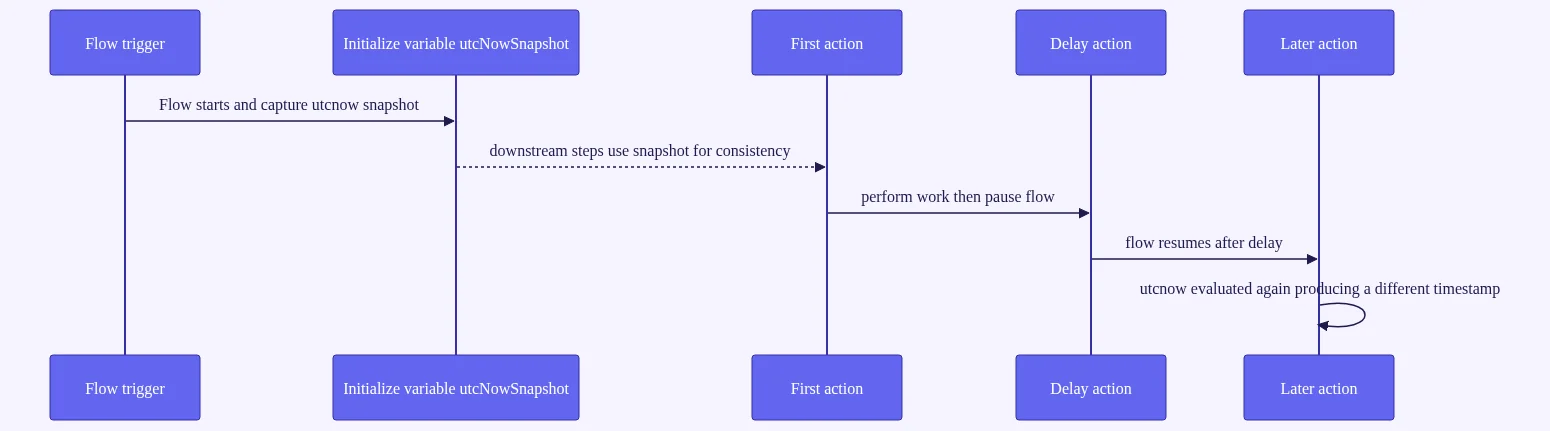
The function is evaluated at the moment the action or condition containing it executes, not when the flow is triggered. This matters enormously in multi-step flows with delays or parallel branches. If you trigger a flow at 9:00 AM and a Delay Until action pauses it for two hours, utcnow() inside a later action will return 11:00 AM — not 9:00 AM.
Always capture utcnow() in an Initialize Variable action at the top of your flow when you need a consistent “snapshot” time across multiple steps.
UTCNow vs. Now: Choosing the Right Function
The now() alias exists in some documentation but is deprecated. The utcnow() function is the canonical, supported choice in the Power Automate expression language. Use utcnow() everywhere — it works reliably across all connector types and tenant regional settings.
Critically, utcnow() always returns UTC regardless of your tenant’s locale, the maker’s browser time zone, or the user’s regional settings. Downstream conversion is almost always necessary for anything user-facing.
Where utcnow Power Automate Fits in the Expression Engine
Power Automate’s expression engine is built on Azure Logic Apps expressions, so documentation and community knowledge from both ecosystems applies. This means you can reference the official Microsoft expression function reference for the most accurate and up-to-date syntax details.
Key takeaway: Always treat utcnow() as your single source of truth for “now.” Build all relative date logic on top of it rather than hardcoding date strings.
Mastering formatDateTime Power Automate for Human-Readable Output
The raw output of utcnow() is machine-readable. Wrapping it in formatDateTime() transforms it into user-friendly strings like March 15, 2026 or 15/03/2026 09:30 AM. This is one of the most-used Power Automate date calculations expressions in real production flows.
Standard Format Specifiers Every Maker Should Know
The syntax is: formatDateTime(utcnow(), 'format string')
The second argument accepts both .NET standard format specifiers and custom patterns. Here are the ones you’ll use most often:
d— Short date:3/15/2026D— Long date:Sunday, March 15, 2026f— Full date, short time:Sunday, March 15, 2026 9:30 AMo— Round-trip ISO 8601:2026-03-15T09:30:00.0000000Zs— Sortable:2026-03-15T09:30:00
Custom Format Strings: Building Locale-Aware Date Labels
For precise control, use custom tokens:
| Token | Meaning | Example |
|---|---|---|
yyyy | 4-digit year | 2026 |
MM | 2-digit month | 03 |
dd | 2-digit day | 15 |
HH | 24-hour hour | 09 |
hh | 12-hour hour | 09 |
mm | Minutes | 30 |
ss | Seconds | 00 |
tt | AM/PM | AM |
Note the difference between M and MM. Using M for March returns 3; using MM returns 03. Always use double-digit tokens for fixed-width strings like ISO 8601.
Formatting Dates for SharePoint, Dataverse, and Email Subjects
Different systems expect different formats. Here’s the Power Automate utcNow format date string pattern for each:
- SharePoint REST API:
formatDateTime(utcnow(), 'yyyy-MM-ddTHH:mm:ssZ')— omitting the trailingZcauses timezone ambiguity errors - Dataverse date-only fields:
formatDateTime(utcnow(), 'yyyy-MM-dd')— passing a full datetime string to a date-only field throws a parsing error - Email subject lines:
formatDateTime(utcnow(), 'dddd, MMMM d yyyy')producesSunday, March 15 2026— professional and unambiguous for global recipients
Always test your format string in the expression editor’s preview pane before deploying to production.
Time Zone Conversion: Using convertTimeZone with UTCNow Power Automate
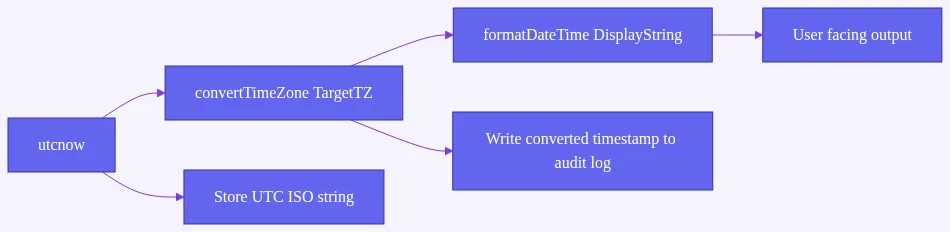
Converting UTC to local time is the most common task you’ll pair with utcnow(). The convertTimeZone function handles this elegantly, including automatic Daylight Saving Time adjustments.
convertTimeZone Syntax and the Windows Time Zone ID List
The syntax is: convertTimeZone(utcnow(), 'UTC', 'Target Time Zone ID', 'optional format string')
The target time zone must match a Windows Time Zone ID exactly. Common examples:
Eastern Standard Time(US East Coast)AUS Eastern Standard Time(Sydney, Melbourne)GMT Standard Time(London)Central European Standard Time(Paris, Berlin)
Do not use IANA IDs like America/New_York — Power Automate will throw a runtime error. The full Windows Time Zone ID list is documented in the Microsoft .NET TimeZoneInfo reference.
Converting UTC to Local Time for Notifications and Records
A common production pattern that converts and formats in a single expression:
convertTimeZone(utcnow(), 'UTC', 'AUS Eastern Standard Time', 'dd/MM/yyyy HH:mm')
This reduces action count compared to using separate Compose steps for conversion and formatting.
Handling Daylight Saving Time Automatically in Your Flows
This is where convertTimeZone shines. When you use a named Windows Time Zone ID like Eastern Standard Time, the function automatically resolves to EST in winter and EDT in summer — no conditional logic required from you.
By contrast, hardcoding a UTC offset like UTC+10 does not adjust for DST. This causes a one-hour error for roughly six months of the year — a silent bug that’s notoriously difficult to catch in testing.
For Power Automate convert UTC to local time zone in multi-region flows, store each user’s Windows Time Zone ID in their Dataverse User record or a SharePoint configuration list. Reference it as a variable in the convertTimeZone call for fully dynamic, per-user localization.
addDays Expression Power Automate: Date Arithmetic Built on UTCNow
Once you have a reliable “now,” you need to move forward or backward in time. The addDays expression is your most-used tool for Power Automate date calculations.
addDays Expression: Calculating Deadlines and Expiry Dates
The syntax is: addDays(utcnow(), N)
addDays(utcnow(), 30)— 30 days from now (contract expiry, subscription renewal)addDays(utcnow(), -7)— 7 days ago (look-back windows for reports)addDays(utcnow(), -1)— yesterday (daily digest filters)
The full family of add functions all accept utcnow() as the base:
addSeconds(utcnow(), N)addMinutes(utcnow(), N)addHours(utcnow(), N)addDays(utcnow(), N)addMonths(utcnow(), N)addYears(utcnow(), N)
All return an ISO 8601 string you can pipe directly into convertTimeZone or formatDateTime.
Subtracting Time: Negative Offsets and the ticks() Function
For Power Automate calculate days between two dates, the ticks function is the right tool. ticks(utcnow()) returns the number of 100-nanosecond intervals since January 1, 0001.
To calculate the duration in minutes between a stored start time and now:
div(sub(ticks(utcnow()), ticks(variables('StartTime'))), 600000000)
To get hours instead of minutes, divide by 36000000000 (there are 36 billion ticks per hour).
This pattern is essential for SLA breach detection in Dynamics 365 cases, where you need to know exactly how long a record has been open.
Building Business-Day Calculators with Conditional Logic
Pure addDays() doesn’t skip weekends. For business-day calculations, you need a Do Until loop that:
- Increments a date counter using
addDays(variables('CurrentDate'), 1) - Checks the day of week with
dayOfWeek(variables('CurrentDate')) - Skips days where the result equals
0(Sunday) or6(Saturday) - Decrements a remaining-days counter only on weekdays
It’s more verbose than a single expression, but it’s the correct approach for deadline calculations in legal, HR, and finance workflows.
Real-World Flow Recipes Using UTCNow Power Automate
These three recipes cover the most common production scenarios. Each follows the same architectural pattern: utcnow() as the anchor → arithmetic to define the window → convertTimeZone for display → formatDateTime for presentation.
Recipe 1: Automated SLA Breach Detector for Dynamics 365 Cases
This is a classic Dynamics 365 date calculations flow pattern:
- Trigger: When a Dataverse record is created (Case entity)
- Action: Initialize Variable —
StartTime=utcnow() - Action: Delay Until —
addHours(variables('StartTime'), 4)(4-hour SLA) - Action: Get row by ID — retrieve the current case status
- Condition: If status is still “Open”
- Action: Send an email with escalation details, including time open:
div(sub(ticks(utcnow()), ticks(variables('StartTime'))), 36000000000)
Format this as X hours Y minutes in the email body for clear stakeholder communication.
Recipe 2: Daily Digest Email with Localized Timestamps
This Power Automate scheduled flow date time best practices 2026 pattern runs at 07:00 UTC daily:
- Trigger: Scheduled — daily at 07:00 UTC
- Action: Get items (SharePoint) with filter query:
Modified ge 'formatDateTime(addDays(utcnow(),-1), 'yyyy-MM-ddTHH:mm:ssZ')' - Action: Apply to Each — for each item, convert the
Modifiedtimestamp:convertTimeZone(item()?['Modified'], 'UTC', 'Eastern Standard Time', 'MM/dd/yyyy hh:mm tt') - Action: Send an Email (V2) with an HTML table of results
This pattern correctly uses Power Automate date and time functions together for a clean OData filter combined with user-friendly display.
Recipe 3: SharePoint Document Expiry Notification System
- Trigger: Scheduled — daily at 06:00 UTC
- Action: Get items — filter where
ExpiryDate le 'formatDateTime(addDays(utcnow(), 30), 'yyyy-MM-ddTHH:mm:ssZ')' - Action: Apply to Each — for each expiring document:
– Format the expiry date:
formatDateTime(item()?['ExpiryDate'], 'dddd d MMMM yyyy')– Convert to owner’s local time using a dynamic time zone variable - Action: Post an Adaptive Card to Teams to the document owner
For owners in non-UTC regions, add a convertTimeZone call using a time zone ID stored in a SharePoint People lookup column.
Common UTCNow Power Automate Errors and How to Fix Them
Even experienced makers hit these errors. Here’s how to diagnose and resolve the most frequent ones.
InvalidTemplate and Expression Parsing Failures
Error: The template language expression is not valid
This is almost always caused by mismatched single quotes inside the expression editor. Use the expression editor’s syntax highlighting rather than typing directly into dynamic content fields. The preview pane shows you the evaluated output before you save.
Error: The value provided for time zone is not valid
You’re using an IANA time zone ID (America/New_York) instead of a Windows Time Zone ID (Eastern Standard Time). Fix it by referencing the official Windows Time Zone ID list.
Off-by-One-Hour Bugs During DST Transitions
This is the most insidious bug in date-driven flows. It occurs when you hardcode a UTC offset (e.g., UTC+10) instead of using a named time zone ID. Hardcoded offsets do not adjust for DST, causing a one-hour error for roughly six months of the year.
The fix is always to use a named Windows Time Zone ID in convertTimeZone. Never hardcode numeric offsets.
Null and Empty Timestamp Handling in Conditions
When comparing utcnow() to a field that may be null (such as an optional Dataverse date field), always wrap the field reference in a null check:
if(empty(field), 'default-value', field)
Passing a null value into ticks() or formatDateTime() throws a runtime null reference error that halts the flow. Defensive null handling prevents this entirely.
Concurrency tip: In Apply to Each loops, utcnow() is re-evaluated on every iteration. If you need a consistent snapshot time for all iterations, capture it in an Initialize Variable action before the loop begins.
UTCNow Power Automate in Dynamics 365 and Dataverse: Advanced Patterns
Dataverse has specific behaviors around datetime fields that every Dynamics 365 consultant needs to internalize.
Filtering Dataverse Queries with UTC Date Ranges
Use the List rows action with a filter row expression to retrieve records created in the last seven days:
createdon ge formatDateTime(addDays(utcnow(),-7), 'yyyy-MM-ddTHH:mm:ssZ')
Dataverse stores all datetime values in UTC internally and converts to the user’s local time zone in the model-driven app UI. When your flow writes to a datetime field, always provide UTC values from utcnow(). Writing a locally-converted timestamp to Dataverse causes a double-offset artifact — the stored value will be wrong by the user’s UTC offset.
For Power Automate get current date without time scenarios (date-only fields), use:
formatDateTime(utcnow(), 'yyyy-MM-dd')
Passing a full datetime string to a date-only field returns a 400 Bad Request error from the Dataverse connector.
Automating Record Timestamps and Audit Trails
A clean audit trail pattern writes two fields on every automated update:
Last Automated Update (UTC)— populated withutcnow()Last Automated Update (Local)— populated withconvertTimeZone(utcnow(), 'UTC', 'target zone', 'format')
This gives technical teams the UTC value for querying and gives business stakeholders a readable local time in the record form — no confusion, no ambiguity.
Integrating utcnow with Power Fx in Canvas Apps
Power Fx in canvas apps uses Now(), which respects the user’s local time, rather than utcnow(). When a canvas app triggers a cloud flow that uses utcnow(), the timestamps will differ by the user’s UTC offset. Design your architecture so the flow always uses utcnow() as the authoritative source and the canvas app displays the converted result — never the raw UTC string.
Performance, Best Practices, and 2026 Updates for UTCNow Power Automate
Efficiency matters as flows grow more complex and as organizations scale their Power Platform usage.
Expression Efficiency: Reducing Action Count with Nested Functions
Nesting functions reduces the number of actions in your flow, which means faster execution and lower API call consumption. Compare these two approaches:
Verbose (3 Compose actions):
1. Compose: utcnow()
2. Compose: addDays(outputs('Compose'), 7)
3. Compose: convertTimeZone(outputs('Compose_2'), 'UTC', 'Eastern Standard Time', 'MM/dd/yyyy')
Efficient (1 expression):
convertTimeZone(addDays(utcnow(), 7), 'UTC', 'Eastern Standard Time', 'MM/dd/yyyy')
Use Compose actions to cache a complex expression only when the same calculated date is referenced more than twice in a flow.
Governance and ALM: Documenting Date Logic in Managed Solutions
Store time zone IDs and date format strings in environment variables within your managed solution. This lets admins update regional settings without editing flow expressions directly — a critical ALM best practice that reduces the risk of breaking changes during solution upgrades.
Document every date expression using this pattern in the action’s description field:
Expression: [formula] | Purpose: [business reason] | Output example: [2026-03-15]
Future maintainers — including future you — will thank you.
Power Automate Scheduled Flow Date Time Best Practices 2026
As Microsoft deepens Copilot and AI Builder integrations, many AI actions expect strict ISO 8601 input. Use the o format specifier when passing dates to AI Builder or HTTP connector endpoints:
formatDateTime(utcnow(), 'o')
This produces the round-trip format 2026-03-15T09:30:00.0000000Z — fully compliant with ISO 8601 and accepted by virtually every REST API.
Monitor the Power Automate blog and the official expression function reference for new date functions. Functions like startOfDay(), startOfMonth(), and startOfHour() are available in Azure Logic Apps and may surface in Power Automate flows — check the latest documentation before building custom workarounds.
Also consider your licensing tier. Complex date-arithmetic flows with many actions can push against daily action limits on lower Power Automate license tiers. Consolidating expressions reduces action count and keeps flows within license thresholds. Refer to current Microsoft Power Automate pricing for the latest limits.
Frequently Asked Questions
What does utcnow power automate return, and what format is it in?
utcnow() returns the current date and time in Coordinated Universal Time as an ISO 8601 string in the format yyyy-MM-ddTHH:mm:ss.fffffffZ — for example, 2026-03-15T09:30:00.0000000Z. It takes no arguments and is re-evaluated each time the action containing it executes. To display it in a human-readable format, wrap it in formatDateTime(utcnow(), 'your format string').
How do I convert utcnow() to a local time zone in Power Automate?
Use convertTimeZone(utcnow(), 'UTC', 'Target Time Zone ID', 'optional format'). The target time zone must be a Windows Time Zone ID such as Eastern Standard Time or AUS Eastern Standard Time — not an IANA ID. This function automatically handles Daylight Saving Time transitions, so you don’t need conditional logic for EST vs EDT.
How do I calculate a date 30 days in the future using addDays utcnow Power Automate?
Use addDays(utcnow(), 30). This returns an ISO 8601 string 30 days from the current UTC time. For past dates, use a negative number: addDays(utcnow(), -30). Chain it with formatDateTime for display: formatDateTime(addDays(utcnow(), 30), 'dd/MM/yyyy'), or with convertTimeZone for local time output.
Why does my Power Automate flow show the wrong time even though I’m using utcnow()?
The most common causes are: (1) displaying raw utcnow() output without converting to the user’s local time zone using convertTimeZone; (2) using a hardcoded UTC offset like UTC+10 instead of a named Windows Time Zone ID, which breaks during Daylight Saving Time; or (3) writing a locally-converted timestamp back to a Dataverse datetime field, causing double-offset. Always store UTC in Dataverse and convert only for display.
How do I calculate the difference in hours between two timestamps in Power Automate?
Use the ticks function: div(sub(ticks(utcnow()), ticks(variables('StartTime'))), 36000000000) gives the difference in hours. For minutes, divide by 600000000. This approach works with any two ISO 8601 datetime strings, not just utcnow().
Can I use utcnow() to filter Dataverse or SharePoint records in Power Automate?
Yes. For Dataverse, use a filter row expression: createdon ge formatDateTime(addDays(utcnow(),-7), 'yyyy-MM-ddTHH:mm:ssZ'). For SharePoint OData filters in Get items, use the same formatted string in the Filter Query field. Always format utcnow() with the ISO 8601 pattern yyyy-MM-ddTHH:mm:ssZ for REST API compatibility — omitting the trailing Z can cause timezone ambiguity errors.
Conclusion: Make Time Work for Your Flows
Mastering utcnow power automate is one of the highest-leverage skills you can develop as a Power Platform maker or Dynamics 365 consultant. Every date-driven flow you build — from SLA trackers to document expiry systems to audit trails — depends on getting this foundation right.
The core pattern is straightforward but powerful:
- Anchor everything to
utcnow() - Apply arithmetic with
addDays(),addHours(), orticks() - Convert for display with
convertTimeZone() - Format for humans with
formatDateTime()
Follow that chain consistently and you’ll eliminate an entire class of timezone bugs, data corruption issues, and stakeholder complaints. Whether you’re filtering Dataverse queries, building SLA detectors, or scheduling daily digest emails, every technique in this guide is grounded in real production scenarios you can adapt immediately.
Want to go deeper? Check out our Power Automate expression guide for beginners and our Dynamics 365 flow architecture patterns for more advanced patterns. Drop your trickiest date calculation challenge in the comments below — we’ll feature the best ones in a follow-up post. Your flows deserve to be on time, every time.