If you’ve spent any time writing Dynamics 365 plugins, custom workflows, or Dataverse API integrations, you already know the pain. Mountains of boilerplate code, repetitive entity definitions, and the ever-present risk of shipping a bug into a live CRM environment. GitHub Copilot Visual Studio 2022 changes that equation dramatically — and in 2026, it’s no longer a luxury for Microsoft developers; it’s a competitive necessity.
Table of Contents
This playbook is written specifically for Dynamics 365 consultants, Power Platform makers, and C# developers who want to move faster, write cleaner code, and stop Googling the same SDK method signatures over and over. Whether you’re building IPlugin implementations from scratch or automating complex Dataverse queries, this guide gives you the practical, battle-tested tactics to make GitHub Copilot your most valuable team member.
Let’s get into it.
Why GitHub Copilot Visual Studio 2022 Is a Game-Changer for Dynamics 365 Teams
The State of AI-Assisted Coding in the Microsoft Ecosystem in 2026
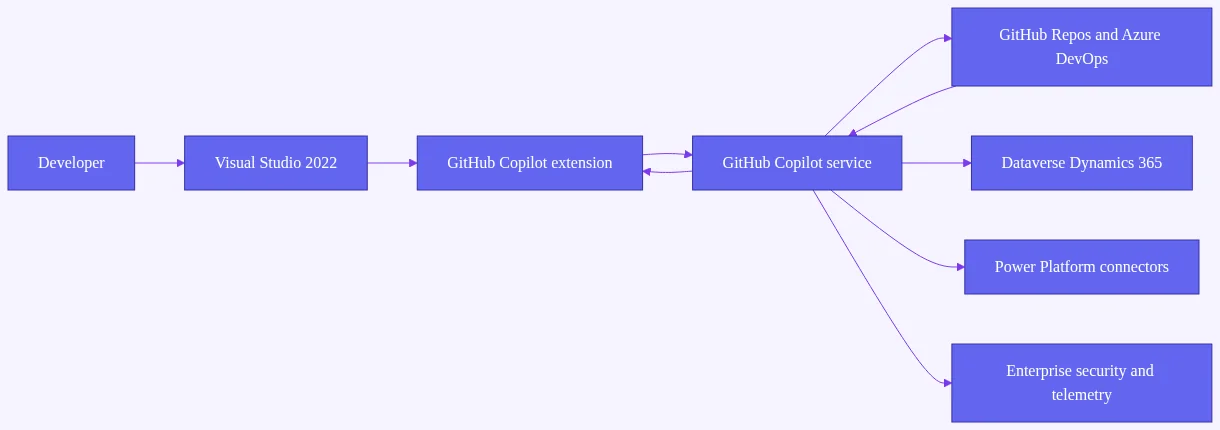
The Microsoft developer ecosystem has shifted decisively toward AI-assisted coding. GitHub Copilot is now embedded directly in Visual Studio 2022 via the official GitHub Copilot extension — no third-party workarounds needed. Microsoft has deepened the integration between Copilot, Azure DevOps, and the Power Platform, creating a unified AI layer across the entire developer stack.
For Dynamics 365 developers, this matters more than for almost any other specialization. D365 development is characterized by highly repetitive code patterns — IPlugin implementations, early-bound entity classes, service locator patterns, and FetchXML queries. These are exactly the scenarios where AI pair programming delivers its highest return on investment.
According to GitHub’s own research on Copilot productivity, developers using Copilot complete repetitive coding tasks significantly faster than those coding manually. For Dynamics 365 plugin scaffolding specifically, the gains are even more pronounced because the pattern density is so high — nearly every plugin follows the same structural skeleton.
How Copilot Integrates Natively Inside Visual Studio 2022
Copilot in Visual Studio 2022 operates on two levels. First, there are inline ghost-text suggestions that appear as you type, completing lines and blocks of code based on your current context. Second, there’s the Copilot Chat panel, accessible via View → GitHub Copilot Chat, which gives you a conversational AI interface directly inside the IDE.
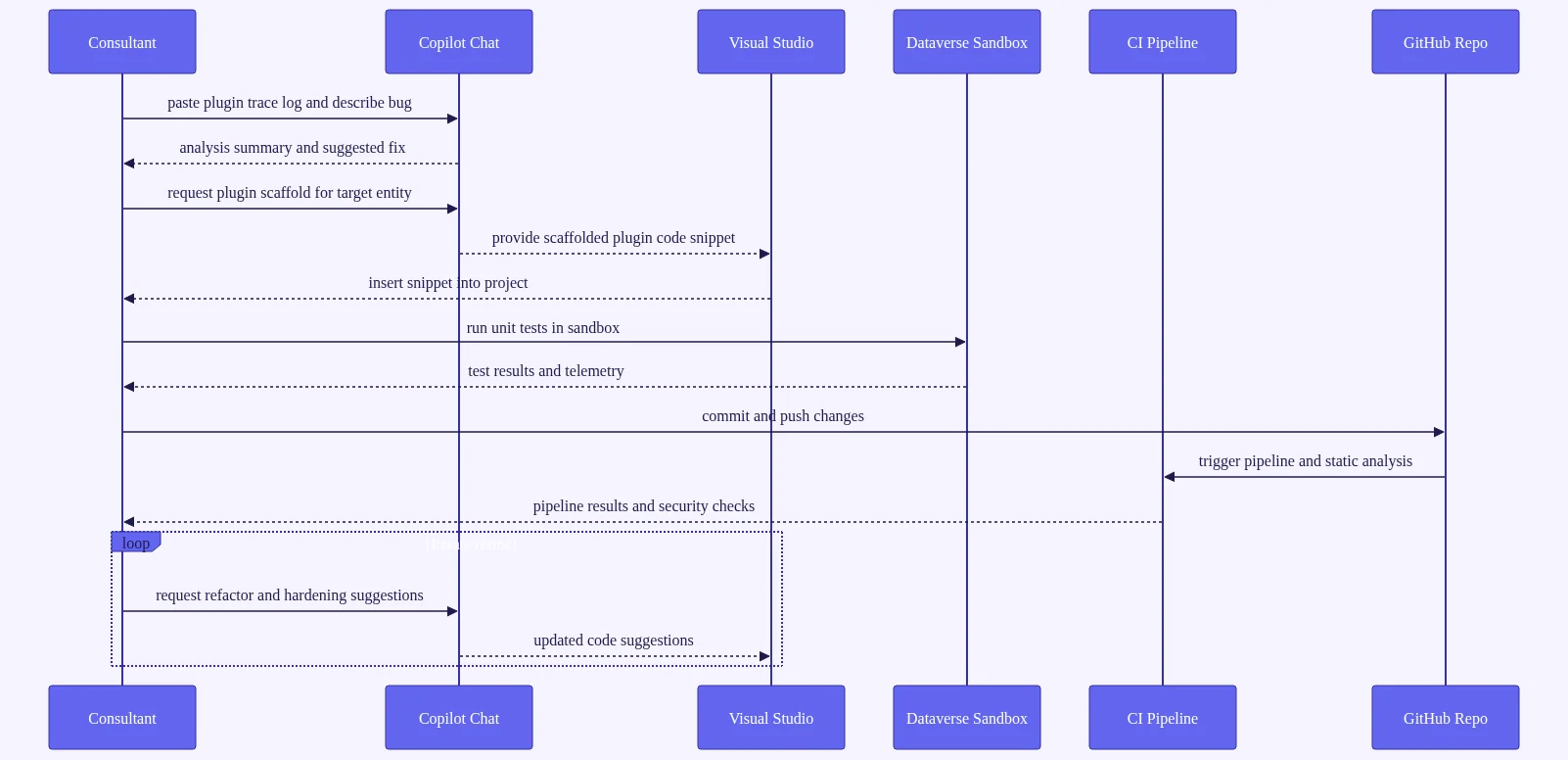
For Dynamics 365 work, the Chat panel is arguably more valuable than inline suggestions. You can paste a plugin trace log, describe a business requirement in plain English, or ask Copilot to explain a legacy codebase — all without leaving Visual Studio.
Real Productivity Numbers: What Dynamics 365 Teams Are Reporting
Across the community, Dynamics 365 developers adopting Copilot consistently report meaningful reductions in time spent on boilerplate. The pattern is clear: the more repetitive your codebase, the higher your productivity gain. Dynamics 365 plugin development — with its predictable IPlugin structure, consistent service factory patterns, and repeated entity handling logic — sits at the high end of that spectrum.
The licensing model matters too. GitHub Copilot is available in three tiers: Individual, Business, and Enterprise. For Dynamics 365 consultancies handling client CRM data, Business or Enterprise is the appropriate choice (more on this in the security section).
Setting Up GitHub Copilot Visual Studio 2022 for Dynamics 365 Projects
Installing and Authenticating the GitHub Copilot Extension
Getting started with GitHub Copilot Visual Studio 2022 setup is straightforward. Here’s the step-by-step process:
- Open Visual Studio 2022 (version 17.5 or later is required)
- Navigate to Extensions → Manage Extensions
- Search for “GitHub Copilot” and install the official extension
- Restart Visual Studio when prompted
- Sign in with your GitHub account via Tools → Options → GitHub → Accounts
- Verify your subscription status — the Copilot icon in the status bar should show as active
If you’re in an enterprise environment with proxy or firewall restrictions, you’ll need to allowlist specific GitHub API endpoints before Copilot will function. Check your IT team’s configuration against the GitHub Copilot network requirements documentation.
Configuring Copilot Settings for C# and Dynamics 365 SDK Projects
Once installed, tune your Copilot settings for C# and D365 work:
- Navigate to Tools → Options → GitHub → Copilot
- Enable C# completions explicitly
- Set your suggestion delay preference (lower delay = more aggressive suggestions)
- Toggle auto-import suggestions for
Microsoft.Xrm.Sdknamespaces — this saves significant time
Also create a solution-level .editorconfig file that reflects your team’s D365 coding standards. Copilot uses this file to align its suggestions with your style guide, meaning you’ll spend less time reformatting AI-generated code.
Creating a .github/copilot-instructions.md File for Your D365 Repo
This is one of the most powerful — and underused — features available to GitHub Copilot Dynamics 365 development teams. The copilot-instructions.md file lets you embed repo-level context that Copilot reads before generating suggestions.
Here’s a sample snippet for a Dynamics 365 CE project:
# Copilot Instructions for [Project Name] D365 Plugin Project
## Environment Context
- Dynamics 365 CE Online (latest release channel)
- SDK: Microsoft.CrmSdk.CoreAssemblies
- Target Framework: .NET Framework 4.6.2
- Entity binding: Early-bound (generated via CrmSvcUtil)
## Coding Standards
- Always inject ITracingService and log entry/exit of Execute method
- Use early-bound entity classes from EarlyBoundEntities.cs
- Plugin step registration follows pre-validation → pre-operation → post-operation pattern
- No hardcoded GUIDs — use configuration entity or environment variables
## Naming Conventions
- Plugin classes: [Entity][Message]Plugin.cs (e.g., AccountCreatePlugin.cs)
- Custom entity prefix: new_
With this file in place, Copilot’s suggestions become dramatically more relevant to your specific project context.
Accelerating Dynamics 365 Plugin Development with GitHub Copilot Visual Studio 2022
This is where the rubber meets the road. The AI coding assistant Dynamics 365 plugins use case is the single highest-value application of Copilot for most D365 developers.
Generating IPlugin Boilerplate and Execute Method Scaffolding
IPlugin boilerplate generation is the killer use case. Write a single comment like this:
// Pre-validation plugin for Account entity that validates email domain
// against an approved list stored in the new_EmailDomainConfig entity
Copilot will generate a near-complete plugin class including the IPlugin interface implementation, service factory extraction, tracing service setup, and the core business logic skeleton. What used to take 15-20 minutes of copy-paste and SDK lookup now takes under two minutes.
The before/after comparison is striking. Manual plugin scaffolding requires remembering the exact pattern for extracting services from IServiceProvider. With Copilot, you get this automatically:
public void Execute(IServiceProvider serviceProvider)
{
    var tracingService = (ITracingService)serviceProvider
        .GetService(typeof(ITracingService));
    var context = (IPluginExecutionContext)serviceProvider
        .GetService(typeof(IPluginExecutionContext));
    var serviceFactory = (IOrganizationServiceFactory)serviceProvider
        .GetService(typeof(IOrganizationServiceFactory));
    var service = serviceFactory.CreateOrganizationService(context.UserId);

    tracingService.Trace("AccountEmailValidationPlugin: Execute started");
    // Business logic follows...
}
Copilot understands IExecutionContext, IOrganizationServiceFactory, and ITracingService — and it generates accurate method signatures without you needing to open the SDK documentation.
Writing Dataverse API Queries and FetchXML with Copilot Assistance
Dataverse API automation with Copilot is another high-value use case. Open Copilot Chat and type:
“Write a FetchXML query that retrieves all active Accounts with related Contacts created in the last 30 days, including account name, email, and contact full name.”
Copilot generates a complete, syntactically correct FetchXML string. You’ll typically need to adjust custom attribute names to match your org’s schema, but the structural scaffolding is production-ready.
For QueryExpression fans, Copilot handles those equally well. Describe the filter conditions in plain English and let Copilot translate them into the correct ConditionExpression and FilterExpression structure.
Use the /doc slash command in Copilot Chat to auto-generate XML documentation comments on every plugin method. This is critical for team maintainability and onboarding new developers to existing codebases.
Using Copilot Chat to Debug Plugin Registration and Execution Context Errors
When a plugin throws an error in the trace log, paste the error message directly into Copilot Chat:
“Diagnose this Dynamics 365 plugin error and suggest a fix: [paste trace log here]”
Copilot is particularly effective at identifying common issues:
- Missing pre-image registration on the plugin step
- Incorrect entity logical names in the execution context
- Null reference patterns when accessing target entity attributes
- Step registration mismatches (wrong message, wrong entity, wrong stage)
For onboarding junior D365 developers, the “Explain this code” feature in Copilot Chat is invaluable. Select a legacy plugin class and ask Copilot to explain what it does in plain English — it produces a clear, accurate summary that accelerates knowledge transfer.
One important limitation to acknowledge: Copilot does not have real-time access to your org’s metadata. Entity and attribute logical names must be provided via comments or your copilot-instructions.md file. This is a workflow adjustment, not a dealbreaker.
Power Platform and C# Code Suggestions: Extending Copilot Beyond Plugins
GitHub Copilot Power Platform development extends well beyond plugin assemblies. Let’s look at the broader ecosystem where Copilot adds value.
Generating PCF (PowerApps Component Framework) TypeScript Components
PCF component development is notoriously boilerplate-heavy. Copilot can generate TypeScript/React component scaffolding for the PowerApps Component Framework, including the manifest.xml structure and the index.ts init and updateView method implementations.
Describe your component’s purpose in a comment, and Copilot scaffolds the entire structure. This is a significant Power Platform developer productivity win for teams building custom controls.
Writing Azure Functions for Power Automate Custom Connectors
C# code suggestions Dynamics 365 extend naturally into Azure Function development. Copilot can generate the full HttpTrigger function with Microsoft.PowerPlatform.Dataverse.Client SDK calls, including authentication via DefaultAzureCredential.
It can also generate OpenAPI spec stubs for custom connectors, dramatically reducing the time needed to expose Dynamics 365 data to Power Automate flows. This is a workflow that traditionally required significant manual effort and SDK documentation diving.
Automating Unit Test Generation for Dynamics 365 with FakeXrmEasy
Unit testing is chronically underused in D365 projects. Copilot changes the calculus significantly. Here’s the workflow:
- Select your entire
IPluginclass in the editor - Right-click → Ask Copilot → or open Chat and type
/tests using FakeXrmEasy 2.x - Specify: “Generate unit tests for all execution paths including positive, negative, and edge cases. Mock IOrganizationService and ITracingService.”
Copilot generates a complete NUnit or MSTest class with FakeXrmEasy setup. The resulting test structure covers the happy path and common failure modes. Refine with follow-up prompts like “Add a test case for when the pre-image is null” to cover D365-specific scenarios.
Responsible use reminder: always review generated code for hardcoded credentials, missing error handling, and incorrect permission scopes before committing to source control. Copilot accelerates writing — you own quality.
Advanced Copilot Chat Workflows for Dynamics 365 Consultants
Once you’re past the basics, the AI coding assistant Visual Studio 2026 experience opens up into genuinely sophisticated workflows.
Using Slash Commands and Context Variables for D365-Specific Queries
The Copilot Chat slash commands map directly to common D365 consultant workflows:
/explain— understand legacy plugin logic or unfamiliar SDK patterns/fix— diagnose and repair broken plugin code or FetchXML/doc— generate XML documentation comments for SDK methods/tests— scaffold FakeXrmEasy unit test classes from existing plugins/new— create new plugin files from scratch based on a description
Context variables make these commands even more powerful:
#file— reference a specific file in your solution without copy-pasting#selection— scope Copilot’s response to your current code selection#solution— give Copilot awareness of your entire solution structure
Multi-Turn Conversations for Complex Business Logic Refactoring
Multi-turn conversations are where Copilot Chat truly shines for complex D365 work. Here’s an example conversation flow:
- “Explain this plugin’s business logic” → Copilot summarizes the plugin’s purpose
- “Refactor it to use early-bound entities instead of late-bound” → Copilot rewrites the entity access patterns
- “Add ITracingService logging to every conditional branch” → Copilot inserts trace statements throughout
Copilot maintains context across all three turns. You’re effectively pair-programming with an AI that remembers everything discussed in the session.
Generating Technical Documentation and Solution Design Artifacts
This is a consultant-specific superpower. Use Copilot to generate:
- Markdown-formatted technical specs from existing plugin code
- Data flow diagrams as Mermaid syntax (renderable in Azure DevOps wikis)
- Client-ready change request summaries by prompting Copilot with before/after code and asking for a non-technical business impact summary
Build a prompt library — saved as VS code snippets or a team wiki page — of your most effective D365 Copilot prompts. This becomes a compounding productivity asset as your team grows.
Security, Governance, and Responsible AI for Dynamics 365 Environments
Understanding What Data Copilot Sends to GitHub’s Servers
This is the question every enterprise IT team asks. Here’s the honest answer:
- Copilot Individual: code snippets may be used to improve GitHub’s AI models by default (you can opt out in settings)
- Copilot Business: your code is not retained or used for model training — this is the critical distinction
- Copilot Enterprise: adds deeper GitHub repository context and additional enterprise controls
For Dynamics 365 consultancies handling sensitive client CRM data and proprietary business logic, Copilot Business is the minimum appropriate tier. The Individual plan is not suitable for client engagements.
Enterprise Copilot Policies and Visual Studio 2022 Proxy Configuration
IT administrators can control Copilot access via GitHub organization policies:
- Disable Copilot for specific repositories containing sensitive data
- Enforce Copilot only for approved repositories
- Require specific GitHub organization membership before Copilot activates
For proxy and firewall configuration, Copilot requires outbound access to specific GitHub API endpoints. Work with your network team to configure the Visual Studio proxy settings under Tools → Options → Environment → Network.
Code Review Practices When Using AI-Generated D365 Code in Production
Adopt the “AI-assisted, human-verified” standard for all D365 production deployments. Here’s a practical code review checklist for AI-generated Dynamics 365 code:
- [ ] No hardcoded GUIDs (a common Copilot pattern — replace with config entity lookups)
- [ ] Correct plugin step registration assumptions in comments and code
- [ ] FetchXML validated against actual org metadata in a sandbox environment
- [ ] Error handling covers null execution context properties
- [ ] No hardcoded connection strings or credentials
- [ ] Tested in sandbox before promoting to production
GitHub Copilot Business and Enterprise include an IP indemnification policy — important for consultancies delivering D365 solutions to clients. Review the current policy terms on GitHub’s official documentation.
Measuring ROI: Tracking Productivity Gains from GitHub Copilot in Your D365 Team
Key Metrics to Track for AI-Assisted Coding for Dynamics 365
Track these metrics to build your internal business case for Copilot adoption:
- Copilot suggestion acceptance rate — available in the GitHub Copilot Business dashboard via the GitHub API
- Time-to-first-compile on new plugins — measure before and after adoption
- PR review cycle time — AI-generated code that’s well-reviewed should reduce back-and-forth
- Unit test coverage percentage — track before/after Copilot-assisted test generation
- Boilerplate hours per sprint — estimate time saved on scaffolding tasks
Aim for a 30%+ suggestion acceptance rate within 60 days of adoption. Lower rates typically indicate prompting skill gaps rather than Copilot limitations. The fix is better comments and a well-populated copilot-instructions.md file.
Building a Copilot Adoption Dashboard in Azure DevOps
GitHub Copilot Business and Enterprise expose usage data via the GitHub REST API for Copilot. Pull this data into an Azure DevOps Power BI report to give leadership visibility into adoption rates, acceptance rates, and active users across your D365 practice.
This dashboard becomes your business case artifact when proposing Copilot Enterprise licensing to clients or internal stakeholders.
Common Pitfalls That Kill Copilot ROI and How to Avoid Them
Three pitfalls consistently undermine Copilot ROI in D365 teams:
Pitfall 1: Accepting suggestions without reading them. Implement mandatory code review gates in Azure DevOps that require a second reviewer for PRs containing significant AI-generated code blocks. Copilot is fast, but it’s not infallible.
Pitfall 2: Not providing enough context. Copilot suggestions for D365 improve dramatically when your copilot-instructions.md is populated and you write descriptive comments before the code you want generated. Context is everything.
Pitfall 3: Using Copilot as a substitute for SDK knowledge. It’s an accelerator, not a replacement. Junior developers still need foundational Dynamics 365 SDK training — Copilot can generate a valid plugin, but a developer without SDK knowledge won’t catch when it generates a subtly incorrect one.
For a deeper look at building effective AI governance policies, see our guide on Dynamics 365 development best practices and Power Platform ALM for enterprise teams.
The 2026 Roadmap: What’s Next for GitHub Copilot and Dynamics 365
Upcoming Copilot Features Most Relevant to D365 Developers
GitHub Copilot Workspace — the multi-file agentic mode — represents the next significant leap. Rather than suggesting code in a single file, Copilot Workspace can plan, write, and test changes across an entire Visual Studio solution. For Dynamics 365 developers, this means giving Copilot a high-level task like “Create a complete plugin solution for opportunity stage validation with unit tests” and having it autonomously scaffold the entire project structure.
Copilot Agent Mode in Visual Studio 2022 is already in preview. It enables autonomous multi-step coding tasks — a meaningful shift from suggestion-based assistance to genuine agentic development support.
How Copilot Workspace and Agent Mode Will Change Plugin Development
The Microsoft developer tools 2026 roadmap includes deeper integration between Copilot and the Power Platform CLI (pac). This opens the door to AI-assisted solution packaging, environment management, and ALM automation — areas that currently require significant manual scripting effort.
The convergence of Dynamics 365 code-first development and low-code Power Platform is also accelerating. Copilot will increasingly bridge both worlds, helping developers move fluidly between C# plugin code and Power Automate flow configuration.
Building a Future-Ready AI Development Culture in Your D365 Practice
The human skills that become more valuable as Copilot matures are worth highlighting:
- Dynamics 365 solution architecture — Copilot handles syntax, architects handle strategy
- Business process analysis — understanding what to build remains a human skill
- Client communication — translating technical solutions into business outcomes
- Quality assurance — verifying that AI-generated code actually solves the right problem
Invest in prompt engineering training for your team. Establish an internal prompt library. Create AI governance policies before they become mandatory. The practices you build now will define your competitive position in the AI-native development era.
For further reading on AI pair programming in enterprise contexts, the Harvard Business Review’s coverage of AI and developer productivity provides useful organizational context.
Frequently Asked Questions
Is GitHub Copilot Visual Studio 2022 compatible with Dynamics 365 SDK projects targeting .NET Framework 4.6.2?
Yes. GitHub Copilot Visual Studio 2022 works with all C# project types regardless of target framework, including legacy .NET Framework 4.6.2 projects required for Dynamics 365 plugin assemblies. Copilot’s suggestions respect the framework version context and avoid suggesting APIs unavailable in older frameworks when it detects the project target in the .csproj file. For best results, include your target framework and D365 SDK version in your copilot-instructions.md file so suggestions stay framework-appropriate.
Can GitHub Copilot generate accurate FetchXML for my specific Dynamics 365 org’s custom entities?
Copilot does not have live access to your Dynamics 365 org’s metadata, so it cannot auto-discover custom entity or attribute schema names. However, if you provide entity and attribute names in your prompt or in the copilot-instructions.md context file, Copilot generates highly accurate FetchXML structures. A practical workflow: paste your entity’s field list as a comment above your request, then let Copilot generate the FetchXML. The results are typically production-ready with minor adjustments for custom attribute names.
What is the difference between GitHub Copilot Individual and Copilot Business for Dynamics 365 consultancies?
For Dynamics 365 consultancies handling client CRM data and proprietary business logic, GitHub Copilot Business is the appropriate choice. The key differences: Copilot Business does not use your code snippets to train GitHub’s AI models (Individual plan does by default), includes organization-level policy management so admins can control access across repos, and provides IP indemnification coverage. Copilot Enterprise adds deeper GitHub integration including repo-aware context. Individual is suitable only for personal projects not involving client data.
How do I use Copilot Chat to fix plugin registration errors in Visual Studio 2022?
Open the Copilot Chat panel in Visual Studio 2022 via View → GitHub Copilot Chat, then paste your plugin trace log error message directly into the chat. Ask Copilot to “Diagnose this Dynamics 365 plugin error and suggest a fix.” Copilot is particularly effective at identifying missing pre-image registration, incorrect entity logical names, null execution context properties, and step registration mismatches. For best results, include the relevant plugin code using the #selection or #file context reference so Copilot can correlate the error with your actual implementation.
Does GitHub Copilot Visual Studio 2022 require an internet connection during development?
Yes, GitHub Copilot requires an active internet connection to function. There is currently no fully offline mode. For enterprise environments with strict network controls, you’ll need to allowlist specific GitHub API endpoints in your proxy and firewall configuration. Check the official GitHub Copilot network documentation for the current endpoint allowlist.
What are the best Copilot prompts for generating Dynamics 365 plugin unit tests?
The most effective pattern: select your entire plugin class in the editor, open Copilot Chat, and type /tests using FakeXrmEasy 2.x, generate unit tests for all execution paths in this plugin including positive, negative, and edge cases. Mock the IOrganizationService and ITracingService. Copilot generates a complete NUnit or MSTest class with FakeXrmEasy setup. Refine with follow-up prompts like “Add a test case for when the pre-image is null” to cover specific D365 plugin scenarios your team needs to validate.
Conclusion
GitHub Copilot Visual Studio 2022 is no longer a futuristic experiment — it’s a production-ready productivity multiplier that Dynamics 365 developers can and should be using on every sprint, starting today.
From eliminating IPlugin boilerplate to generating FetchXML queries in plain English, from scaffolding PCF components to auto-generating unit tests with FakeXrmEasy, the practical wins are immediate and measurable. The 2026 Dynamics 365 developer who masters AI-assisted workflows won’t just write code faster — they’ll deliver higher-quality solutions, onboard junior developers more effectively, and free up cognitive bandwidth for the architectural and business logic decisions that truly differentiate great consultants from good ones.
Your action plan starts this week:
- Install the GitHub Copilot extension in Visual Studio 2022
- Create your first
copilot-instructions.mdfile with your project’s D365 context - Use Copilot Chat to generate your next plugin’s boilerplate
- Track your suggestion acceptance rate at the end of the sprint
- Share the results with your team and build your internal business case
The AI-native Dynamics 365 practice is being built right now. Make sure yours is leading the charge. Subscribe to our newsletter for weekly Dynamics 365 developer tips, Copilot prompt templates, and early access to our upcoming GitHub Copilot for D365 prompt library download.