If you’ve ever stared at a Dataverse table configuration screen wondering whether to choose “User or Team” or “Organization” ownership — and felt a quiet dread that the wrong choice could haunt your entire solution — you’re not alone. Entity ownership in Dynamics 365 is one of the most consequential, least-explained architectural decisions a developer or consultant will make. Get it right, and your security model is elegant, scalable, and maintainable. Get it wrong, and you’re looking at painful data migrations, broken sharing rules, and security gaps that auditors love to flag.
Table of Contents
This guide cuts through the confusion with a complete, practical breakdown of every ownership type, when to use each, and how to avoid the mistakes that derail real-world implementations. Whether you’re building a greenfield Power Platform solution or retrofitting an existing Dynamics 365 org, the insights here will sharpen every table design decision you make going forward.
Entity Ownership in Dynamics 365: What It Is and Why It Matters
Defining Ownership in the Dataverse Data Model
In Dataverse, every table row (record) has an owner. That owner is either a specific user or team, or it is the organization as a whole. This concept — Dataverse table ownership — is not merely a label. It is a structural property baked into the table’s schema at creation time.
When you create a custom table, Dynamics 365 asks you to select an ownership type. That selection determines which system columns appear on the table, how security roles apply to its records, and whether row-level access control is even possible.
Think of it this way: ownership is the foundation of your security model. Everything else — security roles, business units, sharing rules — sits on top of it.
Why Ownership Is an Architectural Decision, Not a Setting
Developers coming from a traditional relational database background often treat ownership as a minor configuration toggle. It is not. Ownership type directly controls:
- Which system columns exist on the table (
OwnerId,OwningUser,OwningTeam,OwningBusinessUnit) - Whether records can be shared with other users or teams
- Whether depth-level security (User, Business Unit, Parent BU, Organization) applies
- Whether the
PrincipalObjectAccess(POA) table is used for this entity - Whether the Assign and Share privileges on a security role have any effect
Misunderstanding ownership is one of the most common root causes of security model redesigns in mid-project Dynamics 365 implementations. Many consultants have seen projects grind to a halt because a table was configured with the wrong ownership type weeks or months earlier.
The Immutable Nature of Ownership: Why You Can’t Change It Later
Here is the hard truth: you cannot change the ownership type of a Dataverse table after records exist in it. Microsoft does not provide a supported migration path. The ownership type is wired into the underlying database schema. Changing it would require restructuring the table, removing or adding system columns, and remapping every relationship that touches those columns.
The only supported workaround is to create a brand-new table with the correct ownership type, migrate all data using Dataflows or custom tooling, and redirect every relationship and integration. That is expensive, risky, and entirely avoidable if you make the right call upfront.
This is why ownership is an architectural commitment — not a setting you can revisit after your first sprint review.
The Two Core Dataverse Table Ownership Types Explained

User or Team Ownership: Full Row-Level Security Control
User or Team ownership assigns every record a specific owner. That owner is always a SystemUser or a Team record in Dataverse. This ownership type unlocks the full power of Dataverse’s row-level security model.
When you choose User or Team ownership, Dataverse automatically adds these system columns to your table:
- OwnerId — a polymorphic lookup pointing to either a user or a team
- OwningUser — the specific user who owns the record
- OwningTeam — the team that owns the record (if team-owned)
- OwningBusinessUnit — the business unit of the owning user or team
These columns are not optional. They appear automatically and drive the security engine behind the scenes.
Organization Ownership: Shared Access for All Users
Organization ownership takes a completely different approach. There is no per-record owner. Every record in an organization-owned table is implicitly owned by the entire organization. Access is controlled purely by security role privileges on the table — not by who created or was assigned the record.
Organization-owned tables do not have an OwnerId field. They are simpler in structure, faster to query, and carry far less security overhead. The trade-off is that you lose all row-level differentiation.
Comparing the Two: A Side-by-Side Feature Matrix
| Feature | User / Team Owned | Organization Owned |
|---|---|---|
| OwnerId column present | ✅ Yes | ❌ No |
| Row-level security possible | ✅ Yes | ❌ No |
| Record sharing supported | ✅ Yes | ❌ No |
| Access Teams supported | ✅ Yes | ❌ No |
| POA table entries created | ✅ Yes (on sharing) | ❌ No |
| Depth-level security roles | ✅ User/BU/Parent BU/Org | ❌ Organization only |
| Assign privilege relevant | ✅ Yes | ❌ No |
| Query performance overhead | Higher (ownership filters) | Lower (no ownership filter) |
| Best for | Transactional, sensitive data | Reference, lookup data |
This matrix is your first decision-making tool. Keep it handy during every solution design session.
User or Team Owned Tables: Deep Dive into Dataverse Row-Level Security
How Business Units Shape Access for User-Owned Records
When a record is user-owned, the owning user’s Business Unit (BU) plays a critical role in determining who else can see that record. Security roles include depth levels that map directly to the BU hierarchy:
- User — only the record owner can access it
- Business Unit — all users in the same BU can access it
- Parent: Child Business Units — the owning user’s BU and all subordinate BUs have access
- Organization — all users with the privilege can access all records
These depth levels only apply to user/team-owned tables. This is the mechanism that lets you build a multi-region sales organization where a regional manager sees their team’s records but not another region’s data.
For a deeper understanding of how Business Units work in Dataverse, see the official Microsoft documentation on business units.
Team Ownership: Access Teams vs Owner Teams
Teams in Dynamics 365 come in two flavors, and confusing them is a common mistake.
Owner Teams can own records. When a record is assigned to an Owner Team, all members of that team gain access through the team’s security roles. This is useful for department-level record ownership — for example, assigning a contract record to a Legal team rather than an individual lawyer.
Access Teams work differently. They do not own records. Instead, they are granted record-specific access via Access Team Templates. Access Teams are lightweight, dynamic, and — critically — they do not create entries in the POA table. This makes them the preferred choice when you need to grant temporary or supplemental access without the performance overhead of explicit sharing.
Record Sharing and the PrincipalObjectAccess (POA) Table
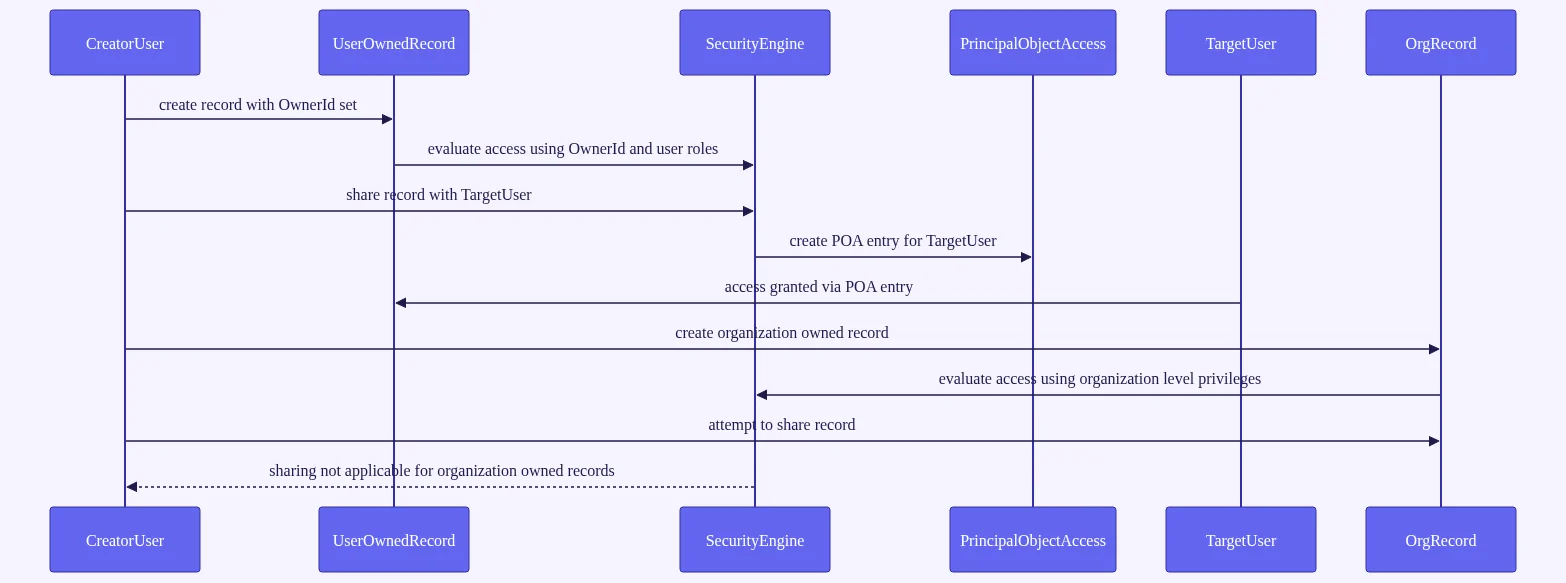
Every time you share a user/team-owned record with someone outside the normal ownership chain, Dataverse writes a row to the PrincipalObjectAccess (POA) table. This table is Dataverse’s internal ledger of explicit sharing operations.
In small implementations, POA growth is manageable. In large enterprise deployments with millions of records and heavy sharing patterns, the POA table can balloon dramatically — degrading query performance across the entire organization.
Best practices to manage POA growth:
- Prefer security role depth levels over explicit sharing wherever possible
- Use Access Teams instead of Owner Teams for supplemental access
- Run Bulk Delete jobs regularly to purge orphaned POA records
- Audit your sharing patterns during the design phase, not after go-live
The Microsoft documentation on record sharing and the POA table provides additional technical detail on this topic.
Organization-Owned Tables: When Simplicity Wins
Ideal Use Cases for Organization-Owned Entities
Not every table needs row-level security. In fact, forcing user/team ownership onto reference data is one of the most common over-engineering mistakes in Dynamics 365 projects.
Organization-owned tables are the right choice for:
- Product catalogs — every sales rep needs to see all products
- Currency records — global reference data with no per-row access requirements
- Unit of Measure (UoM) groups — shared across the entire org
- Global configuration tables — feature flags, system settings, lookup lists
- Skills taxonomies or competency frameworks — read by everyone, edited by admins
Standard Dynamics 365 itself uses organization ownership for many of its core tables: Currency, Product, Territory, and UoM are all organization-owned out of the box.
Performance and Query Advantages of Org-Owned Tables
Organization-owned tables carry a meaningful performance advantage. Because there is no OwnerId column and no ownership filter to apply, FetchXML and OData queries against org-owned tables are simpler and faster. There are no POA joins, no ownership depth calculations, and no business unit traversal required.
For high-volume query scenarios — dashboards, reports, integrations pulling large datasets — this difference is noticeable. If your table will have millions of rows and every user legitimately needs to see all of them, organization ownership is the smarter choice.
Limitations and Common Misconceptions
A persistent misconception is that “organization-owned means public to everyone.” That is not accurate. Access to org-owned records is still gated by security role privileges. A user without the Read privilege on the table cannot see any records, regardless of ownership type.
What organization ownership removes is the per-record differentiation. You cannot grant User A access to Record 1 but deny them access to Record 2 in an org-owned table. It is all-or-nothing at the table level.
Other limitations to be aware of:
- The Share button is unavailable on org-owned records
- Access Teams cannot be used with org-owned tables
- Depth-level security collapses to Organization-only — there is no User or BU depth
- You cannot retrofit row-level security onto an org-owned table later
If you discover mid-project that you need row-level filtering on an org-owned table, your options are limited to fragile workarounds like plugin-enforced query filters — not a sustainable architecture.
How Dynamics 365 User-Owned vs Organization-Owned Entities Interact with the Security Model
Security Roles, Privileges, and Ownership Depth Levels
Security roles in Dynamics 365 define eight core privileges: Create, Read, Write, Delete, Append, AppendTo, Assign, and Share. The ownership type of a table determines which of these privileges are actually meaningful.
For user/team-owned tables, all eight privileges apply. The depth level you set on Read, Write, Delete, and other privileges directly controls the scope of access based on the BU hierarchy.
For organization-owned tables, depth levels collapse. The Assign and Share privileges are irrelevant. The effective scope is always Organization-wide — the privilege either applies to all records or it does not apply at all.
Think of the Dataverse security model as a layered stack:
- Table-level privileges (security roles)
- Record ownership (user/team vs org)
- Explicit sharing (POA entries)
- Field-level security profiles
Ownership sits at layer two. It filters and shapes how layers one and three behave.
Hierarchy Security and Ownership
Dynamics 365 supports Hierarchy Security — either Manager Hierarchy or Position Hierarchy — which extends record access up and down the organizational chart. A manager can see their direct reports’ records automatically, without explicit sharing.
Hierarchy security only works with user-owned records. It has no effect on org-owned tables or team-owned records. If your security requirements include manager-level visibility into subordinate records, user ownership is mandatory.
Field-Level Security: Does Ownership Type Matter?
Field-Level Security (FLS) profiles restrict access to specific columns — for example, hiding a salary field from non-HR users. FLS operates independently of table ownership type. You can apply FLS profiles to columns on both user-owned and org-owned tables.
However, there is an important nuance: even if a user owns a record on a user-owned table, FLS can still prevent them from reading or writing specific fields on that record. Ownership grants record-level access; FLS can still restrict column-level access within that record.
Entity Ownership in Dynamics 365: Real-World Design Scenarios
Scenario 1: Multi-Region Sales Organization with Territory-Based Access
A global sales organization has regional teams in North America, EMEA, and APAC. Sales reps should only see their own Opportunities. Regional managers should see all Opportunities within their region. The VP of Sales needs a global view.
Ownership decisions:
- Accounts and Opportunities → User/Team owned; BU hierarchy mirrors regional structure
- Products and Territories → Organization owned; all reps need to see the full catalog
- Security role depth levels: Rep = User, Manager = Business Unit, VP = Organization
This is a textbook use case for user/team ownership. The BU hierarchy does the heavy lifting — no explicit sharing required, no POA bloat.
Scenario 2: Internal Knowledge Base Accessible to All Staff
A company builds a custom Knowledge Base table in Dataverse. Every employee should be able to read all articles. Only content authors should be able to create or edit articles.
Ownership decision: Organization owned.
All employees get a security role with Read privilege (Organization depth, which is the only option). Authors get an additional role with Create and Write privileges. No row-level filtering needed — org ownership is the correct and simpler choice.
If authors need to draft articles privately before publishing, consider adding a Status column and using a plugin to filter unpublished records — rather than switching to user ownership for the entire table.
Scenario 3: Customer Support Portal with Agent-Specific Case Queues
A support team uses Dynamics 365 Customer Service. Cases arrive via a portal and are routed to queues. Agents see only cases in their assigned queues. Supervisors see all cases across all queues.
Ownership decisions:
- Cases → User/Team owned; cases are assigned to Queues (a special Dataverse team type)
- Queue membership acts as team ownership — all queue members can see cases in their queue
- Supervisors receive a security role with Organization-depth Read on Cases
This scenario illustrates user team ownership records in practice. The Queue entity functions as an Owner Team, and case routing is handled through queue assignment rather than individual user assignment. This keeps the model clean and avoids per-agent explicit sharing.
Cross-scenario lesson: Mixed ownership strategies within a single solution are normal and expected. Not every table needs the same ownership type. Match the ownership type to the actual access requirements of each table individually.
Common Mistakes When Choosing Entity Ownership in Dynamics 365
Mistake 1: Choosing Ownership Without Mapping Security Requirements First
Teams often default to user/team ownership because it “feels safer” — more control, more flexibility. But if the data does not actually need row-level security, this choice adds unnecessary complexity and overhead.
Fix: Run a data access matrix workshop before solution design. For each table, ask: “Who needs to see which records, and does that vary record by record?” Document the answers before opening the table designer.
Mistake 2: Ignoring POA Table Growth in User-Owned Implementations
Heavy use of explicit record sharing — for example, sharing every new record with a global team — causes the POA table to grow rapidly. On large implementations, this can degrade query performance across the entire org.
Fix:
- Audit sharing patterns during the design phase
- Prefer security role depth levels over explicit sharing
- Use Access Teams instead of Owner Teams where supplemental access is needed
- Schedule regular Bulk Delete jobs to purge orphaned POA records
Mistake 3: Attempting to Retrofit Ownership Type After Go-Live
This is the most painful mistake. A client realizes post-go-live that their org-owned custom table needs row-level security. There is no supported in-place migration path.
Fix: The only option is creating a new user/team-owned table, migrating data via Dataflows or custom tooling, and redirecting all relationships, plugins, flows, and integrations. Budget weeks of effort and significant regression testing risk. Avoid this entirely by validating ownership requirements before the first sprint.
Mistake 4: Confusing Organization Depth on a Security Role with Organization Ownership
“Organization” depth on a security role privilege means “this user can access all records of this type, regardless of who owns them.” Organization ownership of a table means “records have no individual owner.” These are related but distinct concepts. A user with Organization-depth Read on a user-owned table can see all records — but the table is still user-owned, and sharing, POA, and assignment still apply.
Mistake 5: Not Accounting for Ownership in Integrations
External systems writing records via the Dataverse Web API must provide a valid OwnerId for user/team-owned tables. If the integration omits this field, the create operation will fail or default to the service account — which may not be the intended behavior.
Fix: Always include OwnerId explicitly in API payloads for user/team-owned tables. Validate this during integration testing, not after go-live.
Best Practices and Pro Tips for Dataverse Table Ownership Configuration
Decision Framework: A Step-by-Step Ownership Selection Checklist
Use this checklist before creating any custom Dataverse table:
Does every authenticated user need unrestricted read access to all records?
→ Yes: Consider Organization owned.
→ No: Continue to step 2.Must access vary record by record based on who owns or created it?
→ Yes: User/Team owned.
→ No: Continue to step 3.Do users need to share specific records with colleagues on an ad hoc basis?
→ Yes: User/Team owned.
→ No: Continue to step 4.Is this a reference, lookup, or configuration table with no sensitive data?
→ Yes: Organization owned.
→ No: Default to User/Team owned and document the reasoning.
This Power Platform table configuration checklist should be part of every solution design review.
Optimizing Performance for User-Owned Tables at Scale
For user/team-owned tables with large record volumes, keep these performance tips in mind:
- Ensure
OwnerIdandOwningBusinessUnitcolumns are included in relevant indexes - Avoid full-table scans in plugins — always filter by ownership context where possible
- Monitor POA table row counts monthly using the Dataverse storage capacity report
- Use the Bulk Delete wizard to schedule regular cleanup of orphaned POA records
- Prefer Access Teams over Owner Teams for supplemental access scenarios
Documentation and Governance for Ownership Decisions
Ownership decisions made today will be inherited by every developer who works on your solution in the future. Document them explicitly.
Your Solution Design Document (SDD) should record:
- The ownership type chosen for every custom table
- The business justification for that choice
- The security role depth levels configured for each privilege
- Any sharing patterns in use and their expected POA impact
Use Power Platform solution checker and custom ALM pipeline gates to flag ownership-related anti-patterns — such as org-owned tables that have been given workaround sharing plugins — before they reach production.
Pro tip: When working with Virtual Tables, validate ownership behavior against the specific external connector being used. Virtual table ownership characteristics depend on the connector, not just the Dataverse configuration. Similarly, Elastic Tables in Dataverse currently support only organization ownership — user/team ownership is not available for this table type. Always verify against the latest Microsoft documentation before committing to a design involving these advanced table types.
Frequently Asked Questions
What is entity ownership in Dynamics 365 and why can’t I change it after table creation?
Entity ownership in Dynamics 365 defines whether a record is controlled by a specific user or team, or by the entire organization. It is set at table creation because it fundamentally changes the table’s schema — adding or removing system columns like OwnerId and OwningBusinessUnit. Changing it post-creation would require restructuring the underlying database table and migrating all existing records and relationships, which Microsoft does not support natively. The only path forward is to create a new table with the correct ownership type and migrate data manually.
What is the difference between user-owned and organization-owned tables in Dataverse?
User or team-owned tables assign every record to a specific owner — a user or team — enabling row-level security where access can vary record by record. Organization-owned tables have no per-record owner. All users with the appropriate security role privilege can access all records. User/team-owned tables support sharing, Access Teams, and depth-level security roles. Org-owned tables do not. The right choice depends entirely on whether your use case requires per-record access differentiation.
Can I use row-level security on organization-owned tables in Dataverse?
No. Row-level security — where different users see different records based on ownership — is only available on user or team-owned tables. Organization-owned tables grant access to all records of that type to anyone with the Read privilege, regardless of who created or modified the record. If you need row-level filtering on an org-owned table, you must use workarounds like plugin-enforced query filters, which are fragile and not recommended as a long-term architecture.
How does the PrincipalObjectAccess (POA) table relate to user-owned records in Dynamics 365?
The POA table is Dataverse’s internal log of every explicit record-sharing operation on user/team-owned tables. Each time you share a record with a user or team outside the normal ownership chain, a row is written to POA. In large implementations with heavy sharing, the POA table can grow significantly — causing query performance degradation across the org. Best practices include minimizing explicit sharing, using Access Teams instead of Owner Teams, and regularly purging orphaned POA records via Bulk Delete jobs.
Does the ownership type of a Dataverse table affect Power Automate flows?
Yes, significantly. When a Power Automate flow creates a record in a user/team-owned table, the OwnerId defaults to the user account the flow runs as — either the flow owner or a service account, depending on connection configuration. If records should be owned by the triggering user rather than the service account, you must explicitly pass the OwnerId in the Create Row action. For org-owned tables, this is not a concern since there is no OwnerId field. Always validate ownership assignment behavior in your flows during testing.
What are Elastic Tables in Dataverse and how do they handle ownership?
Elastic Tables are a Dataverse table type optimized for high-volume, time-series, or IoT-style data at massive scale. Unlike standard Dataverse tables, Elastic Tables currently support only organization ownership — user or team ownership is not available for this table type. This means Elastic Tables are best suited for scenarios where all users need access to all records and row-level security is not required. Always check the latest Microsoft Dataverse documentation for updates to Elastic Table feature availability before designing around this table type.
Conclusion: Make Entity Ownership in Dynamics 365 Your First Design Decision
Entity ownership in Dynamics 365 and Dataverse is not a checkbox — it is a foundational architectural commitment that shapes your security model, performance profile, and long-term maintainability from day one.
By understanding the critical differences between user or team ownership and organization ownership, mapping your security requirements before you build, and avoiding the common pitfalls outlined in this guide, you will design solutions that scale gracefully and satisfy even the most demanding compliance requirements.
The key takeaways are straightforward:
- User/team ownership → use when access must vary record by record; enables row-level security, sharing, and depth-level security roles
- Organization ownership → use for reference data, lookup tables, and any data every user legitimately needs to see; simpler, faster, and lower overhead
- Always decide ownership type before you create the table — there is no supported path to change it later
- Document your decisions in a Solution Design Document and validate them with security stakeholders before committing
Whether you’re a seasoned Dynamics 365 consultant or a Power Platform maker stepping into your first enterprise project, these principles apply every time you create a new Dataverse table. The cost of a sandbox experiment is far lower than a post-go-live migration.
Ready to put this into practice? Share this article with your team, bookmark the ownership decision checklist in the best practices section, or drop your toughest ownership design question in the comments below — our community of Microsoft experts is ready to help you get it right the first time.